How to Get an AI Logo With a Transparent Background (Ready to Animate)
By the Charmotion team · Updated
To get an AI logo with a transparent background, use a generator with a real alpha option, such as OpenAI's image API with background set to transparent and PNG or WebP output, or Ideogram's transparent endpoints. Otherwise, generate the logo on a flat, solid background and remove it afterwards, then check the edges for halos before you animate it.
Key takeaways
- Transparency needs an alpha channel: save as PNG or WebP. JPEG has no alpha channel, so a JPEG logo is never transparent.
- As of November 2026, OpenAI's image API accepts background: "transparent" with PNG or WebP output, and Ideogram has dedicated transparent-background endpoints.
- When a tool has no alpha option, prompt for one flat, solid background color that does not appear in the logo, with no shadow, gradient or mockup.
- Halos are background color mixed into soft edge pixels. Color decontamination or a tighter mask removes them.
- Check the cutout over white, black and your real background at 100 to 200% zoom before you animate or vectorize it.
Already have a character or logo? See examples in real app screens: splash, onboarding, loading and empty-state screens, with the animation that plays in each.
Which AI logo generators can export a transparent background?
Only a few give you a real alpha channel straight from generation. The rest produce an opaque image, and you remove the background afterwards. As of November 2026, the documented options are:
| Tool | Transparent output | How |
|---|---|---|
| OpenAI image API (GPT Image models) | Yes, on supported models | background: "transparent" with output_format set to png or webp |
| Ideogram API | Yes | Separate generate-transparent endpoints for Ideogram 3.0 and 4.0; the 4.0 result "is delivered as a PNG with an alpha channel" |
| Recraft API | After generation | A remove background tool (PNG or lossless WebP out) and a vectorize tool that returns SVG |
| Generators without an alpha option | No | Generate on a flat, solid background, then remove it (below) |
Whatever the tool, the file format decides whether transparency survives. MDN puts it plainly: "JPEG does not support an alpha channel," while PNG features "full alpha transparency support" and WebP supports transparency too. If a download arrives as JPEG, there is nothing transparent in it to keep.
A warning about chat apps and generators without an alpha switch: asking for a "transparent background" in the prompt does not create one. The model can only paint pixels, so you may get white, gray or something that looks like a checkerboard, and the file is still opaque. Open the download in an editor and look for real transparency before you build on it.
How do you use OpenAI's background: transparent parameter?
In the OpenAI image API, background takes transparent, opaque or auto. The default is auto, where "the model will automatically determine the best background," so set it explicitly for a logo. The API reference says the parameter "is only supported for the GPT image models" and: "When using transparent, set the output format to png or webp."
POST https://api.openai.com/v1/images/generations
{
  "model": "<a GPT Image model that supports transparent backgrounds>",
  "prompt": "Flat vector logo mark for a coffee brand called Ember: a simple rounded flame, two colors, centered, no shadow, no text effects",
  "background": "transparent",
  "output_format": "png"
}
Support depends on the model. As of November 2026 the reference lists which GPT Image models support opaque and transparent backgrounds, and marks support on gpt-image-2 as a preview, so check the reference for the model you call. The image generation guide adds that you should use low quality for quick drafts and compare higher quality settings for final assets.
Two habits help: describe the logo as isolated and centered in the prompt as well, and generate a few drafts at low quality before you pay for a final render.
Why is a flat, solid background the safest prompt?
Because it turns background removal into a simple, predictable step. A single flat color can be keyed out exactly, while gradients, paper textures, drop shadows and mockups get partly cut into the logo or leave a dirty edge.
When your generator has no alpha option, write the background into the prompt:
Flat vector logo for a podcast app called Hushwave: a simple sound-wave mark,
two colors (navy and coral), centered with generous empty space around it,
on a plain solid pure green background. No shadow, no gradient, no texture,
no frame, no mockup, no extra text.- Pick a color the logo does not use. GIMP's Color to Alpha "makes transparent all pixels of the active layer that have a selected color," so any part of the logo in that color disappears with it.
- Prefer a background close in brightness to where the logo will appear, when that color is not in the logo. Whatever background color leaks into the soft edge pixels is then far less visible.
- Ask for empty space around the mark. Logos that touch the canvas edge get cropped, and padding gives an animation room to move.
- Keep lettering out of the mark if you can. AI generators often get letters slightly wrong; retyping the brand name in a real font later gives you clean, editable text.
How do you remove the background from an AI logo afterwards?
Pick the method by how clean the background is.
- Solid color background: use a color-keying tool such as GIMP's Color to Alpha. It "attempts to preserve anti-aliasing information," so the soft edge pixels become partly transparent instead of jagged.
- Anything else: use a segmentation model. The open-source rembg (MIT licensed) runs as a CLI, Python library or server and ships several models, including the BiRefNet family; BiRefNet itself is an MIT-licensed model for high-resolution "dichotomous image segmentation." Note rembg's warning that model weights have their own licenses, and its default model needs a paid agreement for commercial use.
- Hosted APIs: Recraft's remove background tool accepts PNG, JPG, WebP and SVG; raster input returns lossless WebP by default or PNG, and SVG input returns SVG.
After any automatic cutout, check the enclosed gaps inside letters and shapes (the hole in an O, the space inside a ring). A model can treat them as part of the subject and leave them filled with background color.
If the logo will become an animated GIF later, plan for its 1-bit transparency now: see PNG to transparent animated GIF.
Why does my transparent logo have a white or colored halo?
Because edge pixels are a blend of logo and background. The rembg documentation explains it with one formula: captured = alpha * foreground + (1 - alpha) * background. Making that pixel semi-transparent "does not undo the blend, so the background color stays mixed into it and shows up as a colored halo." A logo generated on white keeps a light rim; one generated on green keeps a green rim.
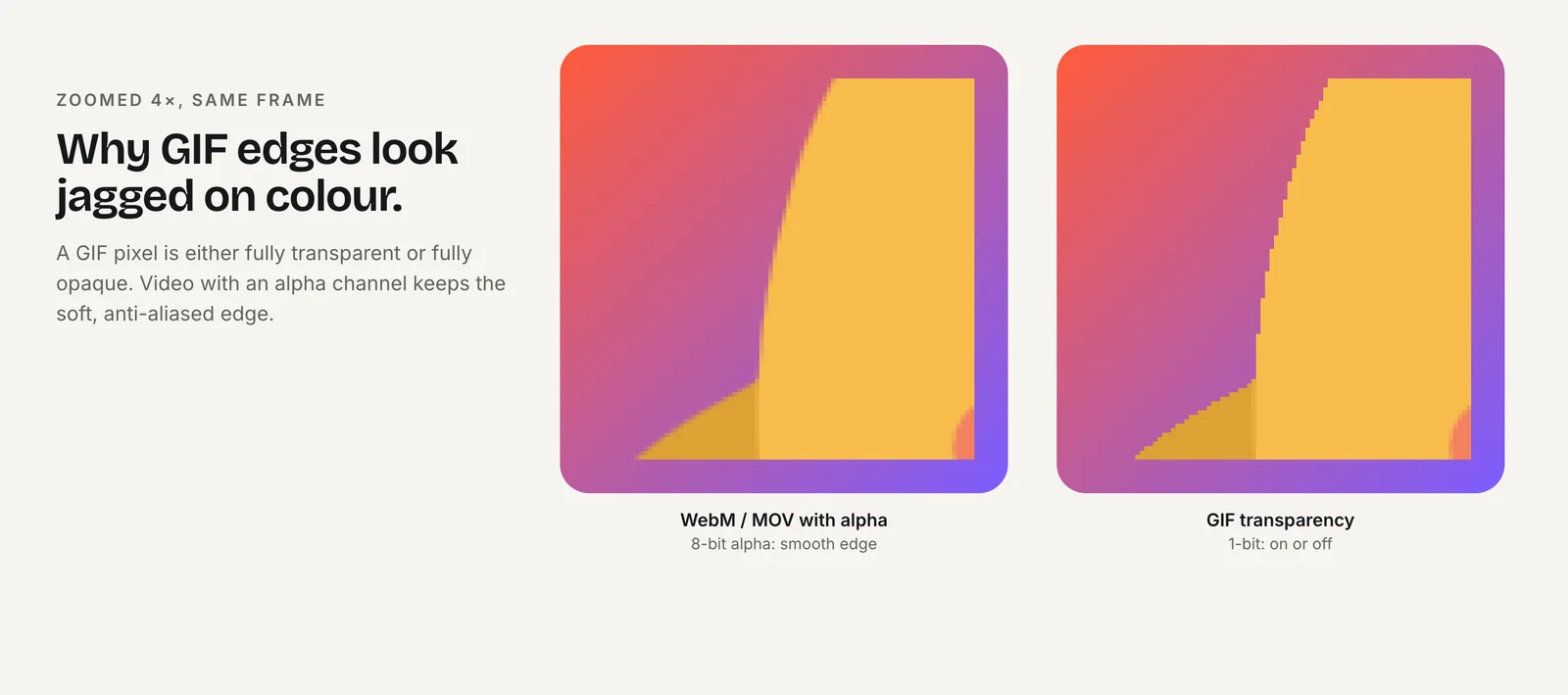
Ways to fix it, roughly in order of effort:
- Decontaminate the edge colors. rembg's
-dcoption estimates the true foreground color and writes it back; its docs call this the same operation Photoshop calls Decontaminate Colors. Use it "when the cutout has a colored halo." - Use alpha matting only when the mask shape is wrong, not just its color. rembg describes
-aas much slower than-dc, and says hard-edged subjects such as logos often need neither. - Shrink the mask by one pixel in your editor if a thin rim survives.
- Regenerate on a background closer to the final one, or with the API's transparent option, when the halo is wide.
How do you check resolution and edges before you animate?
A checkerboard preview hides problems. Run these checks on the final PNG:
- Three backgrounds. Place the logo over white, black and your real brand or page color. Halos show on the opposite brightness.
- Zoom to 100 to 200%. Look along curves, thin strokes and inside counters for stray pixels or leftover background.
- Solid fills stay solid. Shapes inside the logo should be fully opaque. Partly transparent fills will look washed out over a dark page.
- Trim and pad evenly. Crop to the artwork, then add equal transparent padding on all sides so the logo is centered for animation.
- Keep the largest master. Export at the biggest size your generator gives you and keep it as the master; scale down copies from it, never up.
- Check the brand colors. Sample the main color and compare it with your brand value; generators drift.
Then compare the cutout with the original at the same size, so you know the removal did not eat any of the design.
Should you vectorize an AI logo to SVG?
Vectorize when the logo is flat: a few solid colors, clear shapes and no photographic shading. An SVG scales to any size and can be split into parts for rigging. For gradients, 3D or painterly logos, keep the transparent PNG.
- Inkscape Trace Bitmap is free. Its Brightness cutoff mode is "the most frequently used mode" and is "ideal to vectorize dark silhouettes in front of a bright background," while multi-color tracing creates one object per color, which the manual says "can be difficult to edit." It also warns not to expect a "100% faithful representation" of the picture.
- Recraft's vectorize API turns PNG, JPG or WebP into SVG and advises you to "Cut out the subject before vectorizing." For new logos, its docs suggest you "skip vectorizing and generate with a
_vectormodel."
After tracing, snap colors to your exact brand values, delete stray tiny paths, and replace traced lettering with real text in a font you have a license for. Then check that groups are named and separated before you animate: see SVG to Rive and how to animate a logo from a PNG.
Can you design and animate a transparent logo in one place?
Yes. In Charmotion, Create, A logo, Design it with AI generates a flat logo on a plain background from your brand name and a few choices. When you animate that design, its flat background is removed for you, so you don't need any of the cutout steps above. The free plan includes 2 AI designs (logos or characters).
For a logo you already have, SVG works best; PNG, JPEG and WebP (at least 512 px, up to 10 MB) work too. Motion mode removes the background on Charmotion's own machines and falls back to a BiRefNet model only when it can't. The animation moves your exact artwork rather than redrawing it. Start with your logo or read how it works.
Get an AI-generated logo as a clean transparent PNG
- Choose the generation route. Use a tool with a real transparent option (OpenAI's image API with background transparent and PNG or WebP output, or Ideogram's transparent endpoints), or plan to remove a solid background.
- Prompt for a clean mark. Flat colors, centered, empty space around it, and either transparency or one solid background color the logo does not use. No shadow, gradient, texture or mockup.
- Remove the background if needed. Key out a solid color with a tool like GIMP's Color to Alpha, or use a segmentation model such as BiRefNet through rembg or a hosted API.
- Fix halos. Decontaminate edge colors, shrink the mask by a pixel, or regenerate on a closer background color.
- Check edges and size. View the PNG over white, black and your brand color at 100 to 200% zoom, check enclosed gaps, then trim and pad evenly.
- Vectorize if it is flat. Trace flat logos to SVG, snap colors to brand values and retype lettering in a real font before you animate.
Frequently asked questions
Can a JPEG logo have a transparent background?
No. JPEG has no alpha channel, so every pixel is opaque. Use PNG or WebP for a transparent logo, and ask your generator or API for one of those formats.
Why does my AI logo show a checkerboard that will not go away?
The generator painted the checkerboard as part of the picture. The file has no real transparency, so the pattern is ordinary pixels. Generate again with a real transparent option, or on a solid color you can remove.
Does removing the background change the logo itself?
It can. Automatic cutouts sometimes trim thin strokes, fill enclosed gaps or leave a colored rim. Compare the cutout with the original at the same size, and fix the mask before you animate or vectorize it.
Sources
- Create image (API reference: background, output_format), OpenAI
- Image generation guide, OpenAI
- Generate with Ideogram 3.0 (Transparent Background), Ideogram
- Generate with Ideogram 4.0 (Transparent Background), Ideogram
- Remove background (API reference), Recraft
- Vectorize (API reference), Recraft
- Image file type and format guide, MDN Web Docs
- Color to Alpha, GIMP Documentation
- rembg: README (models, color decontamination, alpha matting), rembg on GitHub
- BiRefNet: Bilateral Reference for High-Resolution Dichotomous Image Segmentation, BiRefNet on GitHub
- Tracing an image (Trace Bitmap), Inkscape Beginners' Guide
Related guides
- How to Animate a Logo From a PNG or AI Image
- PNG to Transparent Animated GIF: Halos, Edges and Better Formats
- Transparent Animated Logo: Formats, Editors, Slides and OBS
- SVG to Rive: Import an SVG and Animate It
- Can You Copyright or Trademark an AI-Generated Logo?
- How to Animate a Logo or Character From Claude, Cursor or VS Code With MCP