SVG to Rive: Import an SVG and Animate It
By the Charmotion team · Updated
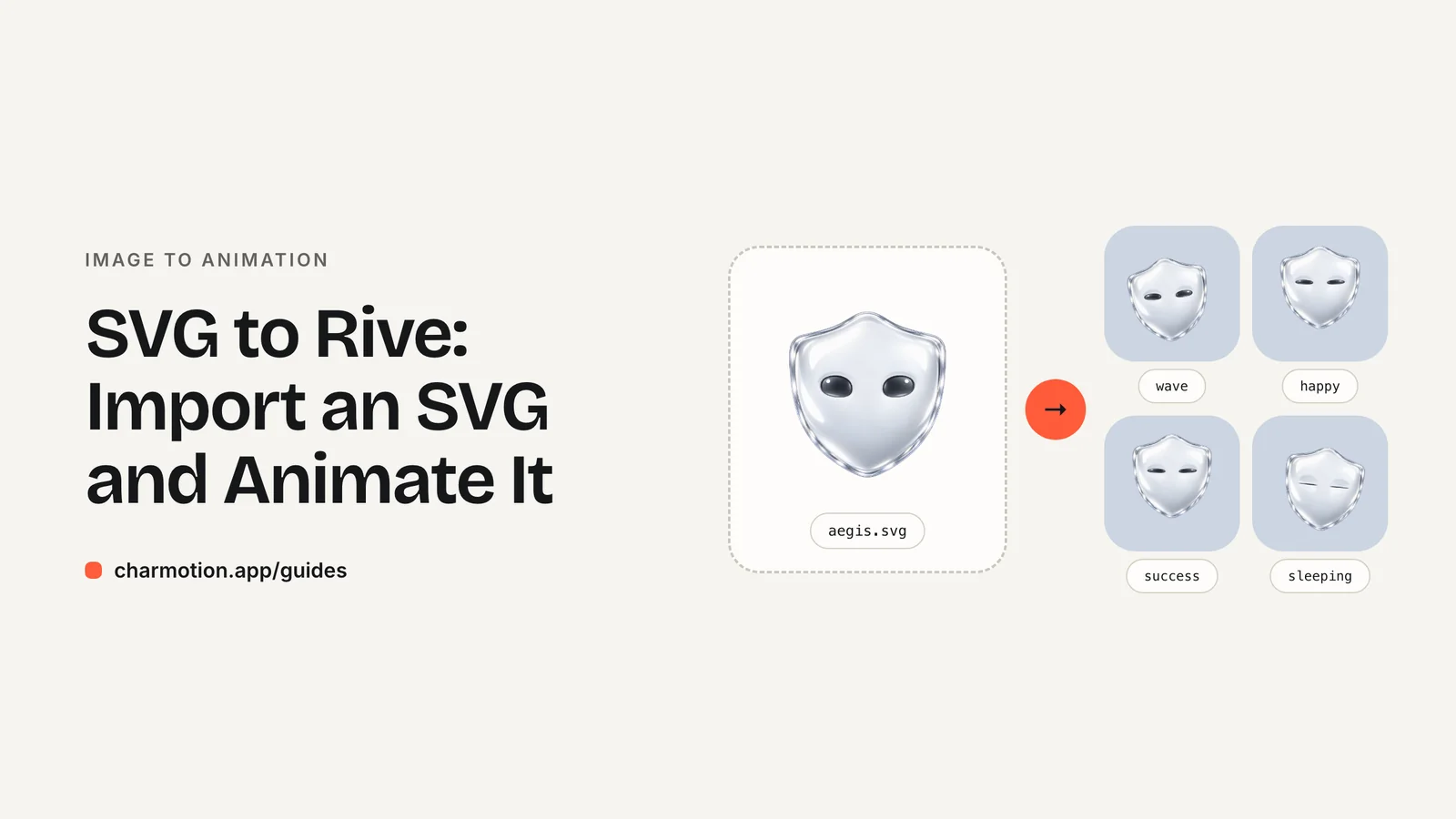
To animate an SVG in Rive, drag the file into the editor: Rive converts it into native vector objects rather than keeping it as an embedded file, so every shape stays editable. Then group the shapes into body parts, set each group's pivot, add bones where parts should bend, keyframe your animations and connect them in a state machine.
Key takeaways
- Rive converts imported SVGs into editable Rive vector objects.
- The SVG's layer structure becomes your rig's structure, so name and group layers in the design tool before exporting.
- Outline strokes and expand text if they import oddly; flatten effects Rive doesn't support.
- Vector characters keep the .riv small and sharp at any size, which is why flat artwork is the best starting point.
Already have a character or logo? Preview your own character animated in a phone splash, a website hero and an empty state — free, in your browser, nothing uploaded.
Does Rive support SVG import?
Yes. Rive lists SVG among its importable formats and notes that SVGs are "converted to Rive vector objects rather than exported as separate file assets". That is the key advantage over a PNG: you can select any path, change its points, recolor it and bind it to bones directly.
How should I prepare the SVG?
- Group by body part. Head, eyes, mouth, body, left arm, right arm, accessories. Each group becomes something you can rotate on its own.
- Name the layers. Names carry into the hierarchy and save you guessing later.
- Draw what's hidden. If an arm will swing, the body behind it should be complete, or a hole appears.
- Keep it simple. Outline complex strokes, expand text into shapes, and flatten filters and blend effects that don't map to vector paths.
How do I rig an imported SVG?
Set each group's origin to where it should rotate (the shoulder for an arm, the neck for the head). For stiff parts, parenting to a bone is enough. For parts that should bend, bind the path's vertices to a bone chain; Rive lets you bind vertices and Bézier handles with weighted influence. Then keyframe timelines and build the state machine, as covered in the PNG to Rive guide.
Why does my SVG look wrong in Rive?
- Missing gradients or effects: SVG filters, masks and some blend modes have no direct equivalent; rebuild them with Rive's own fills or flatten them in the design tool.
- Thousands of tiny paths: auto-traced SVGs often import as hundreds of shapes. Clean up the trace first; a lighter file animates and renders better.
- Everything in one group: regroup before rigging, or you'll fight the hierarchy on every keyframe.
Can I get a rigged .riv without doing this myself?
If you'd rather not rig and keyframe, Charmotion builds the .riv from an image of your character: it traces flat artwork into vector parts, sets pivots, rigs it, keyframes 17 animations and wires both a data-binding view model and a classic state machine. Upload a PNG, JPEG or WebP export of the SVG. Preview it with your character before choosing a plan.
Frequently asked questions
Does Rive keep my SVG as vectors?
Yes. Imported SVGs become native Rive vector objects you can edit, rather than an embedded image.
Can I export a Rive animation back to SVG?
Not as an animated SVG. Rive exports .riv for its runtimes, plus video and image sequences for other uses.
Should I trace my PNG to SVG before using Rive?
For flat, solid-color artwork, yes: vectors animate more flexibly and keep the file small. For detailed or shaded art, keep the PNG and use meshes instead.
Quick answers from this guide
Sources
- Importing assets — Rive
- Bones — Rive
- Meshes — Rive
- State Machine — Rive
- Exporting for video and static design — Rive