How to Animate a Logo From a PNG or AI Image
By the Charmotion team · Updated
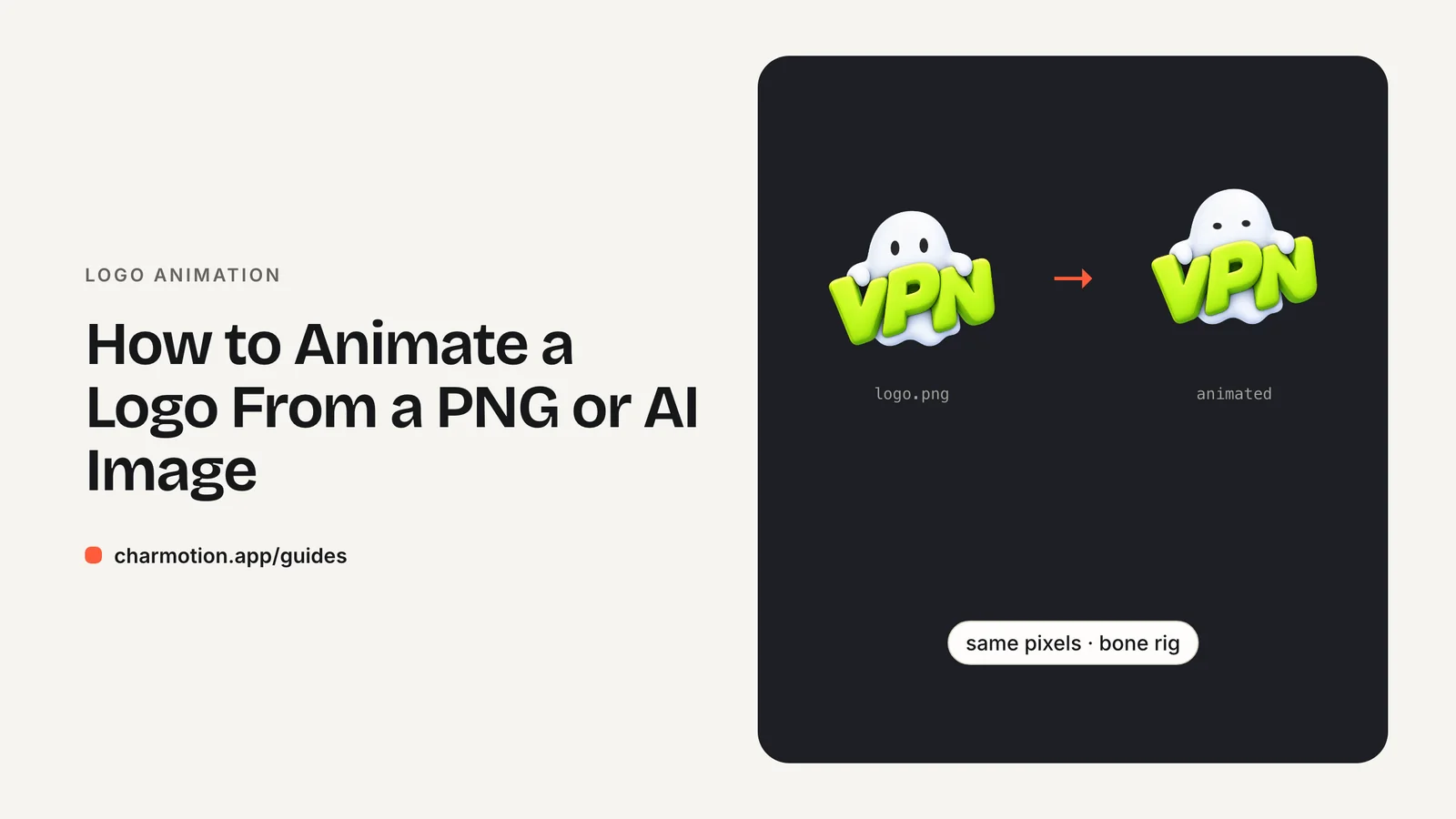
To animate a logo from a PNG, either trace it into vector shapes and animate the parts, or keep the original pixels and deform them with a mesh and bones. Tracing suits flat logos; keeping pixels suits 3D, gradient and AI-generated logos. Remove the background first, then export Rive, transparent video and MP4.
Key takeaways
- Flat logos can be traced to vector and animated part by part; detailed or AI-generated logos look best when their pixels are kept and deformed.
- Remove the background cleanly before animating, or the edges will show on every background you place it on.
- Keep logo motion short, end on the original resting pose and never flash.
- Ship Rive or transparent video for the web, HEVC with alpha for Safari, and MP4 for social and video edits.
Can you animate a flat PNG or JPG logo?
Yes. A PNG or JPG is just pixels, but there are two reliable ways to bring it to life.
1. Rebuild it as vector. Trace the logo into shapes in a vector editor (or use an auto-trace tool and clean up the result), then separate it into parts: the symbol, each letter, any accent marks. Each part can then move on its own: letters can drop in one by one, a symbol can spin or draw itself on. This is the classic motion-design route and works best when the logo is already flat with solid colors.
2. Keep the pixels and deform them. Cut the logo out of its background, place a mesh over it and bind the mesh to a few bones. Moving the bones squashes, stretches, tilts and bends the original artwork. Nothing is redrawn, so the logo looks exactly like the file you started with.
A quick way to decide:
- Solid colors, clean edges, the logo exists as SVG somewhere: vector.
- Gradients, glows, textures, 3D shading or an AI-generated image: keep the pixels.
- Logo is mostly text: vector, so letters stay crisp and can be animated individually.
Before either route, find the largest version of the file you have. Animation exposes blur and compression artifacts that look fine in a still.
Should you trace the logo to vector or keep the pixels?
Each approach has strengths. This table summarizes the trade-offs:
| Trace to vector | Keep pixels (mesh deform) | |
|---|---|---|
| Fidelity to the original | Can drift; gradients and shading are hard to recreate | Exact, because the original pixels are used |
| Kinds of motion | Anything: parts can move, morph, draw on | Squash, stretch, bend, tilt, hop, blink |
| Scaling | Sharp at any size | Limited by the source resolution |
| File size | Very small for flat designs | Includes the image, so larger |
| Best for | Flat marks, wordmarks, icons | 3D, gradient, painted and AI-generated logos |
Tracing a detailed logo is where most projects go wrong. Auto-trace turns a soft gradient into dozens of color bands, and hand-redrawing a 3D render rarely matches the original. If the brand team signed off on a specific image, keeping its pixels avoids reopening that approval.
Mesh deformation has its own limit: it can only move what is visible. It cannot turn a logo around to show its back or reveal a hidden side. Motion stays in the picture plane: bends, bounces, tilts and squashes.
How do you animate an AI-generated or 3D logo?
AI-generated logos are usually raster images with lighting, gradients and soft shadows baked in. They do not come as layers, and the "text" is often painted pixels rather than real letters. That makes the keep-the-pixels route the natural fit.
- Remove the background. Most AI images sit on a colored or textured backdrop. Cut the logo out to a clean alpha channel, with no halo from the old background around the edges.
- Find the moving parts. If the logo has a face or eyes, locate them so they can blink. If it has a clear top and base, that sets where it squashes and stretches.
- Rig with a few bones. A spine of two to four bones is enough for hops, tilts and bends. More bones give finer control but make the motion harder to keep tasteful.
- Protect the text. Keep lettering in a stiff region of the mesh so it moves as a block instead of warping and becoming unreadable.
- Keep the shading. Because the pixels are moved rather than redrawn, highlights and shadows travel with the shape.
This is how Charmotion's motion mode works. Logos with 3D, gradients, text or AI-generated JPG artwork get their background removed, eyes found for blinks, and the artwork's own pixels deformed by a bone rig. Nothing is redrawn or restyled.
What makes a good logo animation?
A logo animation should leave the brand clearer than before, not just busier. Checklist:
- Starts and ends on the real logo. The resting pose should be the approved artwork, unchanged, so a paused frame or the last frame always looks right.
- Stays legible. If the name becomes unreadable mid-motion for more than an instant, the animation is working against the logo.
- Has one idea. A hop, a bounce, a draw-on, a blink. Combining five effects reads as noise.
- Matches the brand's tone. A bank can nod; a game studio can bounce.
- Doesn't flash. WCAG 2.3.1 limits anything to three flashes in any one-second period (W3C). Avoid strobing glows and rapid color swaps.
- Has a still fallback. When the viewer prefers reduced motion, show the static logo (MDN).
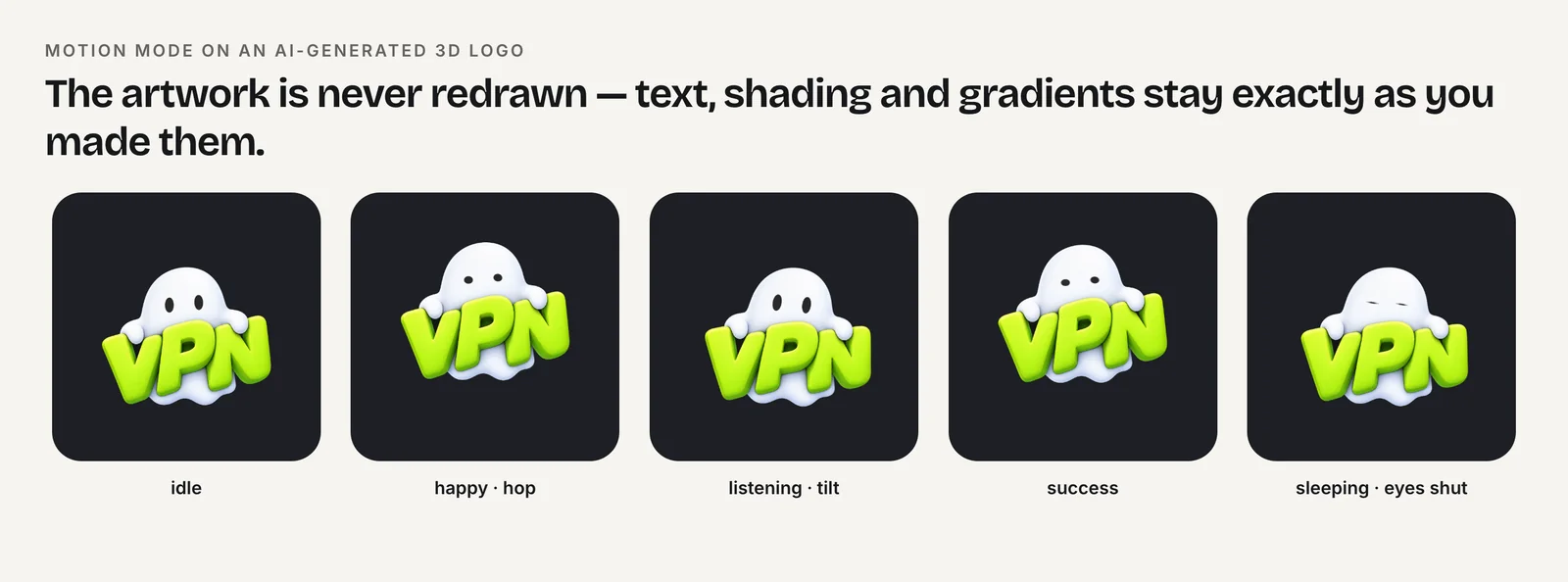
Plan a small family of motions rather than one. A reveal for intros, a gentle idle loop for a hero, a success bounce for confirmations and a calm resting state cover most places a logo appears.
How long should a logo animation be?
It depends on where the logo plays. The rule is the same everywhere: the shorter the wait it causes, the better.
| Context | Length guidance |
|---|---|
| Android 12+ splash icon | Google recommends no more than 1,000 ms on phones (Android Developers) |
| In-app launch intro | About a second for the part that delays interaction; let the rest play over a live screen |
| Website hero loop | A seamless loop; settle to a still after a few cycles |
| Video intro or outro | A few seconds, matched to the edit's pace and any sound cue |
| Reactions (success, error) | Short enough to finish before the user reads the result |
Loops on a web page deserve extra care. Motion that starts automatically, lasts more than five seconds and appears alongside other content needs a way to pause, stop or hide it under WCAG 2.2 SC 2.2.2. A hero logo that loops a few times and then rests avoids the problem and keeps attention on your headline.
For app launches specifically, see the launch and splash screen animation guide.
Which formats do you need for web, apps and video?
No single file covers every channel. A complete logo animation kit usually contains:
| Where | Format | Why |
|---|---|---|
| Website or web app, interactive | Rive (.riv) | One small file, several states, reacts to code |
| Website, transparent loop | WebM (VP9 alpha) + MOV (HEVC alpha) | Chrome, Edge and Firefox play VP9 alpha; Safari needs HEVC alpha |
| App splash (Android) | AnimatedVectorDrawable | The SplashScreen API's animated icon format |
| Video edits, intros, outros | MOV with alpha | Drops over footage in an editor |
| Social, store previews, slides | MP4 | Plays everywhere |
| Email, docs, chat | GIF | Preview only |
Safari plays WebM but drops the VP9 alpha channel, so a transparent WebM shows an opaque background there (Can I use). That is why you need both transparent files.
GIF is a poor final format for logos: it supports at most 256 colors and only on/off transparency, so gradients band and edges look jagged (MDN). Video is also far smaller; web.dev's example cut a 3.7 MB GIF to a 551 KB MP4 (web.dev). More in GIF vs WebM vs MP4 vs Rive.
How do I add an animated logo to my website hero?
For a transparent logo loop, use a muted, inline video with two sources. HEVC must come first, because Safari can play VP9 but not its alpha channel (Jake Archibald):
<video autoplay muted loop playsinline
       poster="/img/logo-still.png" width="480" height="480">
  <source src="/img/logo.mov"
          type='video/quicktime; codecs="hvc1.1.6.H120.b0"'>
  <source src="/img/logo.webm"
          type='video/webm; codecs="vp09.00.41.08"'>
</video>
Notes on that markup:
mutedandplaysinlineare what let it autoplay, including on iPhone. Ifplay()is rejected, the poster stays visible (MDN).- The poster should be the logo's resting pose, so the hero looks finished before the video loads.
- Set
widthandheightto avoid layout shift. - Under
prefers-reduced-motion: reduce, swap the video for the still image.
If the logo should react, for example bouncing on hover or celebrating after a sign-up, use a Rive file instead and switch states from code. See transparent video on a website and Rive in React and Next.js.
How to animate a logo from a PNG
- Get the best source file. Find the largest PNG or JPG of the logo, or the original SVG if one exists.
- Choose vector or pixels. Trace flat logos to vector and split them into parts; keep the original pixels for 3D, gradient or AI-generated logos.
- Remove the background. Cut the logo out to a clean alpha channel with no halo from the old background.
- Rig and animate. Animate vector parts directly, or bind a mesh to a few bones to squash, tilt and bounce raster artwork. Keep text in a stiff region.
- End on the resting pose. Make every animation start and finish on the approved logo, and add a static fallback for reduced motion.
- Export for each channel. Export Rive for interactive web use, HEVC MOV and VP9 WebM with alpha for transparent loops, and MP4 for social and video.
Frequently asked questions
Can I animate a logo without the original vector file?
Yes. You can trace the PNG into vector shapes, or keep the pixels and deform them with a mesh and bones. Keeping the pixels is often better for detailed logos, because tracing loses gradients and shading. Use the highest-resolution file you have.
How do I animate an AI-generated logo?
Remove the background, then animate the original pixels with a mesh and bone rig rather than redrawing the logo. That keeps the lighting and shading the AI produced. Keep any lettering in a stiff part of the mesh so it stays readable while the rest bends.
What is the best format for an animated logo on a website?
For a transparent loop, use video with two sources: HEVC MOV with alpha for Safari, then VP9 WebM with alpha for other browsers. For a logo that reacts to hover or clicks, use a Rive file. Avoid GIF, which bands gradients and has jagged edges.
Why does my transparent WebM logo show a black background in Safari?
Safari plays WebM but drops the VP9 alpha channel, so transparency is lost. Add an HEVC-with-alpha MOV as the first source in your video element; Safari will pick it, and Chrome, Edge and Firefox will fall back to the WebM.
Sources
- Video with alpha transparency on the web — Jake Archibald
- WebM video format — Can I use
- Image file type and format guide — MDN Web Docs
- Replace animated GIFs with video for faster page loads — web.dev
- Splash screens — Android Developers
- Understanding SC 2.3.1: Three Flashes or Below Threshold — W3C WAI
- prefers-reduced-motion — MDN Web Docs
- Autoplay guide for media and Web Audio APIs — MDN Web Docs