Animated Logos for Café, Gym and Shop Screens
By the Charmotion team · Updated
For café, gym or shop screens, use a silent H.264 MP4. It is the format signage players such as Yodeck, BrightSign and ScreenCloud document support for, while GIFs may be converted to still images. Match the screen's orientation, loop a short clip into a longer file so playlists don't stutter, and reuse a 9:16 version for Instagram Reels.
Key takeaways
- ScreenCloud converts uploaded GIFs to still JPGs and suggests converting them to MP4.
- Yodeck re-encodes video to H.264 up to 1920×1080 at 30 or 60 fps; BrightSign plays H.264 and H.265 in MP4 and MOV.
- A square 1080×1080 clip goes in a layout zone or gets padded to 1920×1080 or 1080×1920 with a brand color.
- Loop a few-second clip into a longer file, and avoid anything that flashes more than three times a second.
- Reels are 9:16; keep the logo clear of the top 14%, bottom 35% and 6% on each side, per Meta's ad specs.
Already have a character or logo? See your character in real app screens: splash, onboarding, loading and empty-state screens. It's free, runs in your browser and uploads nothing.
Which file format works on digital signage players?
H.264 video in an MP4 file, without audio. Here is what three common players document:
| Player | What its docs say | What that means for you |
|---|---|---|
| Yodeck | Re-encodes all uploaded video to H.264, up to High Profile Level 4.1, which it translates to 1920×1080 at 30 or even 60 fps; supports MP4, TS, MKV and other containers (Yodeck) | Upload an MP4 at 1080p or less |
| BrightSign | Supports H.264 and H.265 in MP4, MOV, TS and other containers, with limits that vary by model; recommends fast start for MP4 (BrightSign) | Use MP4 with +faststart; check your model's page |
| ScreenCloud | Transcodes video to H.264 MP4 at 1920×1080 or 1080×1920, and converts uploaded images, including GIFs, to JPG (ScreenCloud); its GIF guide recommends converting to MP4 (ScreenCloud) | Never upload the GIF; upload the MP4 |
For a TV that plays files from a USB stick, check the TV's manual for supported formats; H.264 MP4 is the safe first try. Transparent formats (WebM with alpha, HEVC MOV with alpha) are for overlays in editing software and websites, not for signage players.
Should the logo be portrait or landscape?
Match the screen. A TV on the wall is usually landscape (1920×1080); a menu board or a screen beside a door is often mounted portrait (1080×1920).
- Layout zone: most signage apps let you split the screen. Put the square logo clip in a corner zone and keep menu text in its own zone.
- Full screen: pad the square clip onto a canvas of the right shape, in your brand's background color, so the player doesn't add black bars.
- Portrait launch: a 9:16 launch video (1080×1920) plays full screen on a portrait display as-is, as an intro before the loop.
This command pads a square clip onto a 1920×1080 canvas, repeats it ten times, removes any audio track and moves the index to the front. It was tested with ffmpeg 7.1.1 and produced a 30-second H.264 High Profile file from a 3-second demo clip:
ffmpeg -stream_loop 9 -i wave.mp4 -vf "pad=1920:1080:(ow-iw)/2:(oh-ih)/2:color=0xF4EFE6,fps=30" -c:v libx264 -profile:v high -pix_fmt yuv420p -an -movflags +faststart wave-landscape.mp4For a portrait screen, change the pad to pad=1080:1920. Replace 0xF4EFE6 with the hex of the clip's background so the edges disappear.
How long should the loop be, and how do I avoid the jump?
Use a seamless loop of a few seconds and repeat it inside the file. Players handle a playlist item ending and restarting differently, and some show a brief pause or black frame between items. A 30-second file made of ten seamless repeats restarts ten times less often than the original clip; test on your own player to see whether it matters.
- Start clean: if you have an intro, put it at the start of the playlist as a separate item and loop only the idle or wave clip after it.
- Calm by default: idle, wave or happy work for hours. Save attention for a specific promotion.
- No flashing: public screens are seen by everyone, including people with photosensitive epilepsy. WCAG's threshold is no more than three flashes in any one-second period (W3C). Avoid strobing light effects in any clip you add.
- Prices stay still: the logo moves; menu text, prices and opening hours don't.
Which logo moods suit a café, gym or bakery?
| Business | Moment | Mood |
|---|---|---|
| Café | Morning welcome screen | wave (2) |
| Café | All-day menu board corner | idle (0) or happy (1) |
| Café, bakery | Closing soon, closed | sleeping (8) |
| Gym | Class starting soon | attention (9) |
| Gym | Monthly challenge leaderboard | success between leaderboard slides |
| Bakery, shop | New item or offer slide | attention (9) next to the offer text |
Most signage apps can schedule playlists by time of day, so a morning wave and an evening sleeping loop take no extra work once both files are uploaded.
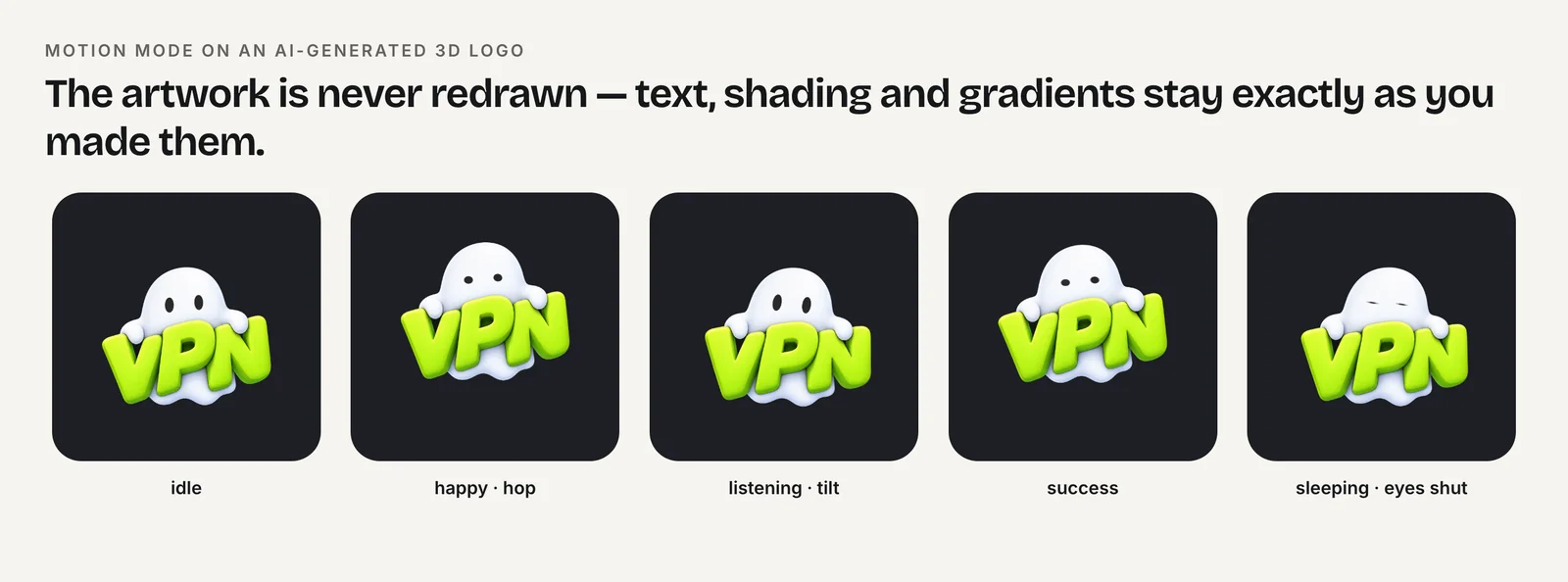
Logos with photos, 3D renders, gradients or text can be animated in Motion mode, which moves the original pixels with squash, stretch, tilts, hops and blinks instead of redrawing the logo.
How do I reuse the animation for Instagram Reels?
Reels are vertical, 9:16. The 9:16 launch video (1080×1920) can be posted as-is, or used as the opening of a longer Reel with photos of your space. For a square loop, pad it to 1080×1920 with the command above.
Meta's Reels ad specs say to keep text, logos and key elements out of the top 14%, the bottom 35% and 6% on each side of the frame, where the app's interface sits (Meta). Those numbers come from the ads guide, but the same interface covers organic Reels, so they are a useful safe area for any post. Add music and captions in the Instagram editor; the signage file should stay silent.
This is a job one Charmotion set covers (Starter, $20/month): you upload your logo once and get 17 animations as 1080×1080 MP4s, a 1080×1920 launch video and 480 px GIFs. That covers the screen in the café and the Reel. The set also has Rive files and transparent video, which signage doesn't need. One limit to know: the set animates your logo as it is; it doesn't add steam rising from a cup, weights lifting or any new objects.
How do I put the file on the screen?
- Choose the clips. One calm loop for all day, plus optional intro, attention and sleeping clips.
- Convert for the screen. Pad to the screen's shape, repeat to about 30 seconds and strip audio with the ffmpeg command above.
- Upload to the player. Add the MP4 to a playlist or a layout zone; skip the GIF.
- Schedule. Morning wave, daytime idle, closing sleeping.
- Check from across the room. Make sure menu text stays readable and nothing near the logo moves fast.
How to play an animated logo on a café or gym screen
- Pick a calm loop. Choose one looping mood such as idle or wave for all-day use, plus optional intro and closing clips.
- Match the screen shape. Pad the square MP4 onto a 1920×1080 or 1080×1920 canvas in the clip's background color, or place it in a layout zone.
- Make a longer silent file. Repeat the clip to about 30 seconds, encode H.264 with yuv420p, remove audio and enable fast start.
- Upload the MP4, not the GIF. Add the MP4 to the signage playlist; some players turn GIFs into still images.
- Schedule and test. Schedule clips by time of day and check readability and motion from across the room.
Frequently asked questions
Why does my GIF show as a still image on my signage screen?
Some signage apps convert uploaded images to JPG. ScreenCloud, for example, converts GIFs and recommends turning them into MP4. Upload the animation as an H.264 MP4 instead; it plays smoothly, is usually smaller and is the format players document support for.
Do signage videos need sound?
No. Most café and gym screens play without sound, and an unexpected audio track can clash with background music or trigger player settings you didn't intend. Strip audio with ffmpeg's -an option and add music only where it is wanted, such as in an Instagram Reel.
What resolution should a TV menu board animation be?
Match the screen: 1920×1080 for landscape and 1080×1920 for portrait. Yodeck documents H.264 up to 1920×1080, and ScreenCloud transcodes to those two sizes, so a 1080p file avoids extra re-encoding. Place a square logo in a layout zone or pad it.
Quick answers from this guide
Sources
- What types of videos does Yodeck support?, Yodeck
- Video formats and codecs, BrightSign
- Supported file types and how content is converted, ScreenCloud Help
- How to display GIFs with ScreenCloud, ScreenCloud Help
- Understanding SC 2.3.1: Three Flashes or Below Threshold, W3C WAI
- Instagram Reels video ads specifications, Meta Business Help Center