Animated Notion Page Icons, Covers and Mascots
By the Charmotion team · Updated
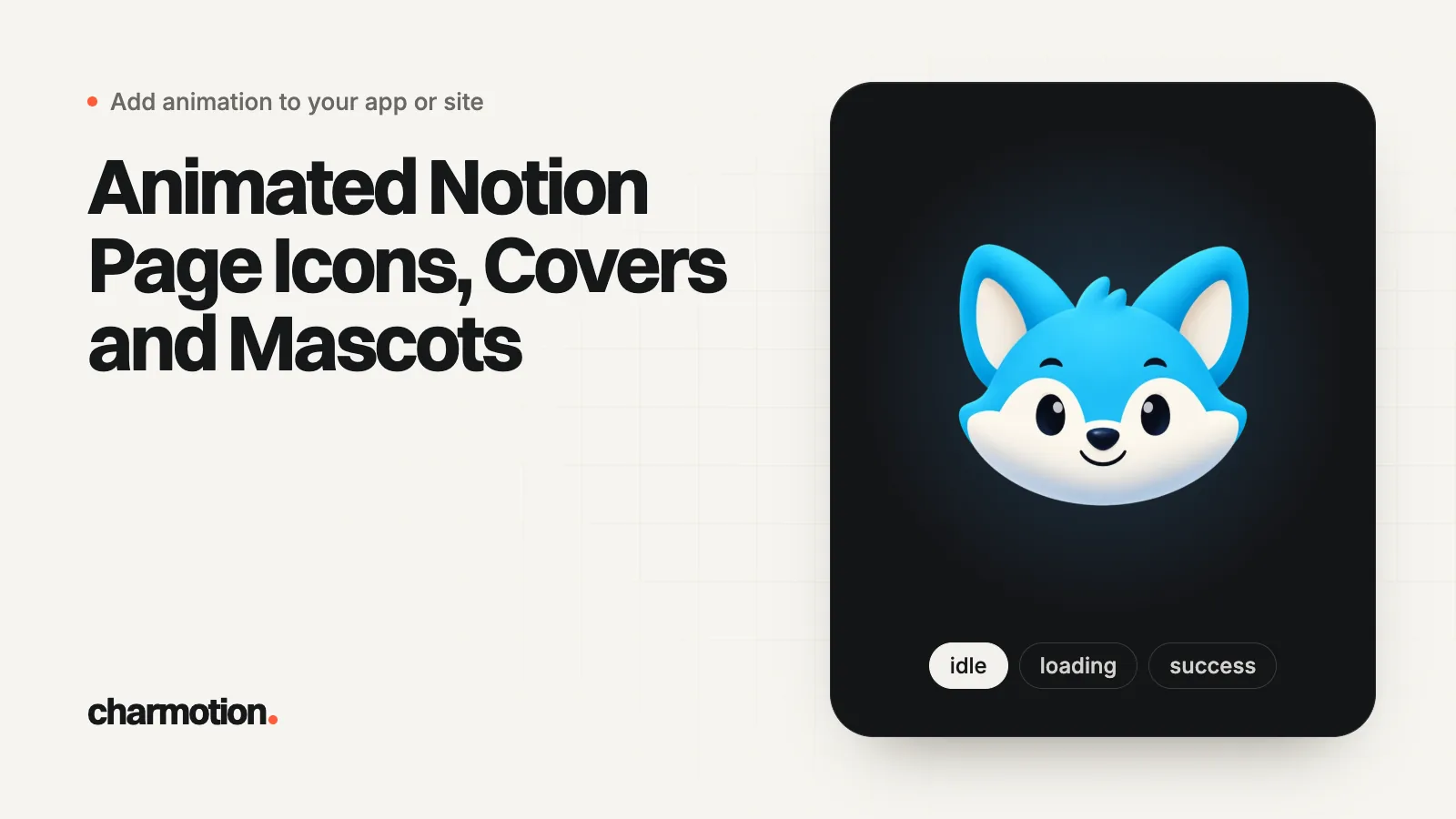
Notion lets you upload your own image as a page icon or cover and lists GIF as a supported file type, so an animated GIF is the practical way to add a moving mascot. Notion suggests 280×280 px icons and covers at least 1,500 px wide; Free plan uploads must be under 5 MB. Test in light and dark mode.
Key takeaways
- Upload icons in the Upload tab of the icon picker; Notion's ideal size is 280×280 px.
- Covers resize with the window, so Notion gives no fixed size, only "at least 1,500 pixels wide". Keep the character in the middle.
- Free plan files must be under 5 MB; on paid plans Notion still lists PNG and JPG images at under 5 MB.
- Every viewer sees the same icon in light and dark mode, so a GIF with a solid background needs to look deliberate on both.
- For a real interactive Rive character, use Rive's hosted embed link in Notion, or custom code on a Super.so site.
Already have a character or logo? See your character in real app screens: splash, onboarding, loading and empty-state screens. It's free, runs in your browser and uploads nothing.
Can a Notion page icon be an animated GIF?
You can upload one. Notion's help center says you can add "your own image or image URL using the Upload tab," that "Uploaded icons should ideally be 280 x 280 pixels," and its list of supported file types includes GIF. Third-party Notion guides describe animated GIFs working as covers. Notion's help pages don't spell out how animation behaves in every place an icon appears, so check it in the page header, the sidebar, link mentions and the mobile app before you roll it out to a team space.
Design for the smallest place it shows. In the sidebar an icon is tiny, so a subtle blink or mouth movement disappears. Choose a loop where the whole silhouette moves:
- A wave, a small bounce or a head tilt reads at icon size.
- Keep the loop seamless; a jump between the last and first frame is obvious when it repeats forever.
- Crop tight so the character fills the square.
When you upload, Notion offers a checkbox, Add to workspace Emoji library. Ticking it turns the image into a custom emoji you can reuse as a page icon, a reaction or inline text across the workspace.
What size should an animated Notion cover be?
Notion's answer is that "the cover images are dynamic depending on the width of your window, so there's no specific size that works best," with a recommendation of "images at least 1,500 pixels wide." Third-party guides commonly suggest 1500×600. Because the visible strip changes with the window, put the character in the center and leave plain background on both sides; anything near the edges gets cropped on narrow screens.
A small character GIF doesn't need to be stretched to 1,500 px. Pad it onto a wide canvas of the same background color instead, which keeps the file small because the padding never changes between frames. Both commands were run on ffmpeg 7.1.1 and produced a 280×280 icon and a 1500×600 cover from a 480 px square GIF:
# Icon: 280x280 from a square GIF
ffmpeg -i mascot.gif -filter_complex "scale=280:280:flags=lanczos,split[a][b];[a]palettegen[p];[b][p]paletteuse" -loop 0 icon.gif

# Cover: center the 480 px GIF on a 1500x600 canvas of the same background color
ffmpeg -i mascot.gif -filter_complex "pad=1500:600:(ow-iw)/2:(oh-ih)/2:color=0xF4EFE6,split[a][b];[a]palettegen=stats_mode=diff[p];[b][p]paletteuse=dither=bayer:diff_mode=rectangle" -loop 0 cover.gif
Replace 0xF4EFE6 with your GIF's exact background color. stats_mode=diff and diff_mode=rectangle tell the palette steps to focus on the pixels that move, which helps both quality and size.
Check the size before uploading. Notion's help center says that on the Free plan "all files you upload must be under 5MB," and on paid plans images (PNG, JPG) must be under 5 MB. If the GIF is too big, lower the frame rate, shorten the loop or shrink the character.
How do I stop a GIF icon looking like a box in dark mode?
Notion's theme is a per-viewer setting, and a page has one icon, so you can't ship a light and a dark version of the same icon. The question is what the GIF's background does on both:
| Approach | Light mode | Dark mode |
|---|---|---|
| Solid background matching Notion's white | Invisible edge | Visible white square |
| Solid background as a rounded tile in a brand color | Looks like an app icon | Looks like an app icon |
| Transparent GIF | Clean if edges are hard | Light fringe on soft edges |
GIF transparency is on or off per pixel, so soft anti-aliased edges made for a light background leave a pale halo on dark pages. If you want transparency, convert from a source with a real alpha channel and accept hard edges; the transparent GIF guide has the ffmpeg settings. Often the tile approach is the cleaner choice: a colored square with the character inside reads as intentional in both themes.
Covers are easier. A cover is a wide band, so a background color that sits between light and dark (a soft brand color) looks fine in either theme.
Can I embed an interactive Rive animation in Notion?
Only through a hosted link. Notion can't run your own script, but its /embed block shows content from over 1,900 domains through the Iframely service. Rive's docs say its Embed link option is meant for "platforms that automatically preview links, such as Notion and Telegram." The limits:
- Generating embed URLs needs a Rive Voyager or Enterprise plan and a file in the Rive editor.
- An embed URL is a snapshot; after changes you generate a new link.
- Rive notes that embeds "use iframes and don't provide access to Rive's runtime APIs," so the character can play its state machine and react to clicks inside the frame, but nothing in Notion can set its mood.
You can also paste the URL of your own page that hosts the animation. Whether it renders depends on whether Notion's embed service supports that site; Notion notes that some websites can't be embedded and show "Failed to Load."
How do I run a real Rive mascot on a Super.so site?
Super turns Notion pages into a website and lets you add code. Its docs say site-wide code goes in the site editor's Code page, with Head, Body and CSS sections, and that code for one page is added "by clicking the code icon on a specific page in your site 'Pages'." Body code "will be added to the top of the page," so a fixed-position canvas is the simplest placement: it doesn't depend on Notion's page structure.
<canvas id="mascot" width="160" height="160" role="img" aria-label="Animated mascot"
  style="position: fixed; right: 16px; bottom: 16px; width: 160px; height: 160px; z-index: 50"></canvas>
<script src="https://unpkg.com/@rive-app/canvas@2.47.1"></script>
<script>
  const reduce = matchMedia("(prefers-reduced-motion: reduce)").matches;
  const r = new rive.Rive({
    src: "https://cdn.example.com/character.riv",
    canvas: document.getElementById("mascot"),
    stateMachine: "CharacterViewModelMachine",
    autoplay: !reduce,
    autoBind: true,
    onLoad: () => r.resizeDrawingSurfaceToCanvas(),
  });
  document.getElementById("mascot").addEventListener("click", () => {
    r.viewModelInstance.trigger("yes").trigger();
  });
</script>- Host the .riv on HTTPS with CORS enabled, the same as for any website embed.
- Super lists Notion's colors as CSS variables, for example
--color-bg-default(#FFFFFF in light mode, #2F3437 in dark mode in its table). Because the Rive canvas is transparent, the character sits on whatever background the site uses. - Add it per page if the mascot belongs to one page, such as a help center home, rather than every page.
The full canvas setup is covered in how to add animation to a website.
Which Charmotion exports fit Notion and Super?
Charmotion makes 17 animations from one character or logo image. For Notion, the GIF export (480 px, solid background) is the direct fit: downscale it to 280×280 for an icon and pad it for a cover with the commands above, matching the pad color to the GIF's background. Charmotion doesn't export transparent GIFs; if you need one, convert the transparent WebM yourself and expect hard edges.
For a Super.so site, use the .riv: ten looping moods selected by a mood number and six one-shot triggers, with web code to adapt. The .riv and transparent video are on every paid plan (from $20/month), along with MP4, GIF and the 9:16 launch video on a solid background.
How to add an animated mascot icon and cover to a Notion page
- Pick the loop. Choose a seamless loop where the whole character moves, such as a wave or a bounce.
- Make the icon. Scale the GIF to 280×280 with ffmpeg and regenerate the palette.
- Make the cover. Pad the GIF onto a 1500×600 canvas of the same background color so the character sits in the center.
- Check the size. Keep each file under 5 MB; lower the frame rate or shorten the loop if not.
- Upload. Use the Upload tab for the icon and Change cover for the cover, optionally adding the icon to the workspace emoji library.
- Test both themes. View the page in light and dark mode, on desktop and mobile, and in the sidebar.
Frequently asked questions
Why won't Notion accept my GIF upload?
The most common cause is size. Notion's help center says Free plan uploads must be under 5 MB and lists images on paid plans at under 5 MB too. Reduce the frame rate, shorten the loop, crop empty space or scale the GIF down before uploading again.
Can I set a different Notion page icon for dark mode?
Notion's help pages don't describe a separate dark mode icon. Each viewer chooses their own theme and the page shows the same icon to everyone, so design one image that works on both, for example a character on a colored rounded tile.
Can I use my mascot GIF as a Notion custom emoji?
Yes. When you upload a page icon, tick Add to workspace Emoji library. Notion then lets you use it as a page icon, a reaction or inline in a page across the workspace. Test it at reaction size, where small details are lost.
Quick answers from this guide
Sources
- Customize and style your content (icons and covers), Notion Help Center
- Images, files and media, Notion Help Center
- Embeds, bookmarks and link mentions, Notion Help Center
- Sharing and embedding: Embed URLs, Rive
- Custom code, Super Docs
- Notion colors, Super Docs
- How to add Notion cover images (GIFs too), Simple.ink
- FFmpeg filters documentation (pad, palettegen, paletteuse), FFmpeg