Slack Animated Custom Emoji From Your Mascot
By the Charmotion team · Updated
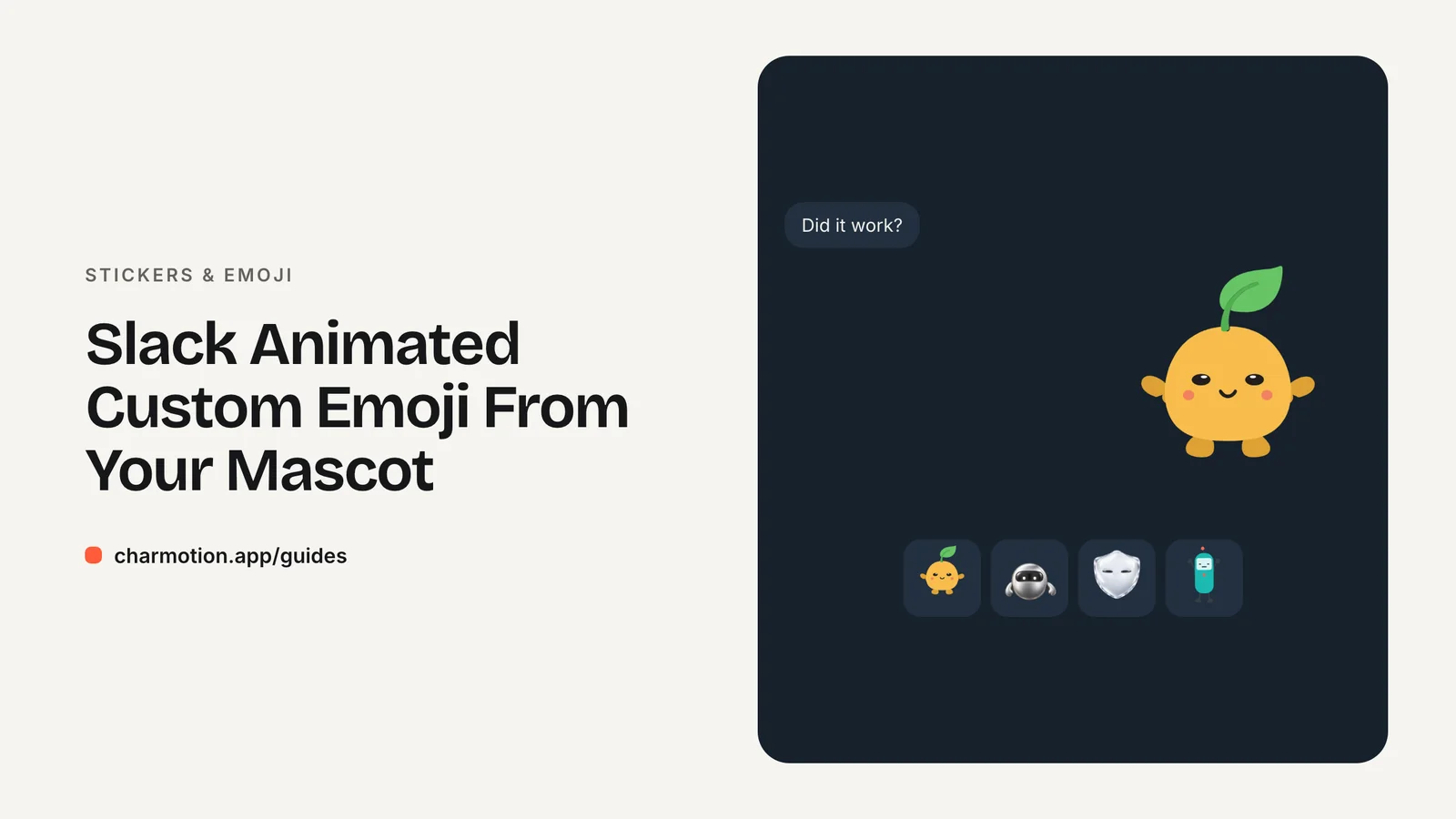
Slack accepts custom emoji as JPG, PNG or GIF. Its help center says square images under 128 KB with transparent backgrounds work best and that GIFs can include up to 50 frames. Slack states no pixel size; 128×128 is a common convention. For animated emoji, render a small transparent GIF with ffmpeg.
Key takeaways
- Formats: JPG, PNG or GIF.
- Square, under 128 KB, with a transparent background works best, per Slack's help center.
- Animated GIF emoji can include up to 50 frames.
- Slack gives no required pixel size; 128×128 is a convention, not a rule.
- GIF has on/off transparency, so plan for edges that look clean on both light and dark themes.
Already have a character or logo? Preview your own character animated in a phone splash, a website hero and an empty state — free, in your browser, nothing uploaded.
What file types and size does Slack accept for emoji?
Slack's help article on custom emoji gives three rules, quoted here exactly:
| Rule | Slack's wording |
|---|---|
| Formats | "Images can be in JPG, PNG, or GIF format." |
| Shape and size | "Square images under 128KB and with transparent backgrounds work best." |
| Animation | "GIFs can include up to 50 frames." |
There is no pixel dimension on the page. Many guides recommend 128×128, and it is a sensible target because emoji display small and a 128 px GIF easily fits under 128 KB, but treat it as a convention rather than a Slack requirement.
"Work best" is softer language than a hard limit, but in practice staying square and under 128 KB avoids upload problems and keeps emoji crisp. Adding custom emoji may be restricted to certain members by your workspace's settings.
How many frames can a Slack GIF emoji have?
Up to 50. That budget decides how long and how smooth the animation can be:
| Frame rate | Longest clip in 50 frames |
|---|---|
| 25 fps | 2 seconds |
| 15 fps | 3.3 seconds |
| 12 fps | about 4.2 seconds |
| 10 fps | 5 seconds |
For a character reaction, 12 fps over about 4 seconds is a good balance. Cap the output with ffmpeg's -frames:v 50 so you never go over, or calculate the trim with -t.
Note that GIF frame delays are stored in hundredths of a second, so the delay between frames can't be smaller than one centisecond. Frame rates that don't divide evenly into 100 get rounded, which can make timing slightly uneven.
How do I get a transparent GIF under 128 KB?
This command was run on ffmpeg 7.1.1 against a 1080×1080 transparent WebM and produced a 128×128 transparent GIF:
ffmpeg -c:v libvpx-vp9 -i character.webm -filter_complex "fps=15,scale=128:128:flags=lanczos,split[a][b];[a]palettegen=reserve_transparent=1[p];[b][p]paletteuse=alpha_threshold=128" -loop 0 emoji.gifFor Slack's 50-frame budget, use 12 fps and cap the frame count:
ffmpeg -c:v libvpx-vp9 -i character.webm -frames:v 50 -filter_complex "fps=12,scale=128:128:flags=lanczos,split[a][b];[a]palettegen=reserve_transparent=1[p];[b][p]paletteuse=alpha_threshold=128" -loop 0 emoji.gif-c:v libvpx-vp9before-iforces the decoder that reads WebM alpha.palettegen=reserve_transparent=1keeps 255 colors and reserves one for transparency.paletteuse=alpha_threshold=128makes pixels under half opacity transparent.
If the GIF is still over 128 KB, lower the fps, shorten the clip, or simplify the motion. From an existing GIF, drop the leading -c:v libvpx-vp9 and keep the rest.
Why does my GIF emoji look jagged on dark mode?
Because GIF supports only one fully transparent color. Each pixel is either opaque or invisible, so anti-aliased edge pixels must pick a side. If the edge was blended against white when the GIF was made, those pixels keep a light tint and show as a halo on Slack's dark theme. Blended against black, they show dark on the light theme.
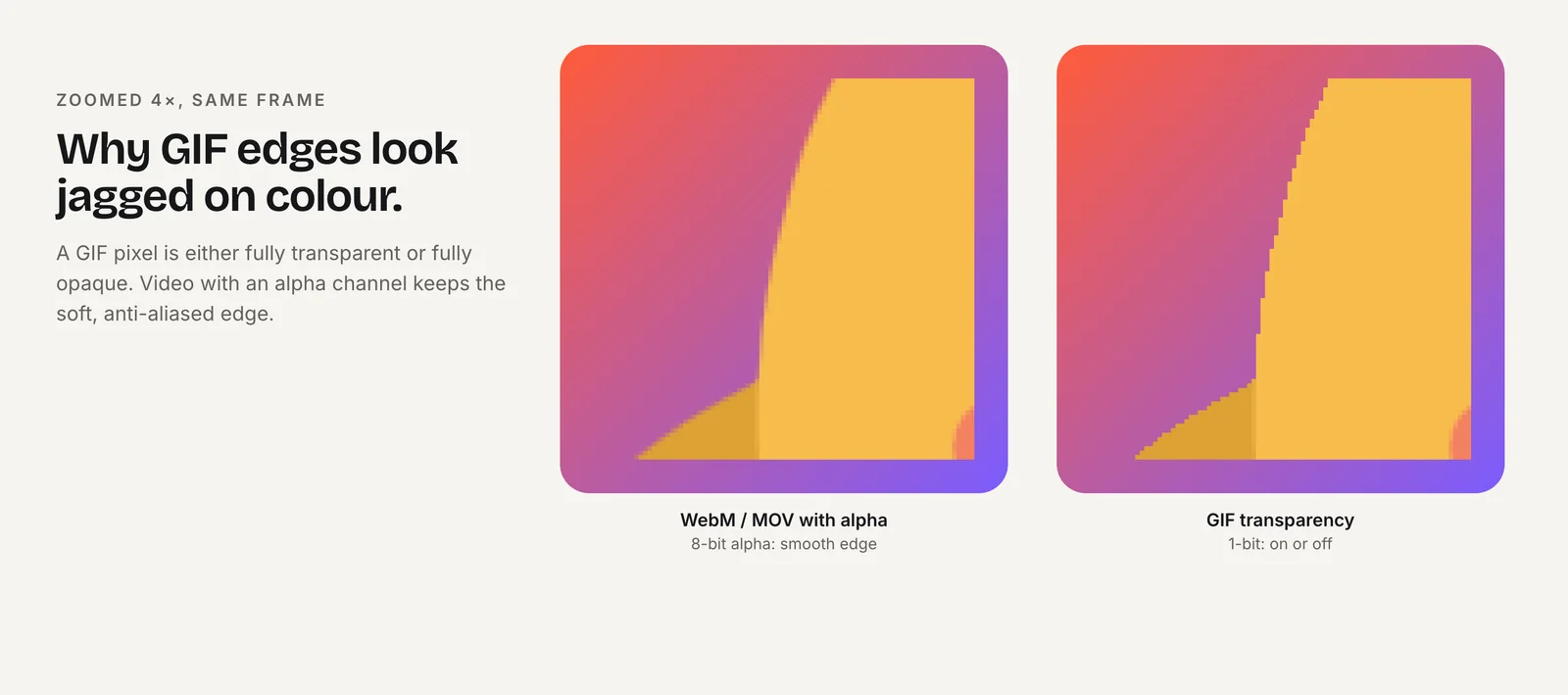
Ways to reduce it:
- Start from real alpha. Converting from a transparent WebM, with thresholding, avoids baking in a background color.
- Add a thin outline. A dark or colored outline around the character hides threshold stair-steps on both themes.
- Tune the threshold. Raising
alpha_thresholdtrims more soft edge pixels; lowering it keeps more. - Use PNG for still emoji. PNG keeps full transparency; only animation forces GIF.
Check every emoji on both themes before you share the set.
Why won't Slack accept my emoji upload?
When an upload fails or the emoji looks wrong, check these in order:
- Wrong format. Slack lists JPG, PNG and GIF. WebP, APNG and video files need converting first; an APNG may upload as a still PNG.
- Too heavy. Slack's guidance is under 128 KB. Lower the frame rate, shorten the clip or reduce colors.
- Too many frames. GIFs can include up to 50 frames; cap the render with
-frames:v 50. - Not square. A wide or tall image is shrunk to fit, so the character looks tiny. Pad to a square with transparency.
- Name taken. Each emoji name must be unique in the workspace; pick a prefix for your set.
- No permission. Workspace admins can limit who adds custom emoji.
After uploading, send the emoji in a message and use it as a reaction. Reactions display very small, which is where unreadable detail and jagged edges show first.
How do I make a set of team reaction emoji from one character?
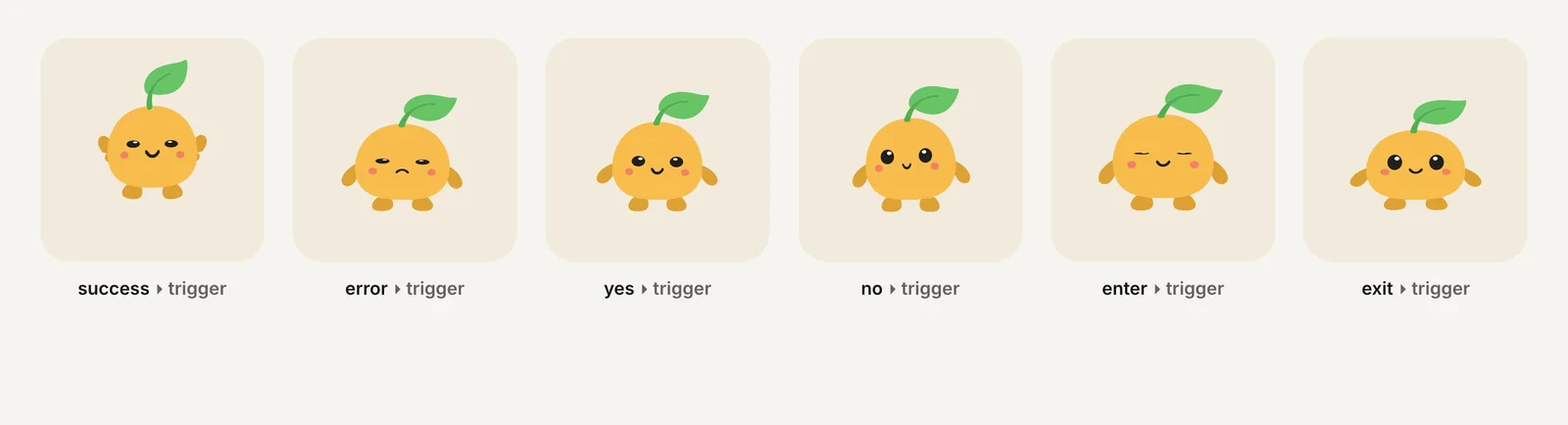
Map each emoji to a reaction your team actually uses. A good starter set is eight to twelve: yes, no, thanks, on it, done, thinking, celebrate, oops, coffee, away. Name them with a shared prefix, such as :mascot-yes: and :mascot-done:, so they group together in the picker.
Keep each one readable at a glance: one action per emoji, the character filling most of the square, and the same scale and framing across the set. Upload them under Customize Workspace, and add aliases for names people already type.
Charmotion turns an uploaded character, mascot or logo into 17 animations in about 1–2 hours, including transparent WebM (VP9 alpha) and MOV (HEVC alpha) at 1080×1080, MP4, a 480 px GIF and a .riv file. It does not export Slack emoji; the Starter plan ($4.99/month) includes the 480 px GIF, which you downscale to 128 px and cap at 50 frames with the command above, and the Studio plan ($29/month) adds the transparent WebM for cleaner edges.
How to make an animated Slack emoji from a transparent animation
- Pick a short reaction. Choose one clear action that fits in about 4 seconds.
- Render the GIF. Run ffmpeg with
-c:v libvpx-vp9before-i,-frames:v 50,fps=12, a 128×128 scale and the palettegen/paletteuse filter. - Check size. Confirm the GIF is under 128 KB; lower fps or shorten if not.
- Check both themes. Preview over light and dark backgrounds and adjust the alpha threshold or add an outline.
- Upload and name. Add the emoji in your workspace with a consistent prefix and aliases.
Frequently asked questions
What size should a Slack emoji be?
Slack's help center states no pixel size, only that square images under 128 KB with transparent backgrounds work best. Most people export at 128×128 pixels, a convention that keeps animated GIFs under the size guidance while staying sharp at the small sizes emoji display in messages and reactions.
Can a Slack emoji be an animated PNG or WebP?
Slack's help center lists JPG, PNG and GIF as the accepted formats and mentions animation only for GIFs, which can include up to 50 frames. Use GIF for animated emoji and PNG for still emoji with smooth transparency. Convert WebP or video sources to GIF first.
Why does Slack show only part of my animation?
Slack says GIF emoji can include up to 50 frames, so a long or high frame rate GIF may not play as intended. Budget the animation: 50 frames is about 4 seconds at 12 fps. Cap the output with ffmpeg's -frames:v 50 option when you render it.
Quick answers from this guide
Sources
- Add custom emoji and aliases to your workspace — Slack Help Center
- FFmpeg filters documentation (palettegen, paletteuse) — FFmpeg
- FFmpeg formats documentation (GIF and APNG muxers) — FFmpeg
- ffmpeg loses WebM alpha with the default VP9 decoder — VideoHelp Forum