Add an Animated Mascot Overlay to OBS
By the Charmotion team · Updated
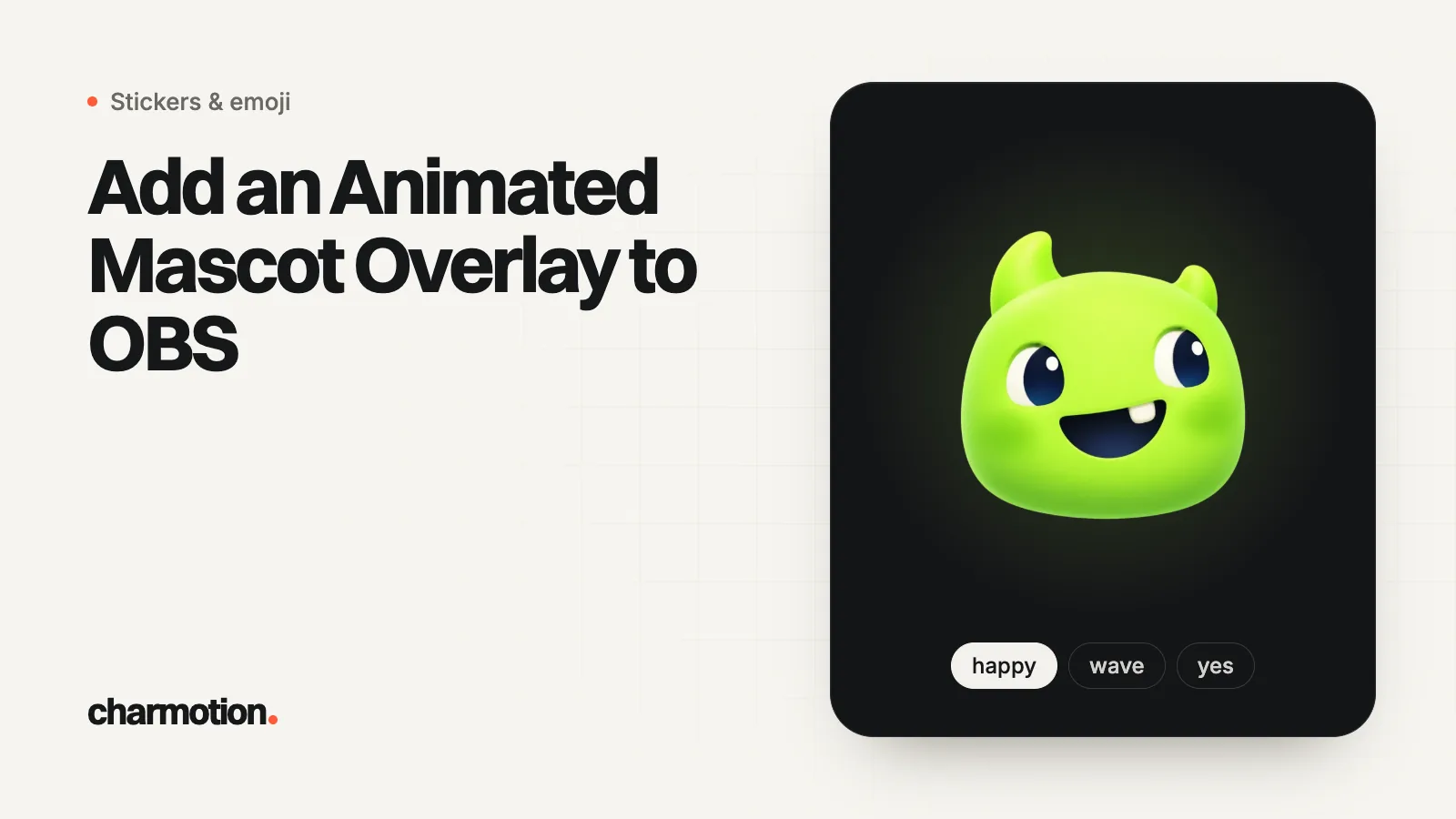
To add an animated mascot to OBS, put a transparent VP9 WebM in a Media Source with Loop on, or load a web page in a Browser Source, whose background is transparent by default. OBS decodes WebM files flagged with alpha using libvpx, so the background stays see-through. Use a loop as a corner companion and short reactions as alerts.
Key takeaways
- Media Source plays local files, including .webm; turn on Loop for an idle companion.
- OBS checks a WebM's
alpha_modetag and decodes it with libvpx, which keeps transparency. - Browser Source runs on the Chrome Embedded Framework with a transparent background by default.
- Map stream events to states: follow to attention, sub to success, raid to wave, BRB to sleeping.
- Pre-rendered loops don't react to your voice or chat; use a PNGtuber app or your own widget code for that.
Already have a character or logo? See your character in real app screens: splash, onboarding, loading and empty-state screens. It's free, runs in your browser and uploads nothing.
Media Source or Browser Source: which should I use?
| Media Source | Browser Source | |
|---|---|---|
| Plays | Local video, GIF or audio files (.mp4, .mov, .webm, .gif and more) | A web page from a URL or a local HTML file |
| Transparency | From the file's alpha channel (use VP9 WebM) | Default custom CSS sets the background to rgba(0, 0, 0, 0) |
| Looping | "Loop" checkbox (off by default) | Whatever the page does |
| Switch states live | No, one file per source | Yes, if the page has logic (Rive, alert widgets) |
| Good for | An idle companion, a BRB screen, a fixed reaction | Alert tools, interactive Rive characters |
Start with a Media Source if you have transparent video files. Move to a Browser Source when one character must change state in response to events.
How do I add a transparent WebM to OBS?
- In Sources, click + and choose Media Source.
- Keep Local File on and browse to your
.webm. - Turn on Loop for an idle loop. "Restart playback when source becomes active" (on by default) restarts the clip when its scene is shown, which suits reactions.
- Resize and position it in the preview, for example in a bottom corner.
Transparency works because of how OBS decodes WebM. Its media playback code reads the stream's alpha_mode tag and, when it is 1, picks the libvpx-vp9 decoder (or libvpx for VP8), the one that reads the alpha plane. A WebM without that tag plays on black.
Prefer WebM over an HEVC-alpha MOV here. OBS decodes media through FFmpeg, and in our tests FFmpeg 7.1.1 dropped the alpha layer of Apple's HEVC with alpha. ProRes 4444 keeps alpha but the files are very large.
How do I use mascot reactions as stream alerts?
Alert tools such as StreamElements are added to OBS as a Browser Source that loads your overlay's URL. If your alert tool lets you upload a video for an alert, a short transparent WebM reaction fits well: the Browser Source is built on the Chrome Embedded Framework, and Chromium renders VP9 alpha.
A mapping that keeps the mascot's personality consistent:
| Stream event | Mascot state | Type |
|---|---|---|
| Starting soon | enter, then idle | One-shot, then loop |
| New follower | attention | Short loop or clip |
| New sub or resub | success | One-shot |
| Raid or host | wave | Loop for a few seconds |
| Donation, bits, cheer | happy | Short loop |
| BRB scene | sleeping | Loop |
| Technical difficulties | error, then sad | One-shot, then loop |
| Stream ending | wave, then exit | Loop, then one-shot |
Keep alert clips short (a few seconds) and use the same character everywhere, including your emotes; see Twitch animated emotes from a mascot.
How do I make an idle corner companion?
- Use a calm loop (idle or listening) in a Media Source with Loop on.
- Keep it small, about the size of a webcam corner or less, so it doesn't compete with gameplay.
- Put the same character in a sleeping loop on your BRB scene, so switching scenes also changes its state, with no extra setup.
- If you have many scenes, turn on "Close file when inactive" to free memory, accepting a brief blank moment when the scene comes back.
A looping companion should loop seamlessly. If you see a jump each cycle, the clip's last frame doesn't match its first, and no OBS setting will fix that.
Can I drive a Rive mascot in a Browser Source?
Yes. A local HTML page with Rive's web runtime renders on a transparent canvas, and the Browser Source shows it over your scene. You change state by setting the file's mood number or firing a trigger:
<canvas id="mascot" width="400" height="400"></canvas>Load the @rive-app/canvas runtime (from a CDN or a local copy) and, in the page's script:
const r = new rive.Rive({
  src: "mascot.riv",
  canvas: document.getElementById("mascot"),
  stateMachine: "CharacterViewModelMachine",
  autoplay: true,
  autoBind: true,
  onLoad: () => r.resizeDrawingSurfaceToCanvas(),
});

// call from your own event code
function react(name) { r.viewModelInstance?.trigger(name)?.trigger(); }
function mood(n) { r.viewModelInstance.number("mood").value = n; }
What connects stream events to react() is up to you: an alert tool's custom widget, a chat bot library, or OBS's own scene switching. That event logic is the part no animation file provides.
What can't a pre-rendered mascot do on stream?
- React to your voice. For a mouth that moves when you talk, use a PNGtuber app such as veadotube, which shakes or swaps the avatar from your microphone.
- Read chat. Chat commands need bot or widget code that listens to chat and plays a file or fires a trigger.
- Follow your face or cursor. That's VTuber tracking software, a different category.
Charmotion covers the visual side: from one mascot image you get 17 animations, and every paid plan (from $20/month) includes each as a transparent WebM for Media Sources and alerts, plus the .riv for a Browser Source. It is not voice-reactive and includes no chat or alert logic.
Frequently asked questions
Why does my WebM show a black background in OBS?
The file probably has no alpha channel. OBS uses the alpha-capable libvpx decoder only when the WebM carries an alpha_mode tag of 1. Re-export with -pix_fmt yuva420p in ffmpeg, or check the file in a transparent video checker before adding it again.
Can OBS show a transparent MOV file?
ProRes 4444 MOV files keep their alpha when decoded by FFmpeg, which OBS uses for media, but they are very large. Apple's HEVC with alpha lost its transparency in our FFmpeg 7.1.1 tests. A VP9 WebM is the safest choice for a transparent media source.
Can a stream mascot react to my voice?
Not if it's a pre-rendered video or a standard animation file. Voice reactions need a PNGtuber or VTuber app that listens to your microphone, such as veadotube. You can still use a pre-rendered mascot for alerts and BRB screens alongside it.
Quick answers from this guide
Sources
- Media Sources, OBS Knowledge Base
- Browser Source, OBS Knowledge Base
- obs-studio media-playback decode.c (alpha WebM decoder selection), OBS Project on GitHub
- Adding an Overlay to OBS Studio, StreamElements Support
- veadotube, olmewe and BELLA!
- Data binding (web runtime), Rive