App Launch & Splash Screen Animation Guide
By the Charmotion team · Updated
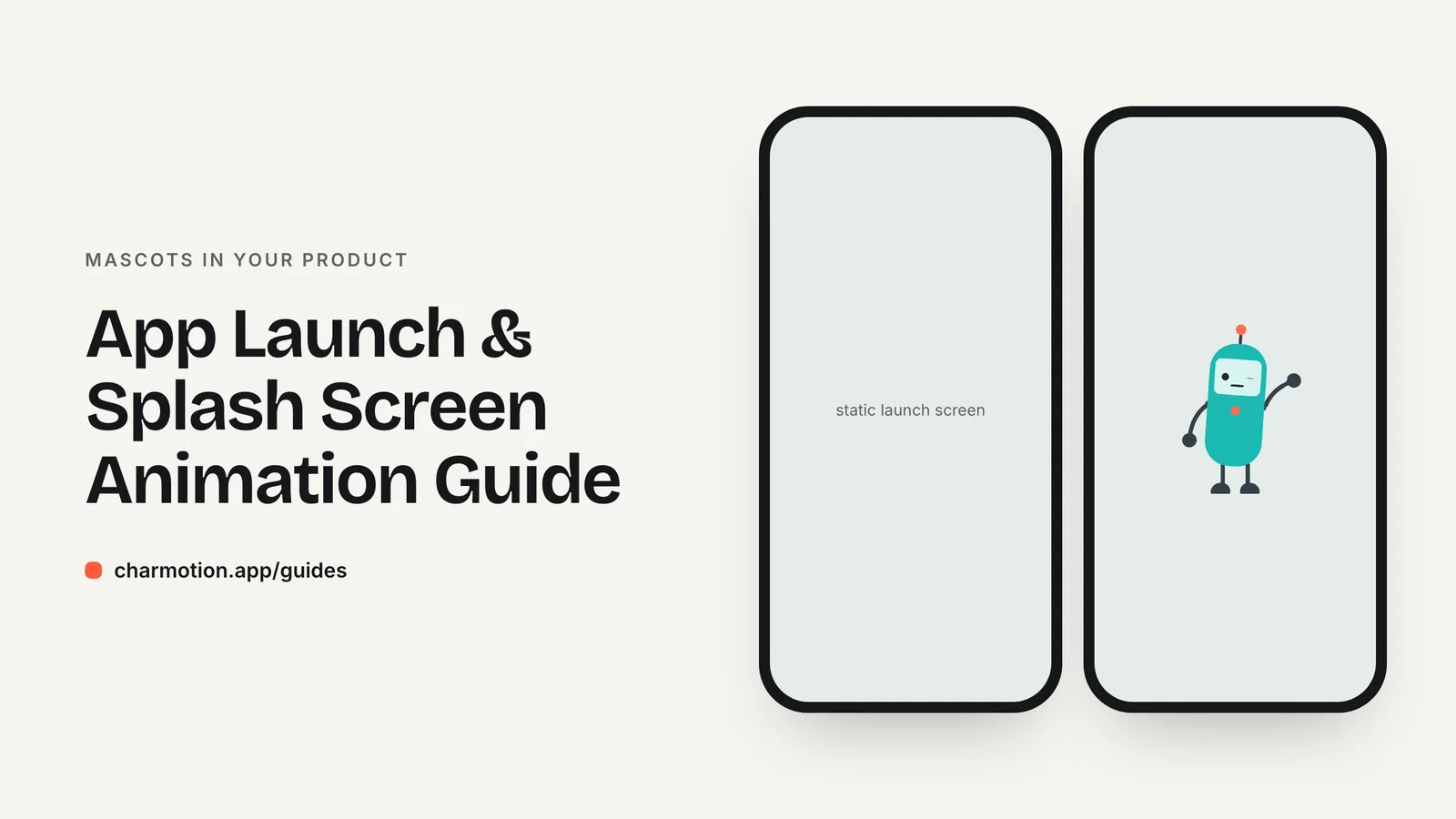
You cannot animate the iOS launch screen; it must be static and match your first screen. Play your animation in the first in-app view instead. On Android 12 and later, the SplashScreen API accepts an animated vector icon, with Google recommending no more than 1,000 ms. On the web, animate the hero after content loads.
Key takeaways
- iOS launch screens are static by design and cannot run custom code or animation.
- Apple says the launch screen is not a branding moment; put any splash-style animation in your first view.
- Android 12+ supports an animated icon via AnimatedVectorDrawable; 1,000 ms is a recommendation, not a hard limit.
- Make the launch screen match the first frame of your intro so the handoff is invisible.
Can you animate the iOS launch screen?
No. The iOS launch screen is shown by the system before your code runs, so it cannot play an animation.
You define it in one of two ways (Apple Developer Documentation):
UILaunchScreenin Info.plist, which sets a background color, an image and optional bars.- A launch storyboard, which may only use standard UIKit classes. It cannot have code connections, custom classes or runtime attributes.
That rules out Rive views, Lottie views, video players or any custom animation code on the launch screen itself.
The fix is to move the animation one step later. Show a static launch screen that looks exactly like the first frame of your animation, then start the animation in your first view controller or SwiftUI view as soon as it appears. To the user it looks like the launch screen came to life.
What does Apple recommend instead of a splash screen?
Apple's Human Interface Guidelines are direct about launch screens (Apple HIG):
- The launch screen should be nearly identical to the first screen of the app.
- It is not a splash screen and not an opportunity for branding.
- Avoid text on it.
- If you want a splash screen, show it at the start of onboarding or after launch has finished.
In practice that gives you a clear pattern for a branded intro:
- The launch screen shows your background color and, optionally, the mascot or logo in its resting pose, exactly where it will appear in the first view.
- The first view loads with the same layout and immediately plays a short intro animation.
- The intro ends on a resting pose and the interface fades in around it.
Keep the intro short and do not make it a gate. If the app is ready, the user should be able to interact while the last frames finish. Consider playing the full intro only on first launch or after an update, and a shorter version, or none, on every other launch.
What should an app launch animation show?
A launch animation has one job: make the move from "app is starting" to "app is ready" feel deliberate. It is not the place for a story. Good launch animations share a few traits.
- One subject. Your logo or mascot, centered or in the position it will hold on the first screen.
- One motion. A hop into place, a wave, a reveal of the symbol. Pick one clear action rather than a sequence.
- A clear ending. The animation should come to rest in a pose the next screen can use, such as the mascot idling in the corner of the home screen or the logo settling into the navigation bar.
- No text to read. Apple advises against text on the launch screen, and the same logic applies to the first second after it. Users are not ready to read yet.
- Brand color as background. Use the same background as the launch screen and the first view so nothing flashes between them.
Mascot apps can go a little further. An enter animation where the character walks or pops into view, followed by a wave, gives the product a personality without much delay. Save anything longer for onboarding, where the user has chosen to spend the time.
How does the Android 12 SplashScreen API animate?
Starting with Android 12, every app gets a system splash screen. You can customize it, and the center icon can be an AnimatedVectorDrawable (Android Developers). The androidx.core:core-splashscreen library backports the API to API level 23.
Key points from Google's documentation:
| Item | Guidance |
|---|---|
| Animation length | Recommended not to exceed 1,000 ms on phones |
| Delayed start | Up to 166 ms |
| Slow startup | Use a looping animation if startup takes longer than 1,000 ms |
| Icon with background | 240×240 dp, content fits a 160 dp circle |
| Icon without background | 288×288 dp, content fits a 192 dp circle |
The 1,000 ms figure is a recommendation, not a hard cap. The point is that the splash should end when the app is ready, not run a fixed-length show.
An AnimatedVectorDrawable is a vector format, so it suits a simple logo or a flat icon. A detailed character or a raster logo will not translate well. For those, keep the system splash icon static and play the richer animation in your first activity or composable, the same handoff pattern as on iOS.
How long should a launch animation be?
As short as you can make it while still reading clearly. A launch animation sits between the user and what they opened the app to do.
Useful reference points from official sources:
- Android's splash guidance recommends no more than 1,000 ms for the splash icon animation on phones (Android Developers).
- Nielsen's response-time limits: about 1 second is the limit for keeping a user's flow of thought uninterrupted (NN/g).
- Material Design tokens top out at 1,000 ms for the longest transitions (Material Components).
So aim for about a second for the part that delays interaction. A character can keep moving after that, as long as the interface is already usable around it.
Two practical rules:
- Never pad a fast launch. If the app is ready in 300 ms, do not hold the user for a full intro. Let the animation finish over a live interface or skip ahead.
- Don't repeat a long intro every time. First launch can be special. Daily use should be quick.
How do I hand off from the launch screen to an in-app intro?
The goal is an invisible seam. The user should not be able to tell where the static OS screen ends and your animation begins.
- Match the first frame. Export the first frame of your intro as the launch image, at the same size and position the animated character will have in the first view. Use the same background color.
- Preload the animation. Bundle the animation file with the app rather than downloading it at launch, so it is ready the moment the view appears.
- Play once, end on rest. The intro should finish in the character's idle pose, which can then loop quietly or settle.
- Don't block input. Fade in the interface during the last part of the intro.
- Respect reduced motion. If the user has reduced motion enabled, skip the intro and show the resting pose (
accessibilityReduceMotionin SwiftUI).
Charmotion's set includes a launch intro made for this handoff: in the Rive file it plays once and ends on idle, and there is also a 9:16 MP4 of the launch animation for contexts where you want video, such as app previews.
How do I add an intro animation to a website hero?
The web has no OS launch screen, but the same principle applies: the page must be usable immediately, and the animation decorates it.
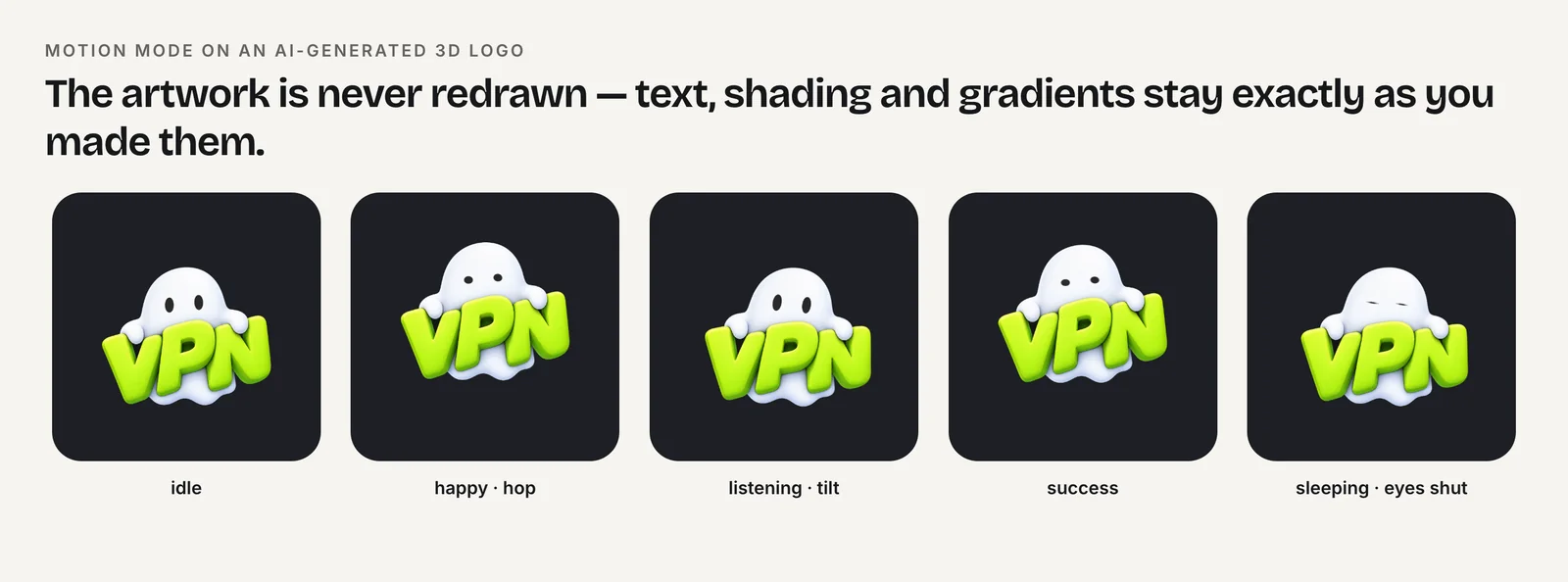
- Render the static pose first. Put a still image or poster in the HTML so the hero has content before any script runs. Then start the animation.
- Use muted, inline video for simple intros. Browsers allow muted autoplay; on iOS Safari a video also needs
playsinlineto play inline (MDN). Handle a rejectedplay()promise by keeping the poster. - Use Rive for interactive intros, where the intro hands off to an idle loop that reacts to hover or scroll.
- Keep transparency cross-browser. For a transparent character over your background, ship HEVC MOV with alpha first and VP9 WebM with alpha second (Jake Archibald).
- Honor
prefers-reduced-motion. Show the poster and skip the intro.
See transparent video on a website for complete markup.
How to add a launch animation to your app
- Keep the OS launch screen static. Set a background color and a still image with
UILaunchScreenor a launch storyboard on iOS, and the SplashScreen API theme on Android. - Match the first frame. Use the first frame of your intro animation as the launch image, at the same size and position as in the first view.
- Play the intro in the first view. Start the animation as soon as your first screen appears, with the animation file bundled in the app.
- End on a resting pose. Finish the intro on the idle pose and fade the interface in during the last part, so users can interact right away.
- Add a reduced-motion path. Skip the intro and show the resting pose when the user has enabled reduced motion.
Frequently asked questions
Can I put a Lottie or Rive animation on the iOS launch screen?
No. iOS launch screens are defined in Info.plist or a launch storyboard that can only use standard UIKit classes, with no custom code. Show a static launch screen that matches the first frame of your animation, then play the animation in your first view.
How long should an Android splash screen animation be?
Google recommends that the splash screen icon animation not exceed 1,000 ms on phones, with a delayed start of up to 166 ms. This is a recommendation, not a hard limit. If startup takes longer, Google suggests a looping animation instead.
Is a splash screen bad UX?
A splash screen that delays users for branding is discouraged; Apple says the launch screen is not a branding opportunity. A short intro that plays while the app is genuinely loading, or once on first launch, is fine if it never blocks interaction.
What size should the Android 12 splash icon be?
With an icon background, the icon is 240×240 dp and its content should fit inside a 160 dp circle. Without a background it is 288×288 dp and the content should fit inside a 192 dp circle, according to Android's documentation.
Sources
- Launching — Apple Human Interface Guidelines
- Specifying your app's launch screen — Apple Developer Documentation
- Splash screens — Android Developers
- Response Times: The 3 Important Limits — Nielsen Norman Group
- Motion theming — Material Components for Android
- Autoplay guide for media and Web Audio APIs — MDN Web Docs
- Video with alpha transparency on the web — Jake Archibald
- accessibilityReduceMotion — Apple Developer Documentation