Animate an AI Assistant: Listening & Talking
By the Charmotion team · Updated
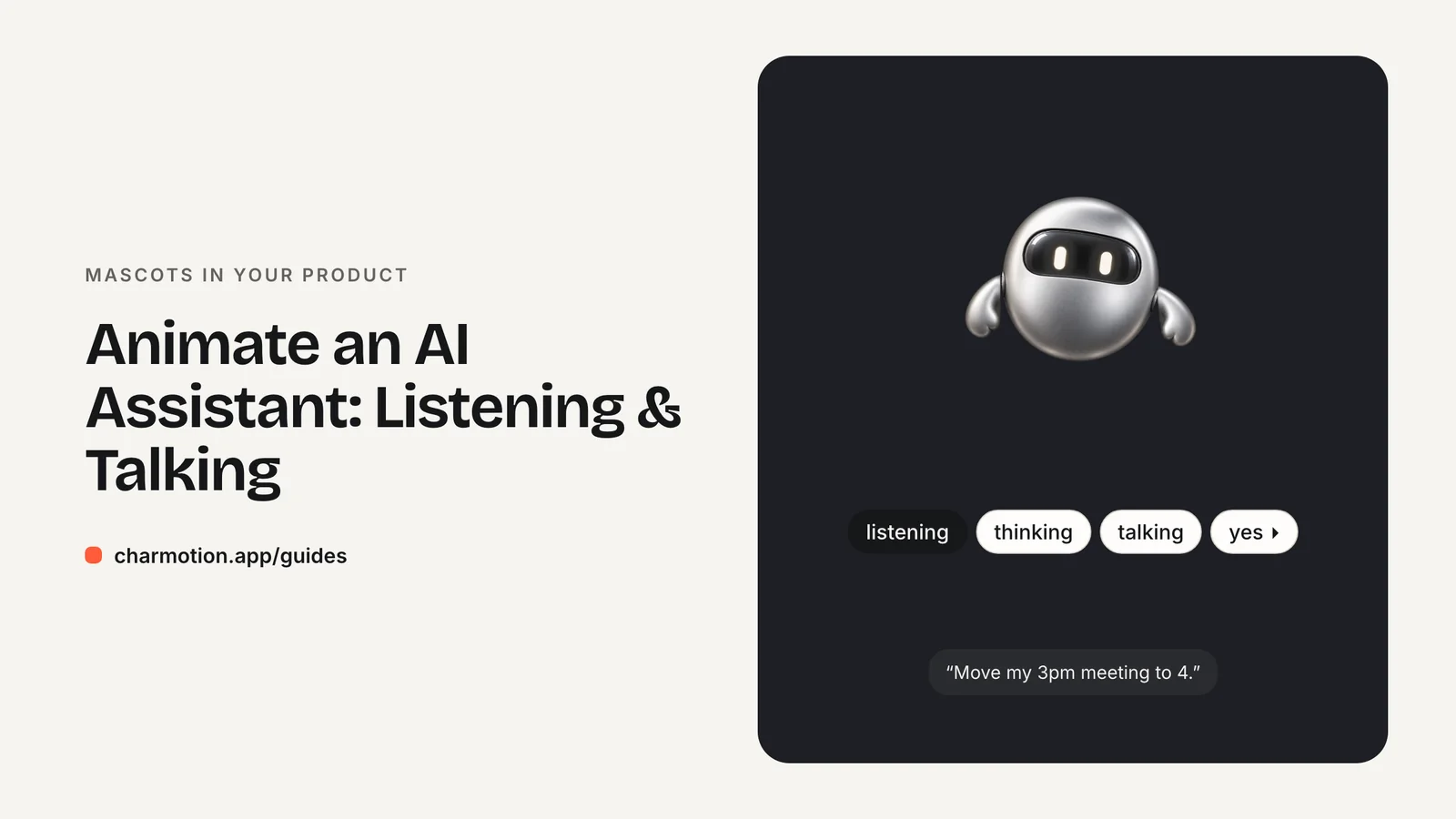
An AI assistant avatar needs five core states: idle, listening, thinking, talking and a confirm reaction. Switch to listening when the user types or speaks, thinking when the request is sent, talking when the first token or audio arrives, and back to idle when the reply ends. Add an error reaction and a reduced-motion fallback.
Key takeaways
- Drive the avatar from conversation events, not timers: input started, request sent, first token, stream ended.
- Thinking should cover only the gap before the first token; switch to talking as soon as output starts.
- A talking loop is enough for text chat. Voice products can drive the mouth from audio level or visemes.
- Always show the status in text too, and give a static fallback when reduced motion is on.
What states does an AI assistant avatar need?
An assistant has a clearer life cycle than a general mascot, because every conversation follows the same loop: the user speaks, the model works, the model answers. The avatar mirrors that cycle.
| State | Type | Meaning to the user |
|---|---|---|
| Idle | Loop | Ready, waiting for input |
| Listening | Loop | "I'm hearing you" while the user speaks or types |
| Thinking | Loop | Request sent, no output yet |
| Talking | Loop | Reply streaming or audio playing |
| Confirm / success | One-shot | An action was completed, such as a booking or a saved note |
| Error | One-shot | The request failed or was refused |
| Asleep | Loop | Session inactive or assistant muted |
This set is close to what has become a convention. Vercel's AI Elements, for example, ships a Persona component powered by Rive with idle, listening, thinking, speaking and asleep states (AI Elements). If you design your own avatar, matching those names makes it easy to swap in.
How should you design an AI assistant avatar?
An assistant avatar is usually small: a 32–64 px badge next to messages, or a larger character on a voice screen. Design for the small size first.
- Make the face the focus. Listening, thinking and talking are read almost entirely from the eyes and mouth. A big, simple face beats a detailed body.
- Give the mouth room to move. Talking needs an open and closed shape at minimum. If the mouth is a tiny line, talking will be invisible at badge size.
- Use a distinct pose per state. Listening can lean in or tilt the head; thinking can look up or to the side. Users should tell states apart at a glance, even without color.
- Avoid a human likeness unless you have the budget to make it convincing. A friendly abstract character or a soft shape sets clear expectations that the user is talking to software.
- Keep it calm. The avatar sits beside text the user is trying to read. Gentle motion works; bouncing does not.
A front-facing character with separate eyes, mouth and body parts is the easiest to animate for all of these states. See how to make an animated app mascot for the full design checklist.
How do I map listening, thinking and talking to chat and voice events?
Hook the avatar to events your chat or voice stack already emits. A typical mapping:
| Event | Avatar state |
|---|---|
| Input focused and user starts typing, or microphone opens | Listening |
| Message submitted or end of speech detected | Thinking |
| First streamed token or first audio chunk | Talking |
| Stream finished or audio ended | Idle |
| Tool call completed (booking, save, send) | Success one-shot, then idle |
| Network error, rate limit or refusal | Error one-shot, then idle |
| No activity for a while, or session closed | Asleep |
Keep this logic in one place, for example a reducer that takes chat status and returns the avatar state. Do not scatter animation calls through your UI components.
Two edge cases come up quickly. If the user interrupts while the assistant is talking, go straight back to listening. If a reply includes several tool calls, stay in thinking between them rather than flickering between thinking and talking.
How do you handle latency between thinking and talking?
The thinking state exists to cover the gap between sending a request and seeing output. How you treat that gap shapes how fast the assistant feels.
Nielsen's response-time limits are a useful frame: about 0.1 s feels instant, about 1 s keeps the user's flow of thought intact, and about 10 s is the limit for holding attention (NN/g). Apply them to the avatar:
- Switch to listening instantly when the mic opens or typing starts. That feedback should feel immediate.
- Enter thinking right after submit, but make the transition gentle so a fast first token does not cause a jarring flicker.
- Switch to talking on the first token, not when the full reply arrives. Streaming text and a talking avatar together make the wait feel shorter.
- Past roughly 10 seconds, add a text status such as "Searching your files" so the user knows what is happening.
Avoid a talking loop that keeps going after the text has finished streaming. End it on the stream's completion event, not on a timer.
How do I drive talking from audio?
There are three levels of fidelity. Pick the lowest one that fits your product.
- A generic talking loop. The mouth moves in a repeating cycle while output streams. This is enough for text chat, where users read the reply and glance at the avatar.
- Amplitude-driven mouth. For voice, read the output audio level and feed it to a number on the animation, so the mouth opens wider on louder syllables and closes in pauses. In Rive this is a number input or a view-model number property updated every frame.
- Visemes. Map phonemes from your speech engine to mouth shapes. This is the most convincing and the most work. Duolingo uses Rive state machines to lip-sync its characters this way across its courses (Duolingo blog).
Whichever level you choose, smooth the input. Raw audio levels jump around and make the mouth jitter. A short moving average or a little easing on the value looks far more natural.
Should I use Rive or video for an AI avatar?
Use an interactive runtime such as Rive for the avatar inside the product. An assistant switches state constantly and unpredictably, often several times a second around a short reply. A state machine can blend from listening to thinking to talking from any point in a loop. With video, each state is a separate clip, and jumping between clips mid-loop shows visible cuts unless you add crossfades and careful timing.
Interactive files also let you drive values continuously, such as mouth openness from audio, which video cannot do.
Video still has a role:
- Marketing pages and app store previews showing the assistant in action.
- Static contexts such as emails and help articles.
- A simple web widget with a single looping state. For transparency, ship VP9 WebM with alpha and HEVC MOV with alpha, because Safari drops the WebM alpha channel (Jake Archibald).
Charmotion includes the assistant states in its standard set: listening (mood 6) and talking (mood 7) are loops, thinking and sleeping are loops too, and success, error, yes and no are one-shot triggers, all in one Rive file alongside MP4 and transparent video exports.
How do I keep an assistant avatar accessible?
The avatar is decoration on top of a conversation. Everything it communicates must also be available without it.
- Show status in text. "Listening," "Thinking" or a typing indicator next to the input tells screen reader users and anyone not looking at the avatar what is happening.
- Respect reduced motion. Check
prefers-reduced-motionon the web (MDN) andaccessibilityReduceMotionin SwiftUI. Swap loops for static poses per state, or a subtle opacity change. - Allow pausing. An idle loop that runs beside the chat for minutes falls under WCAG 2.2 SC 2.2.2, which asks for a way to pause, stop or hide auto-starting motion longer than five seconds (W3C). Settling to a still pose when idle is the simplest fix.
- Let users turn it off. A setting to hide the avatar or show a static icon respects users who find any motion beside text distracting.
- Hide it from assistive tech. Mark the avatar as decorative so screen readers do not announce every state change.
- Avoid flashing effects, especially on error.
Frequently asked questions
What states should an AI chatbot avatar have?
An AI chatbot avatar should have idle, listening, thinking and talking loops, plus success and error one-shots. An asleep state for inactive sessions is useful too. This matches common components such as Vercel AI Elements' Persona, which uses idle, listening, thinking, speaking and asleep.
When should the avatar switch from thinking to talking?
Switch on the first streamed token or the first audio chunk, not when the full reply arrives. That makes the assistant feel faster and keeps the animation in sync with what the user sees. Return to idle on the stream's completion event.
Do I need lip sync for a voice assistant?
Not necessarily. A talking loop works for text chat. For voice, driving mouth openness from audio level looks convincing with little work. Full viseme lip sync, mapping phonemes to mouth shapes, is the most realistic but needs phoneme data from your speech engine.
Can I use a video file for an animated AI avatar?
You can, but it is limited. Each state becomes a separate clip, so fast switches between listening, thinking and talking show cuts. An interactive format such as Rive switches states from any frame and can be driven by live values like audio level.
Sources
- Persona component — Vercel AI Elements
- Response Times: The 3 Important Limits — Nielsen Norman Group
- How Duolingo's characters lip sync (visemes) — Duolingo Blog
- prefers-reduced-motion — MDN Web Docs
- Understanding SC 2.2.2: Pause, Stop, Hide — W3C WAI
- Video with alpha transparency on the web — Jake Archibald