Accessible Animation: Reduced Motion & WCAG
By the Charmotion team · Updated
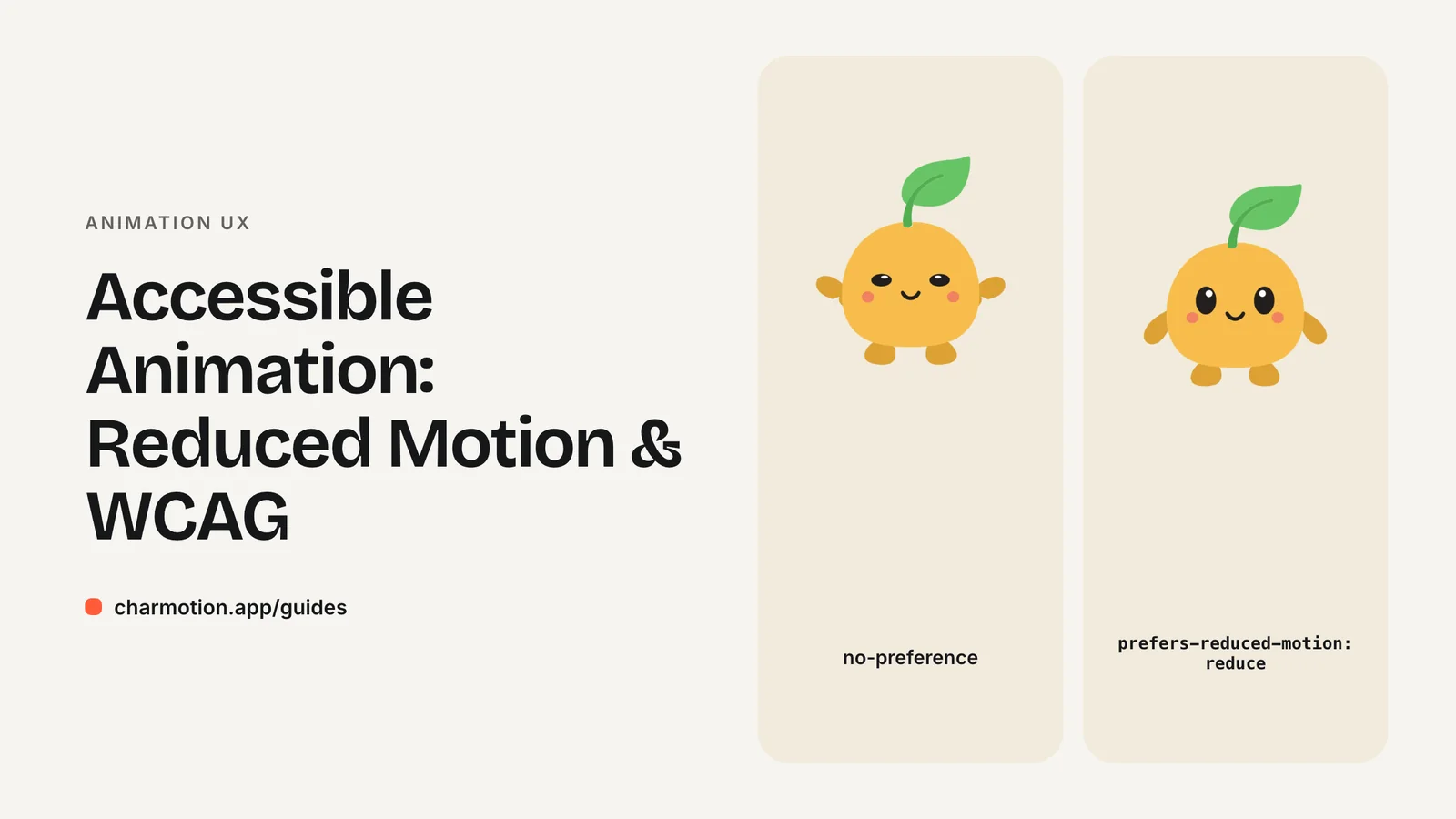
Accessible animation respects the user's Reduce Motion setting and can be paused. Check prefers-reduced-motion: reduce on the web or accessibilityReduceMotion in SwiftUI and swap looping motion for a static pose. Under WCAG 2.2 SC 2.2.2, automatic motion lasting over five seconds alongside other content needs a pause, stop or hide control.
Key takeaways
prefers-reduced-motionhas two values,no-preferenceandreduce, and is supported in all modern browsers.- When it is
reduce, replace character loops with a static pose or a short fade. - WCAG 2.2.2 (Level A): auto-playing motion longer than five seconds needs a way to pause, stop or hide it.
- Loading animations can count as essential when no interaction is possible during the wait.
- Never flash more than three times per second (SC 2.3.1, Level A).
What is prefers-reduced-motion?
prefers-reduced-motion is a CSS media feature that tells a page whether the user has asked their operating system to minimize non-essential motion. It has two values: no-preference and reduce. MDN lists it as Baseline widely available since January 2020.
Users do not set it in the browser. They set it in the OS, and the browser passes it on:
- iOS and iPadOS: Settings > Accessibility > Motion > Reduce Motion.
- macOS: System Settings > Accessibility > Display > Reduce motion.
- Windows 11: Settings > Accessibility > Visual effects > Animation effects (off).
- Android 9+: Settings > Accessibility > Remove animations.
People turn this on for different reasons. Vestibular disorders can make large movement, parallax and zooming cause dizziness or nausea. Others find constant motion distracting when reading. "Reduce" does not have to mean "none." A gentle opacity fade or a color change is usually fine. What should go is large travel, spinning, bouncing and looping movement that never stops.
How do I support reduced motion in CSS and JavaScript?
In CSS, write the full animation by default and turn it off inside the media query. Or, safer, add motion only when the user has no preference:
.mascot { animation: bob 3s ease-in-out infinite; }

@media (prefers-reduced-motion: reduce) {
  .mascot { animation: none; }
}
In JavaScript, use matchMedia. Listen for changes too, because a user can flip the setting while your page is open:
const query = window.matchMedia("(prefers-reduced-motion: reduce)");

function applyMotionPreference() {
  document.documentElement.classList.toggle("reduce-motion", query.matches);
}

applyMotionPreference();
query.addEventListener("change", applyMotionPreference);
In React, wrap that in a small hook that returns query.matches and re-renders on change, then branch on it wherever you start an animation.
For video loops, check the preference before playing. If it is reduce, leave the <video> paused on its poster frame, or render the poster image instead of the video.
How do I swap a Rive or video loop for a static pose?
The simplest pattern that works with any format: keep a still image of the character's neutral pose and render it instead of the animation when reduced motion is on.
For a video, that still is the poster frame. Export the first frame of the idle loop as a transparent PNG or WebP so the reduced-motion version looks identical, just not moving.
For a Rive character, you have two options:
- Render a static image of the idle pose instead of mounting the Rive canvas. This also skips loading the runtime, which saves bandwidth for those users.
- Keep Rive but hold a calm state. Set the state machine to its calmest loop and skip one-shot reactions that bounce or slide. Rive state machines can "settle," meaning the runtime stops advancing once nothing changes.
If you use a Charmotion file, the idle (mood 0) and sleeping (mood 8) loops are the calmest states to hold. Whichever route you pick, still deliver the information the motion carried. If a success animation tells the user a payment went through, keep the text or icon that says so.
How do I support Reduce Motion on iOS?
SwiftUI exposes the user's setting through the environment value accessibilityReduceMotion. Read it in any view and choose the static branch when it is true:
struct MascotView: View {
    @Environment(\.accessibilityReduceMotion) private var reduceMotion

    var body: some View {
        if reduceMotion {
            Image("mascot-idle-still")
                .resizable()
                .scaledToFit()
        } else {
            AnimatedMascot()   // your Rive view or video player
        }
    }
}
The value updates live, so the view switches if the user changes Settings while your app is running. Apply the same rule to transitions you add yourself: replace a slide or spring with a cross-fade, or with no animation at all.
On the web, Safari on iOS reports the same setting through prefers-reduced-motion, so one OS switch covers your app and your site.
Does my looping mascot need a pause button?
Often, yes. WCAG 2.2 Success Criterion 2.2.2 Pause, Stop, Hide is Level A, the baseline most accessibility policies require. It applies to moving, blinking or scrolling content that meets all three conditions:
- It starts automatically.
- It lasts more than five seconds.
- It is presented in parallel with other content.
If all three are true, users need a mechanism to pause, stop or hide it, unless the motion is essential. An idle mascot that loops forever next to your page copy meets all three.
Ways to comply:
- Stop on its own. Play the loop for a few cycles, under five seconds in total, then rest on a still frame.
- Add a visible control. A pause button near the animation that calls
video.pause(), or swaps the Rive canvas for the still image. - Let users hide it. A dismiss control removes the motion entirely.
Honoring prefers-reduced-motion is good practice, but it does not satisfy 2.2.2 alone. Many people who are distracted by motion have never found that OS setting.
Are loading animations exempt?
They can be. The W3C's Understanding document for SC 2.2.2 says an animation that runs during a preload phase "can be considered essential if interaction cannot occur during that phase for all users." The reasoning: hiding the only progress cue could make users think the app has frozen.
That exemption is narrow. It covers a full-screen loader or a blocking wait. It does not cover a mascot that keeps a loading or thinking loop running in a corner while the user can still read and type. In that case, either keep the loop subtle and stop it when the task ends, or offer a pause.
Tie loading loops to real work. Start the loop when the request starts, and end it with a one-shot success or error reaction when it finishes. A loop that outlives the task is both an accessibility problem and a misleading status signal. For timing guidance on waits, see Animation Durations & Loading UX.
What about interaction animations and flashing?
Two more criteria apply to character animation.
SC 2.3.3 Animation from Interactions (Level AAA)
"Motion animation triggered by interaction can be disabled, unless the animation is essential." It covers things like a mascot that jumps when a button is tapped or a card that flies across the screen. Level AAA is rarely mandated, but honoring prefers-reduced-motion for these reactions meets it at little cost. Keep the feedback; just make it a fade, a color change or a still image instead of movement.
SC 2.3.1 Three Flashes or Below Threshold (Level A)
Content must not flash more than three times in any one-second period, unless it stays below the general and red flash thresholds. Rapid flashing can trigger seizures in people with photosensitive epilepsy. Watch for this in error and attention animations: a red blink or a strobing glow is exactly where it slips in. Keep blinks slow and soft.
Mascots in product UI rarely need to flash. Communicate urgency with a single pulse or a clear message instead.
How to make a looping character animation accessible
- Prepare a still pose. Export a transparent PNG or WebP of the character's neutral or idle frame.
- Detect the preference. Use
matchMedia("(prefers-reduced-motion: reduce)")on the web oraccessibilityReduceMotionin SwiftUI, and listen for changes. - Swap motion for the still. When reduced motion is on, render the still image instead of the Rive canvas or video, or hold a calm state with no one-shot reactions.
- Add a pause control. For loops that start automatically and last more than five seconds next to other content, add a visible pause, stop or hide button (WCAG 2.2.2).
- Bound loading loops. Start loading loops when work starts and end them with a success or error reaction when it finishes.
- Check for flashing. Make sure nothing flashes more than three times per second, especially error and attention states.
Frequently asked questions
Does prefers-reduced-motion mean I should remove all animation?
No. Reduce large movement, parallax, spinning, bouncing and endless loops. Gentle opacity fades, color changes and a static character pose are generally fine. Keep the information that motion conveyed, such as a success or error state, through text, icons or a still image.
Is respecting prefers-reduced-motion enough for WCAG?
Not on its own. It is the usual way to meet SC 2.3.3 (AAA), but SC 2.2.2 (Level A) still requires a pause, stop or hide mechanism for auto-playing motion longer than five seconds shown alongside other content, because many users never change the OS setting.
How do I test reduced motion?
Turn on Reduce Motion in iOS or macOS accessibility settings, Animation effects off in Windows 11, or Remove animations on Android. In Chrome DevTools you can also emulate the media feature from the Rendering panel. Then confirm loops stop and the still pose appears.
Sources
- prefers-reduced-motion — MDN Web Docs
- accessibilityReduceMotion — Apple Developer Documentation
- Understanding SC 2.2.2: Pause, Stop, Hide — W3C WAI
- Understanding SC 2.3.3: Animation from Interactions — W3C WAI
- Understanding SC 2.3.1: Three Flashes or Below Threshold — W3C WAI
- State machines (web runtime) — Rive