How to Add Animation to a Shopify Store
By the Charmotion team · Updated
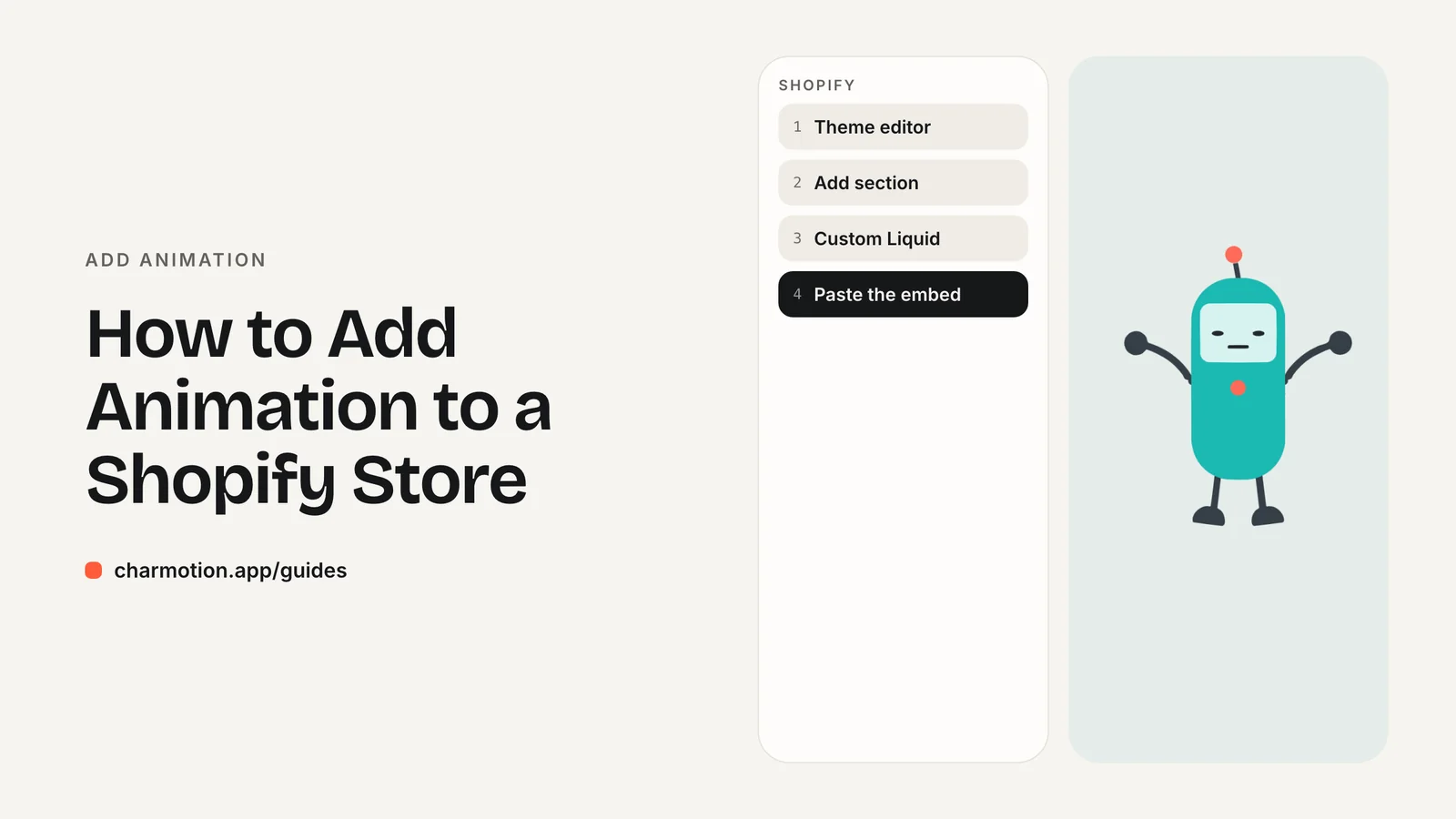
Shopify has no built-in Lottie or Rive section, so most stores add animation as video: a theme video section, or product media in MP4, MOV or WebM. For Lottie or Rive, upload the file under Content, then Files, and embed it in a Custom Liquid section using the file_url filter, if your theme offers one.
Key takeaways
- Shopify has no native Lottie or Rive section.
- Video is the no-code path: theme video sections and product media accept MP4, MOV and WebM.
- Custom Liquid sections, where a theme offers them, accept HTML and scripts.
{{ 'file' | file_url }}returns the CDN URL of a file uploaded under Files.- Apps add animation without code but add scripts to every page they load on.
Already have a character or logo? Preview your own character animated in a phone splash, a website hero and an empty state — free, in your browser, nothing uploaded.
Does Shopify have a built-in animation section?
Not for animation files. Shopify themes do not include a Lottie or Rive section, and the theme editor has no animation element. What themes do include varies, but most Online Store 2.0 themes offer:
- a video section or block for uploaded or hosted video;
- subtle built-in effects, such as reveal-on-scroll, that you toggle in theme settings;
- a Custom Liquid section where you can paste HTML and Liquid.
Shopify's help center puts it conditionally: "If your theme offers a Custom Liquid section, you might be able to add your app code into it in the theme editor." Check your theme's section list before planning around it.
This leaves three routes: video for anything that plays straight through, Custom Liquid for Lottie or Rive, and apps when you want a no-code interface. For a mascot or animated logo that just loops, video is often enough.
How do you add a video section to your theme?
In the theme editor, choose Add section and pick your theme's video section. Depending on the theme, it plays an uploaded file or a YouTube or Vimeo link. For a decorative loop, choose an uploaded file and enable autoplay and loop if the section offers them; hosted players usually show their own controls and branding.
Product pages are separate: product media accepts video files in .mp4, .mov or .webm format, which appear in the product gallery. That is the place for a product spin or a short demo, not for site decoration.
Export a square or vertical MP4 that matches your section layout. If the section background is a solid color, render the animation on that same color so you do not need transparency. A transparent overlay needs two files (HEVC-alpha .mov for Safari, VP9-alpha WebM for other browsers) in one <video> element, and theme video sections take a single file. Use Custom Liquid for that case.
Charmotion's Starter plan exports MP4 (1080×1080 and 9:16) and GIF, which suits theme video sections. Transparent WebM and MOV and the .riv file come with the Studio plan.
How do you add Lottie or Rive with a Custom Liquid section?
Upload the animation file in the Shopify admin under Content, then Files, and copy its file name. In the theme editor, add a Custom Liquid section and reference the file with the file_url filter, which returns its CDN URL.
dotLottie:
<dotlottie-wc src="{{ 'mascot.lottie' | file_url }}" autoplay loop
  style="width: 320px; height: 320px; margin: 0 auto"></dotlottie-wc>
<script type="module"
  src="https://unpkg.com/@lottiefiles/dotlottie-wc@0.10.0/dist/dotlottie-wc.js"></script>
Rive, reacting to add-to-cart:
<canvas id="mascot" width="400" height="400"
        role="img" aria-label="Animated mascot"></canvas>
<script src="https://unpkg.com/@rive-app/webgl2@2.44.2"></script>
<script>
  const reduce = matchMedia("(prefers-reduced-motion: reduce)").matches;
  const r = new rive.Rive({
    src: "{{ 'mascot.riv' | file_url }}",
    canvas: document.getElementById("mascot"),
    stateMachine: "CharacterViewModelMachine",
    autoplay: !reduce,
    autoBind: true,
    onLoad: () => r.resizeDrawingSurfaceToCanvas(),
  });
</script>
<script>
  document.addEventListener("submit", (e) => {
    if (e.target.matches('form[action*="/cart/add"]')) {
      r.viewModelInstance?.trigger("success").trigger();
    }
  });
</script>
The Rive example fires a success reaction when any add-to-cart form submits. Themes that add to cart with JavaScript may not submit the form normally, so test on your theme and hook into its cart events if needed.
Transparent video works the same way: a <video autoplay muted loop playsinline> with the .mov source first and the .webm second, each pointing at file_url.
Can you upload .riv or .json files to Shopify?
The Files page is meant for any file your store references, and file_url serves files from it over Shopify's CDN. Whether a specific extension such as .riv or .lottie is accepted is not spelled out in Shopify's documentation we could verify, so try the upload first. If Files rejects it, you have two options:
- Host the file elsewhere. Any CDN or object storage that serves the file over HTTPS with CORS enabled works; put the full URL in
src. - Use a different format. Lottie .json is plain text and dotLottie is a ZIP container; a video export avoids the question entirely.
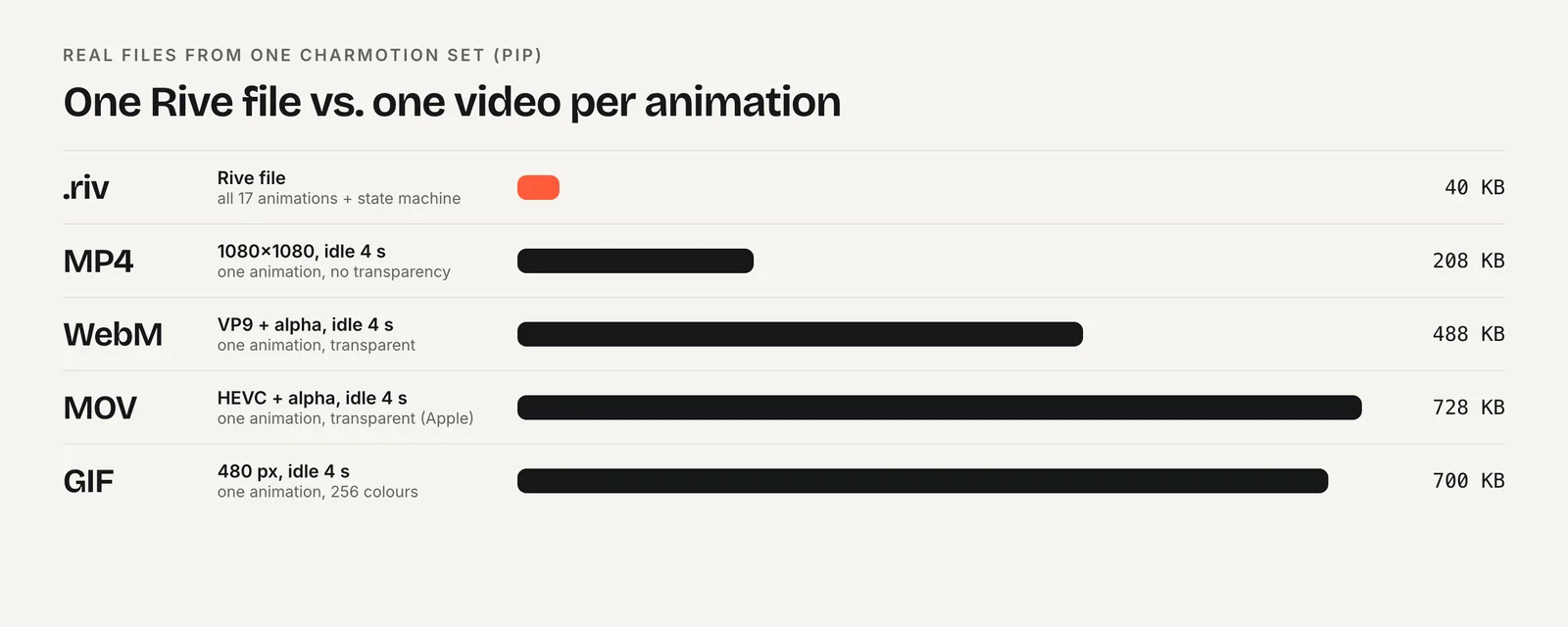
Keep animation files small. Rive files for flat characters are typically tens of kilobytes, while the Rive web runtime is the larger download, about 648 KB brotli-compressed for WebGL2 according to Rive. Load it only on templates that show the animation, not in theme.liquid for every page.
Why does my animated GIF logo show as static?
Many themes run the header logo through Shopify's image pipeline at a fixed size, and some outputs show only a single frame of an animated GIF. Whether this happens depends on your theme, so preview the live storefront, not just the editor.
If your logo is static, options that keep the header working are:
- Edit the header. If you are comfortable in the code editor, replace the logo image in the header section with a small
<video autoplay muted loop playsinline>, an<img>pointing at the original GIF viafile_url, or a Rive canvas. Duplicate the theme first. - Use the animated logo elsewhere. A Custom Liquid section under the header or in the hero shows motion without touching theme code.
Keep header motion short or subtle. A logo that plays once on load, then idles, draws attention without competing with your products. Always keep a static logo for prefers-reduced-motion visitors and for email and social previews.
Should you use an app instead?
Apps from the Shopify App Store can add animated banners, Lottie players or effects without editing code. They are reasonable when your theme has no Custom Liquid section or when non-technical staff need to change the animation later.
Weigh the costs first:
- Performance. Apps often inject scripts on every page, not just the one with the animation. Check your storefront speed before and after installing.
- Lock-in. Content created inside an app usually disappears or breaks when you uninstall it.
- Price. Many animation apps are subscriptions for something a ten-line Custom Liquid section can do.
A practical rule: use theme video sections for loops, Custom Liquid for one or two Lottie or Rive placements, and an app only when you need a managed interface across many pages.
How to add a Rive or Lottie animation to a Shopify theme
- Upload the file. In the Shopify admin, go to Content, then Files, and upload the .riv, .lottie or video files.
- Add a Custom Liquid section. Open the theme editor on the template you want, choose Add section, and pick Custom Liquid.
- Paste the embed. Add the player markup and script, using
{{ 'file-name' | file_url }}for the source. - Wire store events. Fire a Rive trigger on add-to-cart or other events, and test with your theme's cart behavior.
- Check speed and motion settings. Confirm the player loads only on that template and that reduced motion shows a static frame.
Frequently asked questions
Can I add Lottie to Shopify without an app?
Yes, if your theme has a Custom Liquid section. Upload the .lottie or .json under Content, then Files, and paste a dotLottie web component that points at {{ 'file.lottie' | file_url }}, plus the player script, into the section.
Does Shopify support Rive?
Not natively. There is no Rive section in Shopify themes. You can embed Rive's web runtime and a .riv file in a Custom Liquid section or in theme code, and use its state machine to react to storefront events such as add-to-cart.
What video formats can I upload to a Shopify product?
Product media accepts video files in .mp4, .mov and .webm format, and they appear in the product gallery alongside your photos. For decorative loops on the storefront, use your theme's video section with a muted, looping MP4, or a Custom Liquid section if you need transparency.
Quick answers from this guide
Sources
- Extending your theme — Shopify Help Center
- Liquid filter: file_url — Shopify.dev
- Product media types — Shopify Help Center
- dotlottie-web: players for web, React, Vue, Svelte and web components — LottieFiles on GitHub
- Web (JS) runtime — Rive
- Video with alpha transparency on the web — Jake Archibald