How to Add Animation to an iOS App (SwiftUI & UIKit)
By the Charmotion team · Updated
To add animation to an iOS app, wrap state changes in SwiftUI's withAnimation for UI feedback, use symbolEffect for icons, and add Lottie or Rive through Swift Package Manager for designer-made art. Use Rive when a character needs states, and AVPlayerLooper when you only need a fixed clip.
Key takeaways
- Built-in SwiftUI animation covers most UI feedback:
withAnimation,.animation(_:value:), andPhaseAnimator/KeyframeAnimatoron iOS 17+. symbolEffect(iOS 17+) animates SF Symbols, including custom symbols, with one modifier.- Install Lottie from
lottie-spm, not the 300 MB+ main repository. - Rive's
RiveRuntimesupports iOS 14+ and lets code switch a character's states live. - Read
accessibilityReduceMotionand swap loops for a still image when it is on.
Already have a character or logo? Preview your own character animated in a phone splash, a website hero and an empty state — free, in your browser, nothing uploaded.
Which animation approach should you use on iOS?
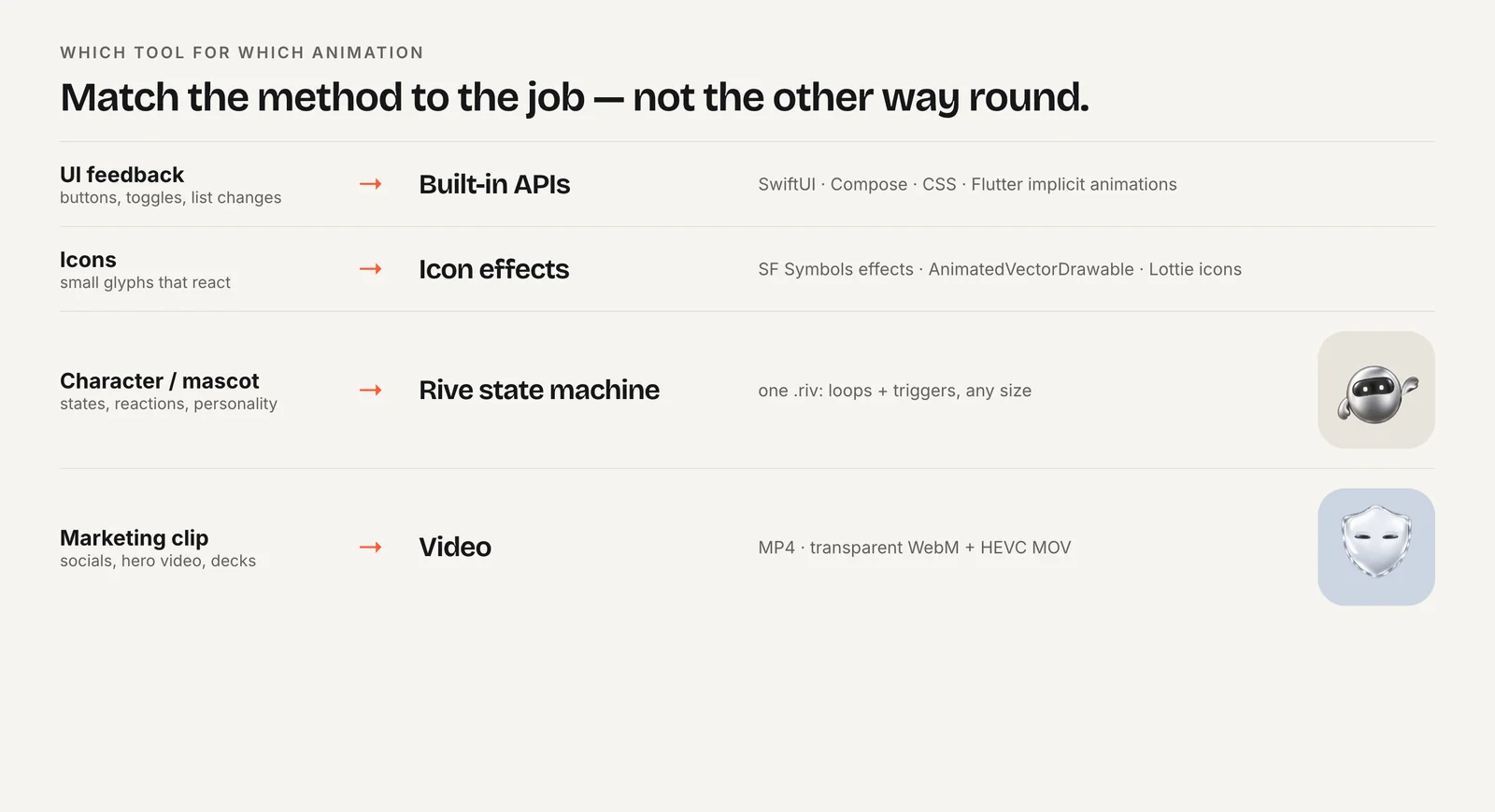
Start with what is moving and who made it. Most apps need a mix of four approaches:
| You want to animate | Use |
|---|---|
| Buttons, layout changes, sheets, toggles | SwiftUI withAnimation or UIKit UIView.animate |
| Icons | symbolEffect on SF Symbols (iOS 17+) |
| A designer-made vector loop: confetti, a spinner, an illustration | Lottie |
| A character that reacts to app events | Rive with a state machine |
| A pre-rendered clip that never changes | Video with AVPlayerLooper |
Built-in APIs cost nothing in app size and follow your state automatically. They are also the most consistent with the rest of iOS: springs, sheet presentations and symbol effects all feel native because they are the same system animations Apple's own apps use. Reach for a third-party runtime only when the artwork comes from a design tool. Lottie plays After Effects exports. Rive plays files from the Rive editor and adds a state machine, so your code can tell a character to switch from idle to loading to success without stitching clips together.
How do withAnimation and .animation() work in SwiftUI?
SwiftUI animates the difference between two states. Change a value inside withAnimation and every view that depends on it interpolates to its new position, size or opacity:
struct ExpandingCard: View {
    @State private var expanded = false

    var body: some View {
        RoundedRectangle(cornerRadius: 16)
            .frame(height: expanded ? 240 : 120)
            .onTapGesture {
                withAnimation(.spring()) { expanded.toggle() }
            }
    }
}
The alternative is the .animation(_:value:) modifier, which animates a view whenever the given value changes. Use withAnimation when one action should animate several views, and the modifier when one view should always animate a specific value.
For motion with several steps, iOS 17 added PhaseAnimator and KeyframeAnimator. A phase animator cycles through a sequence of phases:
Image(systemName: "heart.fill")
    .phaseAnimator([false, true]) { content, phase in
        content.scaleEffect(phase ? 1.2 : 1.0)
    }
Use KeyframeAnimator when you need separate timing tracks for properties such as scale, rotation and offset. Both are good for small attention loops, not for full characters.
How do you animate SF Symbols and UIKit views?
On iOS 17 and later, the .symbolEffect modifier animates any SF Symbol. Apple's built-in effects include bounce, pulse, variable color, scale, appear, disappear and replace, and they also work on custom symbols:
Image(systemName: "bell.fill")
    .symbolEffect(.bounce, value: unreadCount)
The bell bounces each time unreadCount changes. This is the cheapest way to give an icon feedback, because there is no asset to ship.
In UIKit, block-based view animation still works and is often all a screen needs:
UIView.animate(withDuration: 0.3) {
    banner.alpha = 1
    banner.transform = .identity
}
Use it for fades, slides and scale changes on existing views. For anything drawn by a designer, such as an illustration or a mascot, hand-coding keyframes in Swift gets slow to change. That is the point where a Lottie or Rive file is easier to maintain: the designer edits the file, and your code only decides when it plays.
How do you add a Lottie animation to an iOS app?
In Xcode, choose File > Add Package Dependencies and enter https://github.com/airbnb/lottie-spm.git. Airbnb recommends this package because it is a small wrapper around prebuilt binaries, while the main lottie-ios repository is over 300 MB. The README lists 4.6.1 as the latest version.
Since 4.3.0, Lottie includes a native SwiftUI LottieView. Add the exported .json to your target and play it:
import SwiftUI
import Lottie

struct ConfettiView: View {
    var body: some View {
        LottieView(animation: .named("confetti"))
            .looping()
            .frame(width: 200, height: 200)
    }
}
The same release added reduced-motion support. Lottie is a good fit for a loading loop, a success burst or an onboarding illustration that plays from start to end. It is less suited to a character that has to change behavior in the middle of a loop based on what the app is doing; that is where Rive's state machines help.
Two practical tips. Keep the exported file small by asking the designer to avoid embedded raster images where vectors work. And test the animation on an older device, since complex After Effects masks and effects can be expensive to render even when the file is small.
How do you add a Rive animation and switch its states?
Add https://github.com/rive-app/rive-ios with Swift Package Manager (or pod 'RiveRuntime'). The Apple runtime supports iOS 14+, tvOS 16+, macOS 13.1+ and visionOS. Drag the .riv into your app target.
With the legacy API, RiveViewModel loads the file, picks a state machine and gives you methods to drive it:
import SwiftUI
import RiveRuntime

struct MascotView: View {
    @StateObject private var mascot = RiveViewModel(
        fileName: "character",
        stateMachineName: "CharacterStateMachine"
    )

    var body: some View {
        mascot.view()
            .frame(width: 220, height: 220)
    }

    func startLoading() { mascot.setInput("mood", value: 5.0) }
    func finished(ok: Bool) {
        mascot.triggerInput(ok ? "success" : "error")
        mascot.setInput("mood", value: 0.0)
    }
}
Keep the view model in @StateObject so it survives redraws. Input names are case-sensitive and must match the file.
Rive's new Apple runtime drops inputs in favor of data binding. You set view model properties instead, for example viewModelInstance.setValue(of: NumberProperty(path: "mood"), to: 5) and viewModelInstance.fire(trigger: TriggerProperty(path: "success")). That only works if the file defines a view model. The Rive in SwiftUI guide covers both runtimes in depth.
How do you loop a video clip in SwiftUI?
If the animation is a fixed, pre-rendered clip, such as a 3D logo reveal, a video is simpler than any runtime. AVPlayerLooper plays an item continuously through an AVQueuePlayer, and SwiftUI's VideoPlayer (AVKit, iOS 14+) displays it:
import SwiftUI
import AVKit

final class LoopingClip: ObservableObject {
    let player = AVQueuePlayer()
    private var looper: AVPlayerLooper?

    init(name: String) {
        guard let url = Bundle.main.url(forResource: name, withExtension: "mp4") else { return }
        looper = AVPlayerLooper(player: player, templateItem: AVPlayerItem(url: url))
        player.isMuted = true
        player.play()
    }
}

struct ClipView: View {
    @StateObject private var clip = LoopingClip(name: "logo-reveal")
    var body: some View { VideoPlayer(player: clip.player) }
}
Keep the looper referenced, or looping stops. A video cannot react to state, and every variation is another file, so use it for clips, not for interactive characters.
VideoPlayer shows playback controls. For a decorative loop without controls, host an AVPlayerLayer in a small UIViewRepresentable instead. If the clip needs a transparent background over your UI, export it as HEVC with alpha in a .mov; the format comparison explains when that beats a GIF or a Rive file.
How do you add an animated mascot to an iOS app?
Treat the mascot as a view of your app's state. List the moments it should react to, give each a state in the file, and map your events to them in one place:
- Loops for ongoing states: idle, loading, listening, sleeping.
- Triggers for one-off events: success, error, a greeting on enter.
In practice, keep a small enum such as .idle, .loading and .done(Bool) in your view model and translate it into setInput and triggerInput calls. The state machine handles the transitions, so you never track which clip is on screen.
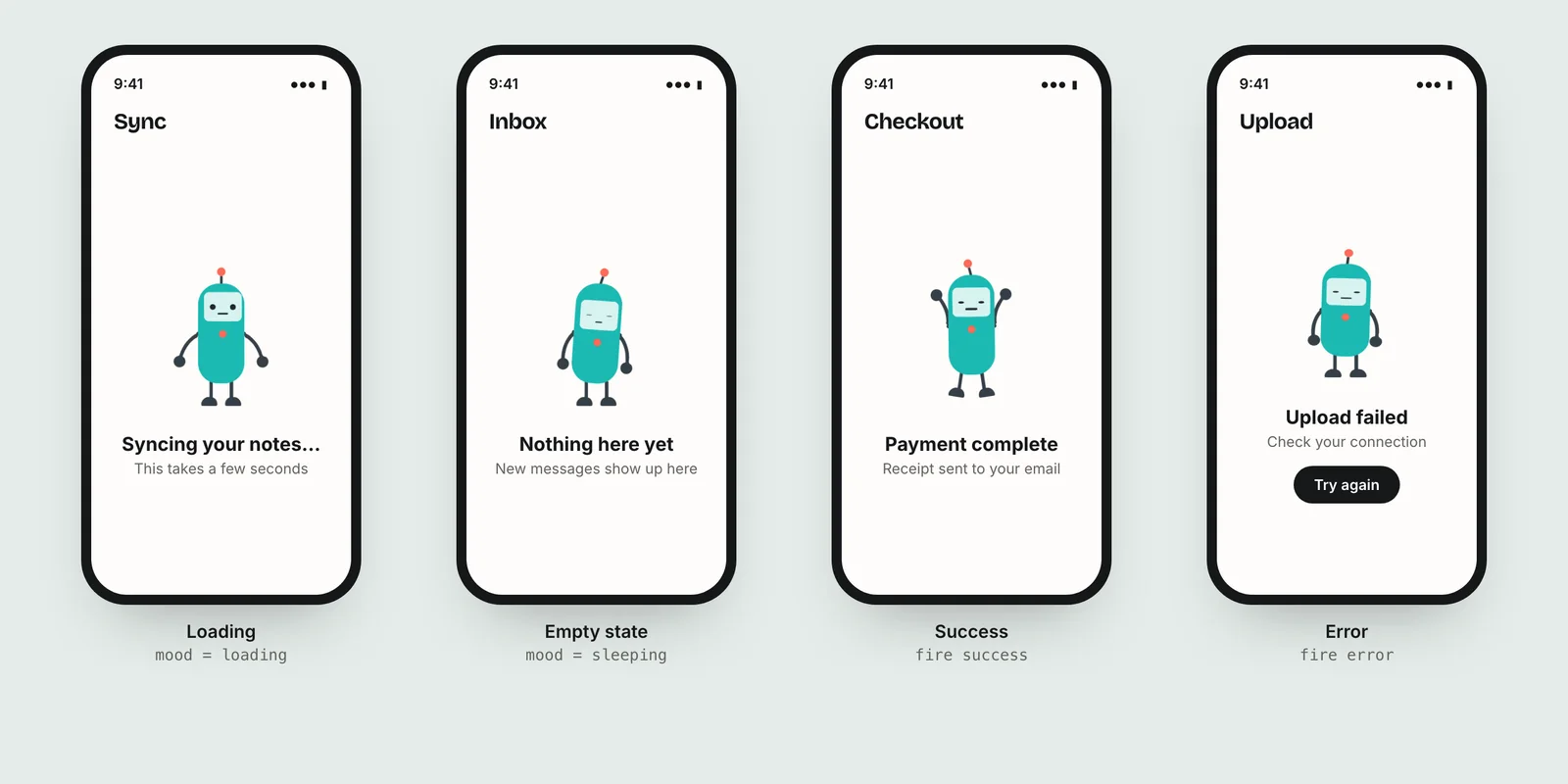
If you already have a mascot or logo but no animator, Charmotion turns an uploaded character into 17 animations in about 1–2 hours, including a .riv with a Character view model (a mood number from 0 to 9 and triggers such as success and error) plus SwiftUI code for both the legacy RiveViewModel and the new runtime. See which states a mascot needs for planning the set.
How do you keep iOS animations fast and accessible?
A few rules keep animation from costing battery or excluding users:
- Animate a handful of views at once, not whole lists. Stop loops when the view leaves the screen.
- Prefer vectors (SF Symbols, Lottie, Rive) for small UI art and video for photographic or 3D clips.
- Bundle the animation file instead of downloading it on first launch, so it is ready when the screen appears.
Respect Settings > Accessibility > Motion > Reduce Motion. SwiftUI exposes it as an environment value that updates live:
@Environment(\.accessibilityReduceMotion) private var reduceMotion

var body: some View {
    if reduceMotion {
        Image("mascot-still").resizable().scaledToFit()
    } else {
        mascot.view()
    }
}
When motion carries meaning, such as loading or success, keep it available as text or an accessibility announcement. The reduced motion guide covers the WCAG rules.
Add animation to an iOS app
- Start with SwiftUI. Use
withAnimationor.animation(_:value:)for UI feedback andsymbolEffectfor icons. - Add a runtime if needed. Add
https://github.com/airbnb/lottie-spm.gitfor Lottie orhttps://github.com/rive-app/rive-iosfor Rive in Xcode. - Bundle the file. Drag the
.json,.rivor.mp4into the project and confirm it is a member of the app target. - Show it. Use
LottieView(animation: .named("name")).looping(),RiveViewModel(fileName:stateMachineName:).view()orVideoPlayer. - Connect it to app state. Call
setInputfor loops andtriggerInputfor one-shots when your view model changes. - Respect Reduce Motion. Read
accessibilityReduceMotionand show a still image when it is true.
Frequently asked questions
Should I use UIView.animate or withAnimation?
Use withAnimation in SwiftUI views and UIView.animate in UIKit views. Both animate property changes on existing views. SwiftUI's version animates every view that depends on the changed state, so you describe the end state rather than each view's frame. Mixed apps can use both, each in its own layer.
What is the difference between PhaseAnimator and KeyframeAnimator?
Both arrived in iOS 17. PhaseAnimator steps through a list of phases and animates between them, which suits simple pulses and multi-step sequences. KeyframeAnimator gives each property its own timeline of keyframes, which suits precise motion where scale, rotation and position change at different times.
Lottie or Rive for an iOS app?
Use Lottie for linear, designer-made vector loops exported from After Effects. Use Rive when the animation must react to app state, such as a mascot switching between idle, loading and success, because its state machine handles transitions inside the file. Both install with Swift Package Manager and work in SwiftUI.
Does Rive work with UIKit?
Yes. RiveRuntime supports both SwiftUI and UIKit. In the legacy runtime, RiveViewModel can create a UIKit view as well as a SwiftUI view, and the same setInput and triggerInput calls control it. Rive's Apple documentation covers both setups, so you can mix them in one app.
Quick answers from this guide
Sources
- withAnimation(_:_:) — Apple
- Wind your way through advanced animations in SwiftUI (WWDC23) — WWDC Notes
- Animate symbols in your app (WWDC23) — Apple
- lottie-ios — Airbnb (GitHub)
- lottie-ios 4.3.0 release notes — Airbnb (GitHub)
- Apple runtime — Rive
- AVPlayerLooper — Apple
- accessibilityReduceMotion — Apple