How to Add Animation to an Android App (Compose)
By the Charmotion team · Updated
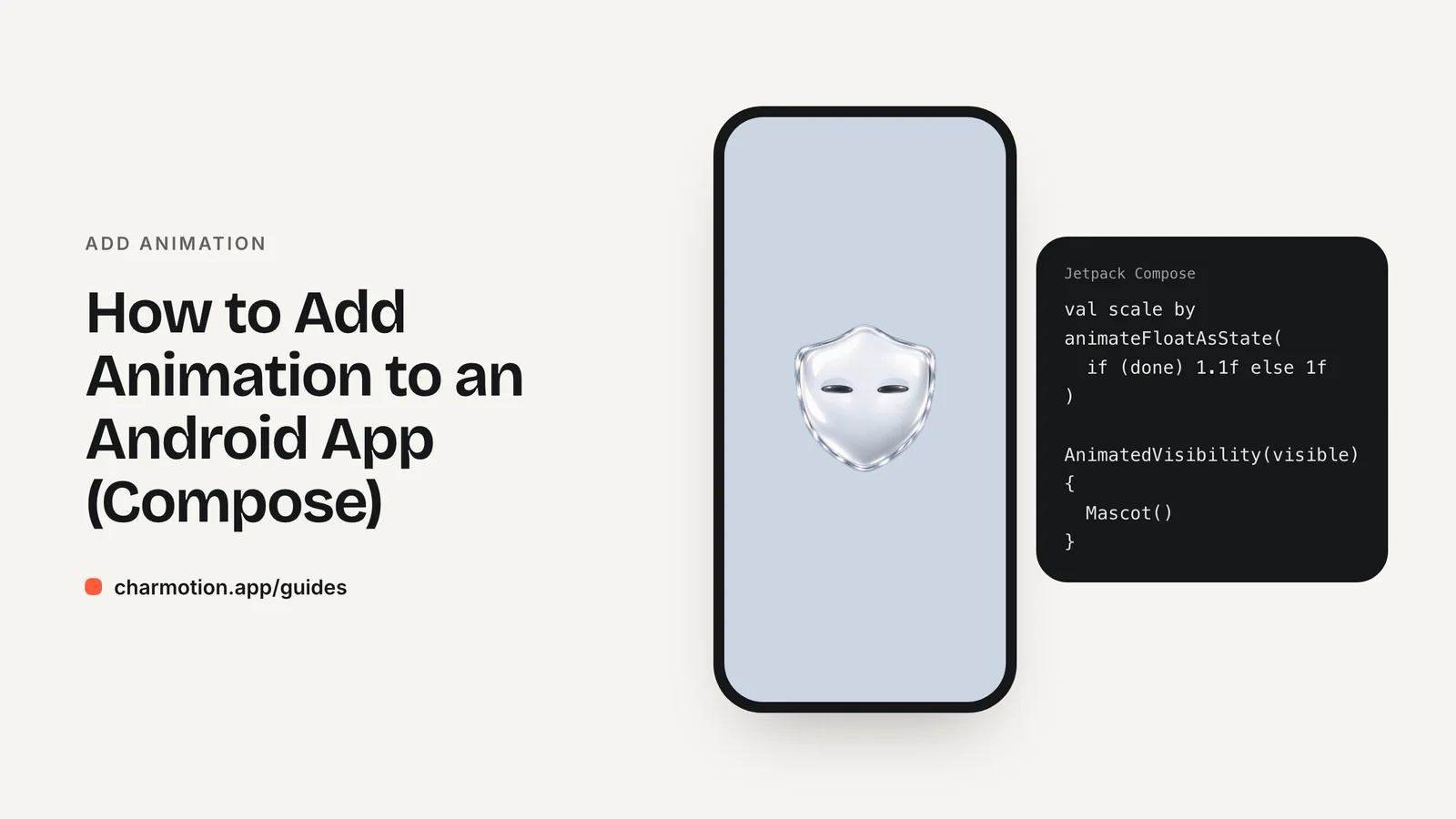
To add animation to an Android app, use Compose's built-in APIs first: animate*AsState for single values, AnimatedVisibility for showing and hiding, and rememberInfiniteTransition for loops. Add lottie-compose for designer-made vector loops, app.rive:rive-android for interactive characters, and Media3 ExoPlayer for video clips.
Key takeaways
- Google's Compose decision tree maps each case to one API, from
animate*AsStatetoupdateTransition. - MotionLayout is for View-based UIs; its docs point new projects to Compose animation.
- Google suggests a third-party framework such as Lottie for complex illustrated animation.
- Rive's Compose API is in beta; the legacy
RiveAnimationViewstill exposes simple state methods. - Media3 has a
Playercomposable for looping video.
Already have a character or logo? Preview your own character animated in a phone splash, a website hero and an empty state — free, in your browser, nothing uploaded.
Which Compose animation API fits your case?
Google's "Choose an animation API" page works as a decision tree. The short version:
| Case | API |
|---|---|
| One value with a known target (size, color, alpha) | animate*AsState, e.g. animateFloatAsState |
| Show or hide content | AnimatedVisibility |
| Swap one composable for another | AnimatedContent or Crossfade |
| Several properties that change together | updateTransition |
| A loop that runs forever | rememberInfiniteTransition |
| Gesture-driven motion | Animatable |
| Simple icon micro-animation | AnimatedVectorDrawable |
| Complex illustrated art | A third-party framework such as Lottie |
Add a row Google's chart does not have: a character that reacts to app events. That needs a runtime with states, such as Rive, so one file can idle, loop while loading and react to success. For a fixed clip, use video.
If your app still uses Views, MotionLayout remains available, but its documentation now opens with a "Try the Compose way" notice pointing to Compose's animation APIs.
How do animate*AsState and AnimatedVisibility work?
These two cover most UI feedback. animateFloatAsState animates toward whatever target you pass, every time the target changes:
@Composable
fun PressableCard(pressed: Boolean, showBanner: Boolean) {
    val scale by animateFloatAsState(
        targetValue = if (pressed) 0.95f else 1f,
        label = "scale"
    )
    Column {
        Card(Modifier.graphicsLayer { scaleX = scale; scaleY = scale }) { /* ... */ }
        AnimatedVisibility(visible = showBanner) {
            Text("Saved")
        }
    }
}
AnimatedVisibility fades and expands content in and out by default, and accepts custom enter and exit transitions.
When several values must move together, such as a card's size, color and elevation when it is selected, use updateTransition. It ties all child animations to one state, so they start at the same moment and stay in sync.
For loops, rememberInfiniteTransition runs until the composable leaves the screen:
val transition = rememberInfiniteTransition(label = "pulse")
val alpha by transition.animateFloat(
    initialValue = 0.4f,
    targetValue = 1f,
    animationSpec = infiniteRepeatable(tween(800), RepeatMode.Reverse),
    label = "alpha"
)
Box(Modifier.size(12.dp).alpha(alpha).background(Color.Gray, CircleShape))
How do you animate content changes and icons in Compose?
When one piece of UI replaces another, such as a counter, a status label or an empty state turning into a list, use AnimatedContent. It animates out the old content and animates in the new content whenever its target state changes:
AnimatedContent(targetState = count, label = "count") { value ->
    Text("$value items")
}
Crossfade is the simpler cousin: it only fades between two layouts, which suits switching between tabs or loading and loaded states. For size changes inside a single composable, add Modifier.animateContentSize() and the container grows or shrinks smoothly when its content changes. In lists, Modifier.animateItem() animates items as they are inserted, removed or reordered.
For icons, Google's decision tree recommends AnimatedVectorDrawable for simple SVG micro-animations, such as a play icon turning into pause or a checkmark drawing itself. It is a vector drawable resource with animators attached, so it ships as XML and needs no extra library. Use it for small, single-purpose icon motion and save Lottie for full illustrations.
Navigation transitions belong to the navigation library: Compose Navigation's composable() destinations accept enterTransition and exitTransition, so screen changes animate without custom code.
How do you add a Lottie animation to a Compose screen?
Add the Compose artifact from Airbnb's lottie-android project, using the version listed in its README:
implementation "com.airbnb.android:lottie-compose:$lottieVersion"Put the exported .json in res/raw/, load it as a composition and play it:
@Composable
fun LoadingAnimation() {
    val composition by rememberLottieComposition(
        LottieCompositionSpec.RawRes(R.raw.loading)
    )
    LottieAnimation(
        composition,
        iterations = LottieConstants.IterateForever,
        modifier = Modifier.size(160.dp)
    )
}
The composition loads asynchronously, so composition is null for the first frames; LottieAnimation simply draws nothing until it is ready. If you need to control playback yourself, for example to play once when a task finishes, use animateLottieCompositionAsState and pass its progress to LottieAnimation.
Lottie fits linear art: a spinner, a success check, an onboarding illustration. If an icon only needs a simple morph, Google's tree points to AnimatedVectorDrawable instead, which needs no extra library. If the art must change behavior based on app state, consider Rive.
How do you add a Rive animation and switch states on Android?
Add app.rive:rive-android (11.9.2 in Rive's current docs) together with androidx.startup, and put the .riv in res/raw/. Call Rive.init(context) once at startup.
Rive's Compose API is marked beta and is where Rive focuses new work. It needs a worker, loads the file asynchronously and renders once loading succeeds:
setContent {
    val riveWorker = rememberRiveWorker()
    val riveFile = rememberRiveFile(
        RiveFileSource.RawRes.from(R.raw.character),
        riveWorker
    )
    when (riveFile) {
        is Result.Loading -> CircularProgressIndicator()
        is Result.Error -> Text("Animation unavailable")
        is Result.Success -> Rive(riveFile.value)
    }
}
In Compose, files with view models are controlled through Rive's data binding API; follow the Compose section of Rive's Android docs for the current calls.
The legacy View API, built around RiveAnimationView, is still supported and has one method per input type. It works in XML layouts or inside Compose's AndroidView:
val mascot = findViewById<RiveAnimationView>(R.id.mascot)
mascot.setNumberState("CharacterStateMachine", "mood", 5f) // loading loop
mascot.fireState("CharacterStateMachine", "success")       // one-shot
Names are case-sensitive. The Rive on Android, Flutter and React Native guide has the full setup.
How do you play a looping video with Media3?
For a pre-rendered clip, use Media3 ExoPlayer. Current docs use androidx.media3:media3-exoplayer:1.11.1, and media3-ui-compose-material3 provides a Player composable:
import androidx.media3.common.Player as Media3Player

@Composable
fun LoopingClip(uri: String) {
    val context = LocalContext.current
    val exo = remember {
        ExoPlayer.Builder(context).build().apply {
            setMediaItem(MediaItem.fromUri(uri))
            repeatMode = Media3Player.REPEAT_MODE_ONE
            volume = 0f
            prepare()
            play()
        }
    }
    DisposableEffect(Unit) { onDispose { exo.release() } }
    Player(player = exo)
}
Setting volume to 0 keeps a decorative loop silent. For clips you bundle with the app, use a MediaItem that points to the bundled file instead of a remote URL so the clip is available offline and starts instantly.
Release the player when the composable leaves, or it keeps decoding in the background. Video suits clips with photographic or 3D detail. It cannot react to state, so a character that has to switch between idle and loading is better served by Rive.
How do you add an animated mascot to an Android app?
Model the mascot as a function of your UI state. Most apps already expose a StateFlow from a ViewModel; map each state to one of the mascot's loops, and fire a trigger for one-off events:
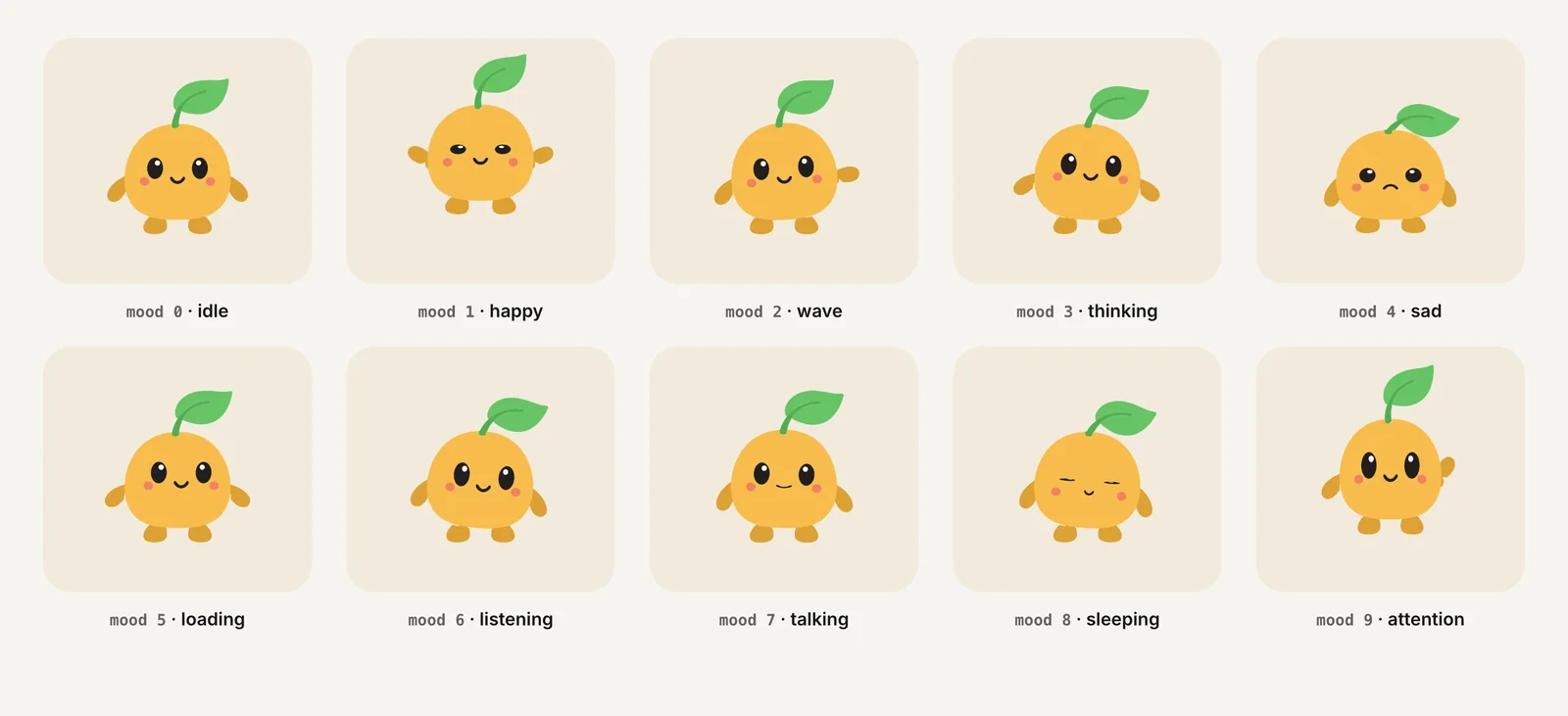
- Idle screen: mood 0. Request running: mood 5 (loading).
- Request finished: fire
successorerror, then return to idle. - Voice input: a listening loop; reply playing: a talking loop.
Keep this mapping in one place. Screens then only emit states, and the state machine in the file handles transitions, so a success reaction never cuts off abruptly.
Charmotion produces this kind of file from an uploaded mascot or logo: one .riv with CharacterStateMachine (a mood input from 0 to 9 plus triggers such as success, error, enter and exit) that works with the setNumberState and fireState calls above, and a Character view model for data binding. For planning states, see mascot animation states.
How do you keep Android animations smooth and accessible?
Compose animations are cheap when they change drawing properties. Animate alpha, scale and translation through graphicsLayer where you can, and avoid animating values that force every frame to re-measure a large layout.
- Stop infinite loops and release players when the screen is not visible.
- Ship small vector files for UI art; reserve video for clips that need it.
- Test on a low-end device, not only on an emulator on a fast laptop.
Respect the user's motion settings. On Android 9 and later, people can turn on Settings > Accessibility > Remove animations, which sets the system animator duration scale to zero. Check Settings.Global.ANIMATOR_DURATION_SCALE and, when it is 0, show a still frame of your mascot instead of a loop. Keep the meaning, such as "loading" or "saved", available in text.
The reduced motion guide explains which loops WCAG expects users to be able to pause or avoid.
Add animation to a Jetpack Compose app
- Pick the API. Use Google's decision tree:
animate*AsState,AnimatedVisibility,updateTransitionorrememberInfiniteTransition. - Add a library for art. Add
com.airbnb.android:lottie-composefor Lottie orapp.rive:rive-androidplusandroidx.startupfor Rive. - Bundle the file. Put
.jsonand.rivfiles inres/raw/with lowercase, underscore names. - Render it. Use
LottieAnimation, Rive'sRive()composable afterrememberRiveFilesucceeds, or the Media3Playercomposable. - Drive states. Map ViewModel state to mood numbers and triggers, e.g.
setNumberStateandfireStateon the legacy view. - Check motion settings. Show a still frame when the animator duration scale is 0.
Frequently asked questions
Is MotionLayout still recommended?
Only for View-based screens. MotionLayout is built on ConstraintLayout and the View system, and its documentation now opens with a "Try the Compose way" notice that points new projects to Compose's animation APIs. For a Compose app, use animate*AsState, AnimatedContent, updateTransition and related APIs instead.
AnimatedVectorDrawable or Lottie?
Use AnimatedVectorDrawable for simple icon micro-animations, such as a play icon morphing into pause; it needs no extra library. Use Lottie for complex illustrated animation made in After Effects. Google's Compose decision tree draws the same line between simple SVG icons and complex art.
Should I use Rive's Compose API or RiveAnimationView?
Use the Compose API for new Compose screens, since Rive focuses development there, but note it is marked beta. RiveAnimationView remains supported and is the simple choice for View-based layouts or input-based files controlled with setNumberState and fireState. Compose can host it through AndroidView.
How do I make a Compose animation loop forever?
Use rememberInfiniteTransition and animate a value with infiniteRepeatable, for example tween(800) with RepeatMode.Reverse for a pulse. The loop runs while the composable is on screen and stops when it leaves composition. For a Lottie file, pass iterations = LottieConstants.IterateForever to LottieAnimation instead of writing your own loop.
Quick answers from this guide
Sources
- Choose an animation API — Android Developers
- Manage motion and widget animation with MotionLayout — Android Developers
- lottie-android — Airbnb (GitHub)
- Android runtime — Rive
- Android runtime: Inputs (legacy) — Rive
- Media3 ExoPlayer: Hello world — Android Developers