How to Add Rive and Lottie Animations to Framer
By the Charmotion team · Updated
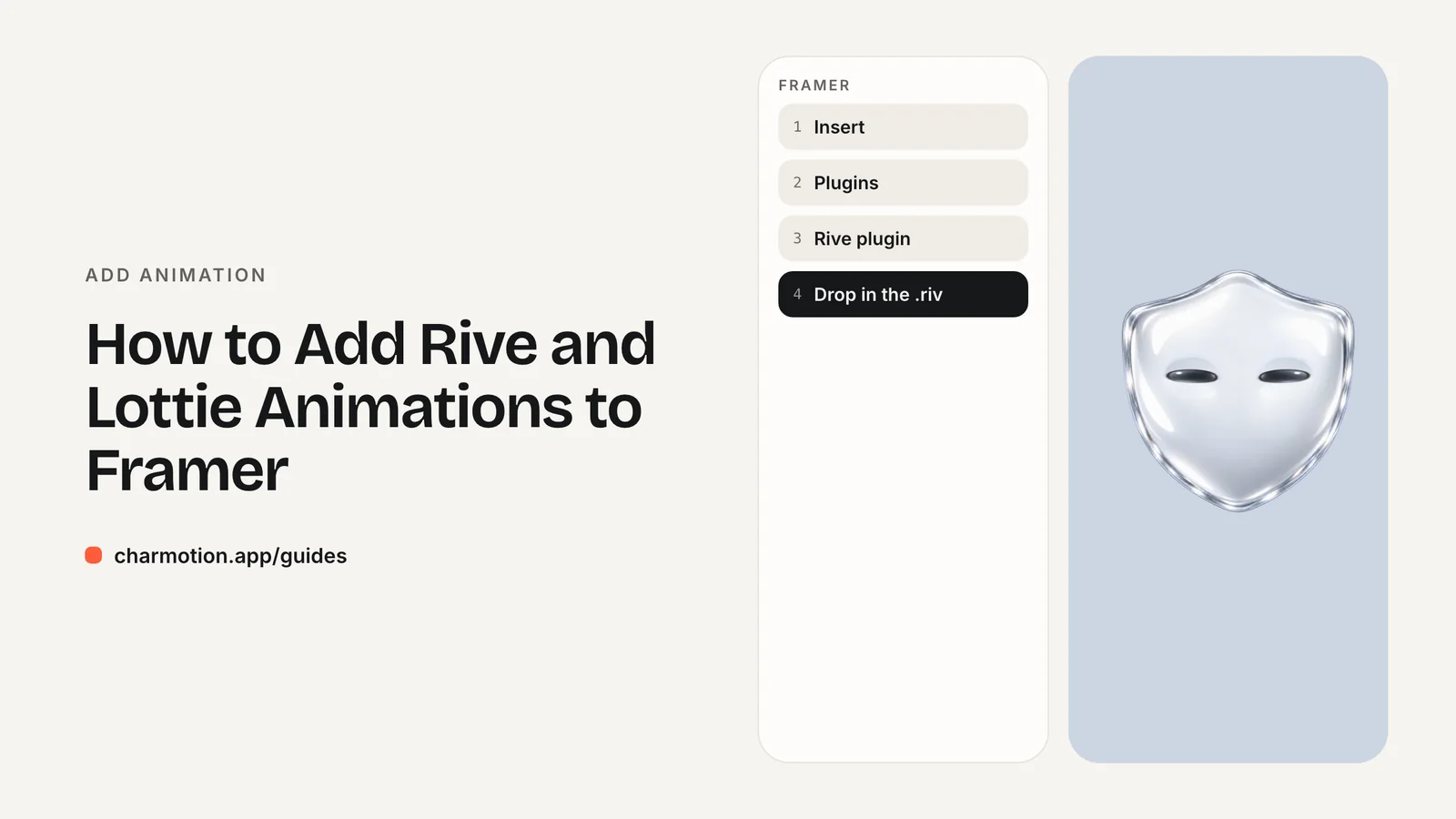
To add Rive to Framer, install the official Rive plugin, drag your .riv file onto the canvas and control its state machine inputs from Framer. Lottie and dotLottie files use the Lottie components under Insert, then Media, and clips use the Video component. For moods tied to custom logic, wrap the Rive React runtime in a code component.
Key takeaways
- The Rive plugin is published by Rive and gives Framer drag-and-drop .riv support.
- The plugin exposes state machine inputs so Framer can control them.
- Lottie and dotLottie components are under Insert, then Media.
- Framer's Video component does not compress your video, so export small files.
- A code component with
useRivehandles custom event logic.
Already have a character or logo? Preview your own character animated in a phone splash, a website hero and an empty state — free, in your browser, nothing uploaded.
Does Framer support Rive?
Yes, through an official plugin published by Rive in the Framer Marketplace. Its listing says it "gives Framer native support of the Rive format, which means you can drag and drop a .riv file directly into Framer," and that it lets you access the file's state machine inputs and control them from Framer.
So unlike a plain embed, the state machine keeps working: a character can idle by itself, and Framer can change an input to switch it to another state. This is enough for most marketing sites, where the character reacts to hover, taps and page sections.
Two things to know before you start:
- The plugin works with state machine inputs. Files that only expose data binding properties need the code-component route described below, so check which system your file uses.
- Name inputs clearly in the source file. You will select them by name inside Framer, and a number called
moodis easier to work with than several booleans.
How do you use the official Rive plugin?
- Open the Framer Marketplace, find the Rive plugin by Rive, and open it in your project.
- Drag your .riv file onto the canvas.
- Select the artboard and the state machine you want to run.
- Size the layer with a fixed aspect ratio matching the artboard so the character is not cropped at smaller breakpoints.
- Set the inputs you want to control, then connect them to your design, for example through component variants for hover and pressed states.
With a mood-based character, a common setup is one Framer component with a few variants, each setting a different mood value: idle (0) by default, happy (1) on hover, attention (9) on a section that needs a nudge. Triggers such as yes or success fit taps on a call-to-action.
Check the plugin's listing for its current options, since plugin interfaces change faster than documentation. If a control you need is missing, the code component in the last section gives you full access to the runtime.
Does Framer support Lottie and dotLottie natively?
Framer offers Lottie components in the Insert menu. According to a LottieFiles guide, you click Insert, open Media to find the animation components, and add a Lottie or Dot Lottie component, then point it at your file. LottieFiles describes this as native support; Framer's own help center does not document it in the same detail, so check the Insert panel in your editor for the current options.
Use Lottie for illustrations that play through or loop: a hero scene, an animated icon, an empty-state drawing. Prefer .lottie over .json when your export tool offers it, because dotLottie files are compressed and can hold several animations in one file.
If the animation needs to switch between states based on what the visitor does, Rive is usually the simpler choice, since the switching logic lives in the file's state machine rather than in your Framer layout. See Rive vs Lottie for a fuller comparison.
How do you add a video or transparent video in Framer?
Framer's Video component plays uploaded files, hosted MP4 URLs, YouTube and Vimeo. Framer's help center notes that it "optimizes video loading, but it does not optimize or compress the video content itself," so export a small, web-ready file before uploading. For background loops, turn on autoplay, mute and loop.
Transparent video needs care. Chrome, Edge and Firefox show the alpha channel of a VP9 WebM, but Safari plays WebM opaque and needs an HEVC-with-alpha .mov instead. A single uploaded file therefore cannot be transparent in every browser. To overlay a character on your design, use an embed or code component that outputs a <video> with both sources, HEVC first:
<video autoplay muted loop playsinline preload="metadata"
       width="400" height="400" poster="/mascot-poster.png">
  <!-- Safari: HEVC with alpha must come first -->
  <source src="/mascot.mov" type="video/quicktime; codecs=hvc1.1.6.H120.b0">
  <!-- Chrome, Edge, Firefox: VP9 with alpha -->
  <source src="/mascot.webm" type="video/webm; codecs=vp09.00.41.08">
</video>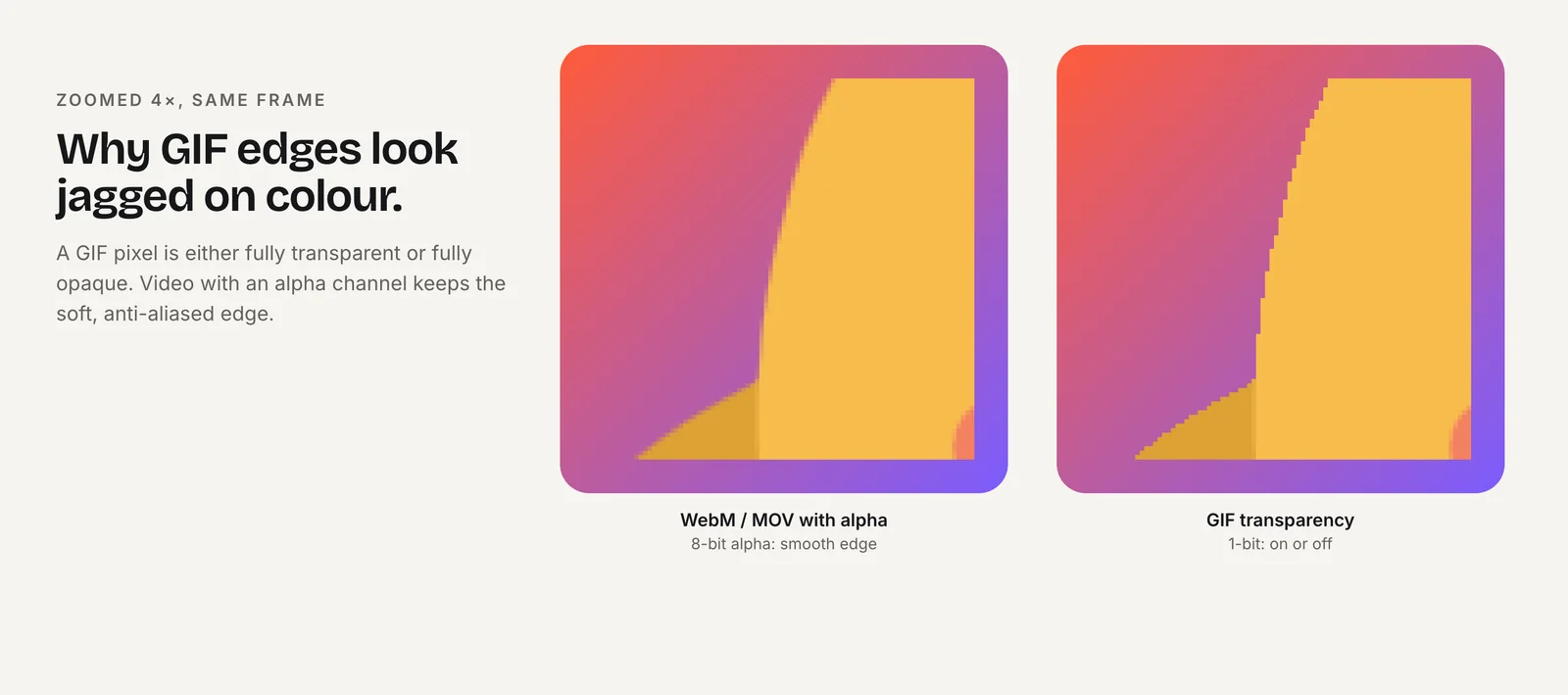
If transparency is not essential, a square MP4 on a background that matches your section color is the simplest option and plays everywhere.
Whatever you add, plan for visitors who turn on reduce motion. Motion, the animation library Framer is built on, documents that Framer exposes its reduced-motion behavior as a setting under Site Settings, then Accessibility. That setting covers Framer's own transitions; it does not pause a Rive file or a video for you. Give a looping character a calm idle state, and in a code component check matchMedia("(prefers-reduced-motion: reduce)") and skip autoplay when it matches.
How do you map Rive moods to Framer properties with code?
Framer code components are React components, so you can use Rive's React runtime and expose the mood as a property control. This gives designers a slider on the canvas and lets you connect the property to variants or overrides.
import { addPropertyControls, ControlType } from "framer";
import { useEffect } from "react";
import { useRive, useStateMachineInput } from "@rive-app/react-canvas";

const SM = "CharacterStateMachine";

export default function Mascot({ src, mood }: { src: string; mood: number }) {
  const { rive, RiveComponent } = useRive({ src, stateMachine: SM, autoplay: true });
  const moodInput = useStateMachineInput(rive, SM, "mood");

  useEffect(() => {
    if (moodInput) moodInput.value = mood;
  }, [moodInput, mood]);

  return <RiveComponent style={{ width: "100%", height: "100%" }} />;
}

addPropertyControls(Mascot, {
  src: { type: ControlType.File, allowedFileTypes: ["riv"] },
  mood: { type: ControlType.Number, min: 0, max: 9, step: 1, defaultValue: 0 },
});
How package imports resolve in code files is covered in Framer's developer documentation; check it if the Rive import does not load. Charmotion generates a .riv with this mood input (0 idle through 9 attention) and success, error, yes, no, enter and exit triggers from an uploaded character, along with React code you can adapt here.
How to add a Rive character to a Framer site
- Install the plugin. Open the official Rive plugin from the Framer Marketplace in your project.
- Add the file. Drag the .riv onto the canvas and select its artboard and state machine.
- Size the layer. Give the layer a fixed aspect ratio matching the artboard and test every breakpoint.
- Control the inputs. Set the mood number or triggers from variants for hover, press and section states.
- Use code for custom logic. For anything the plugin cannot express, wrap
useRivein a code component with a mood property control.
Frequently asked questions
Is the Framer Rive plugin official?
Yes. The Rive plugin in the Framer Marketplace is published by Rive. It adds drag-and-drop support for .riv files and exposes the file's state machine inputs so you can control them from Framer. Install it from the Framer Marketplace and open it inside your project to start dragging in .riv files.
Why is my transparent WebM black in Framer on Safari?
Safari plays WebM but ignores its alpha channel. Provide an HEVC-with-alpha .mov as the first source and the WebM second, using an embed or code component, or use a Rive file, which renders on a transparent canvas in every major browser and is usually smaller than either video file.
Does Framer compress uploaded videos?
No. Framer's help center says it optimizes video loading but does not optimize or compress the video content itself. Encode a small, web-ready MP4 or WebM before uploading, especially for autoplaying background loops, which download on every visit to the page.
Quick answers from this guide
Sources
- Rive plugin — Framer Marketplace
- Add Lottie JSON and dotLottie files to Framer — LottieFiles
- How to add video — Framer Help
- Framer developer documentation — Framer
- React accessibility: reduced motion — Motion
- React runtime — Rive
- Video with alpha transparency on the web — Jake Archibald