Accessible, Fast AI Avatar Animation on the Web
By the Charmotion team · Updated
An AI avatar that loops beside a conversation needs a way to pause or settle under WCAG 2.2.2, a still pose when prefers-reduced-motion is set, and a text status for screen readers. For speed, run one Rive instance, pause it when offscreen or the tab is hidden, cache the .riv and keep the canvas mounted.
Key takeaways
- Auto-starting motion longer than five seconds next to other content needs a pause, stop or hide mechanism.
- Under reduced motion, show a still image of the current state and keep the meaning in text.
- Pause the Rive instance with IntersectionObserver and the Page Visibility API; Rive recommends pausing offscreen graphics.
- Hide the canvas from assistive tech and announce only meaningful changes in a polite status region.
Already have a character or logo? Preview your own character animated in a phone splash, a website hero and an empty state — free, in your browser, nothing uploaded.
Does an always-looping avatar violate WCAG 2.2.2?
It can. WCAG 2.2 Success Criterion 2.2.2 (Pause, Stop, Hide, Level A) applies to moving content that starts automatically, lasts more than five seconds and is presented in parallel with other content. For that content, there must be a way for the user to pause, stop or hide it (W3C). An idle loop running beside a chat for the whole session meets all three conditions.
Ways to comply, from simplest to most flexible:
- Tie motion to activity. Animate while the assistant is listening, thinking or talking, and settle to a still pose within a few seconds once the conversation goes quiet. Motion that stops within five seconds is outside the criterion; an idle loop that runs on is not.
- Offer a control. A "Pause animation" toggle near the avatar, or a setting to show a static icon, satisfies the criterion directly and covers long replies.
- Hide it. Letting users collapse the assistant panel or turn the avatar off is also a valid mechanism.
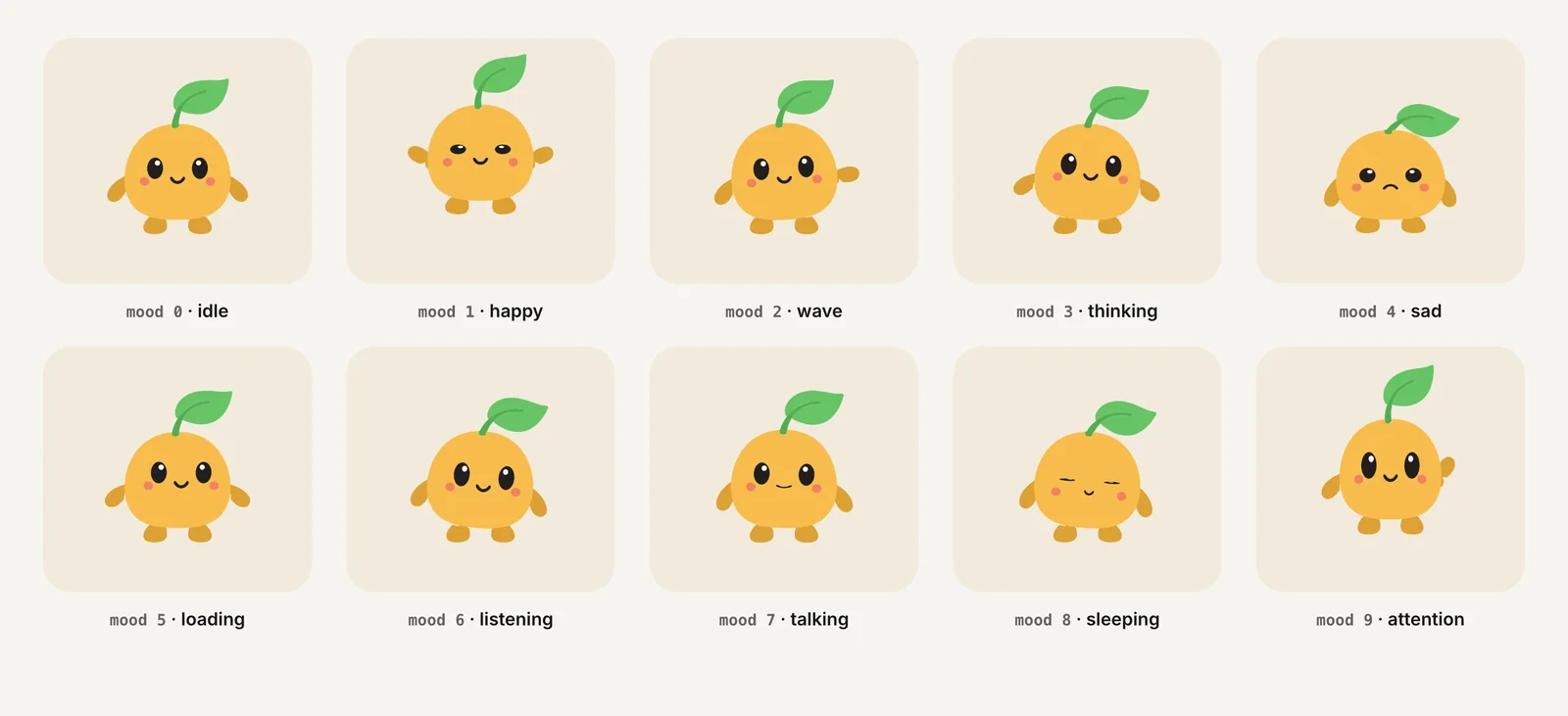
Charmotion files include a sleeping mood (8) that works well as the low-motion resting state before you pause: the character visibly winds down, and pausing on it reads as intentional. Charmotion generates it, along with the other nine moods and six reactions, from your own character or logo.
How should the avatar respond to prefers-reduced-motion?
prefers-reduced-motion: reduce tells you the user has asked their device to minimize non-essential motion (MDN). An avatar's ambient loops are non-essential by definition. The meaning they carry, such as "thinking" or "listening," is not, so move that meaning into text.
"use client";

import { useEffect, useState } from "react";

export function usePrefersReducedMotion(): boolean {
  const [reduce, setReduce] = useState(false);
  useEffect(() => {
    const mq = window.matchMedia("(prefers-reduced-motion: reduce)");
    setReduce(mq.matches);
    const onChange = () => setReduce(mq.matches);
    mq.addEventListener("change", onChange);
    return () => mq.removeEventListener("change", onChange);
  }, []);
  return reduce;
}

export function Avatar({ mood, label }: { mood: number; label: string }) {
  const reduce = usePrefersReducedMotion();
  return (
    <div className="flex items-center gap-2">
      {reduce
        ? <img src="/avatar-still.png" alt="" width={64} height={64} />
        : <LiveAvatar mood={mood} />}
      <span role="status">{label}</span>
    </div>
  );
}
Rendering a still image is the most predictable option, and it skips the runtime download too. Don't simply pause the live animation at whatever frame it is on; a loop paused mid-motion can freeze on an awkward pose. Use a still made from a clean idle frame. If you want state to remain visible, swap between a few stills (idle, listening, talking) rather than animating.
The hook listens for changes, so users who toggle the setting mid-session get the right behavior without a reload.
How do I pause the avatar when it's offscreen or the tab is hidden?
Rive's best practices say that if a graphic is scrolled offscreen and doesn't need to keep playing, you should call its pause API (Rive best practices). Combine an IntersectionObserver for visibility on the page with the Page Visibility API for background tabs (MDN, MDN):
"use client";

import { useEffect, useRef } from "react";
import { useRive } from "@rive-app/react-webgl2";

export function LiveAvatar() {
  const box = useRef<HTMLDivElement>(null);
  const { rive, RiveComponent } = useRive({
    src: "/character.riv",
    stateMachine: "CharacterViewModelMachine",
    autoplay: true,
    autoBind: true,
  });

  useEffect(() => {
    const el = box.current;
    if (!rive || !el) return;
    let onScreen = true;
    const sync = () => {
      if (onScreen && document.visibilityState === "visible") rive.play();
      else rive.pause();
    };
    const io = new IntersectionObserver(([entry]) => {
      onScreen = entry.isIntersecting;
      sync();
    });
    io.observe(el);
    document.addEventListener("visibilitychange", sync);
    return () => {
      io.disconnect();
      document.removeEventListener("visibilitychange", sync);
    };
  }, [rive]);

  return (
    <div ref={box} aria-hidden="true" style={{ width: 96, height: 96 }}>
      <RiveComponent />
    </div>
  );
}
Use the same sync function for your inactivity pause: add a flag for "asleep" and include it in the condition. When a new message arrives, clear the flag and call sync() before setting the next mood.
Why share one WebGL context across Rive canvases?
Browsers cap how many WebGL contexts a page can hold at once, and creating many is expensive. The Rive React runtime's useOffscreenRenderer parameter, which defaults to true, makes every Rive instance share one offscreen WebGL context (or create it if none exists), which is what allows several Rive animations on one screen (Rive React parameters). Leave it on.
| Check | Why | How |
|---|---|---|
| Pause/stop/hide for long loops | WCAG 2.2.2 | Settle to sleeping, then pause; or offer a toggle |
| Reduced motion | User preference | Still image plus text status |
| Pause offscreen and in hidden tabs | Rive best practice; saves CPU and battery | IntersectionObserver + visibilitychange |
| Shared WebGL context | Context limits | Keep useOffscreenRenderer at its default |
| One live instance | Each instance renders every frame | Live avatar for the current turn, stills for history |
| Cache the .riv | Parse and decode once | Reuse the loaded file for repeat instances |
| Stable canvas | Remounts restart the animation | Keep useRive and RiveComponent together |
The shared context helps with limits, but each instance still costs rendering time every frame it plays. A chat that shows a live avatar next to every message multiplies that cost by the length of the conversation. One live avatar, plus a static image beside older messages, is cheaper and looks calmer. If you do need the same file in several places, Rive recommends caching the .riv so it is parsed and decoded only once (Rive best practices).
How do I stop React from restarting the animation?
Rive's React guidance is blunt: if React repeatedly unmounts or recreates the canvas, the animation may restart, disappear or fail to display (Rive React best practices). Chat interfaces are especially prone to this, because they re-render on every streamed token.
- Keep
useRiveandRiveComponentin one component. Don't create the instance in a parent and render the canvas in a child. - Mount the avatar once in a stable spot, such as the chat header, rather than inside a list that re-renders.
- Avoid changing keys. A
keytied to the current message id remounts the canvas every turn. - Drive it with values, not new components. Change the mood through the view model; don't swap one avatar component for another per state.
- Don't toggle it with conditional rendering for short states. Hiding it with CSS or pausing it keeps the loaded file and position.
The streaming chat avatar guide shows a full component built this way.
What should screen readers hear?
The canvas itself conveys nothing to a screen reader, and it shouldn't try. Mark the avatar's container aria-hidden="true", as in the examples above, so assistive technology skips it.
Put the information in text instead:
- A visible status label such as "Listening," "Thinking" or "Speaking" next to the avatar or input. It helps sighted users who aren't watching the avatar too.
- A polite live region (
role="status") for that label, so changes are announced without interrupting. - Announce only meaningful changes. Thinking may last a fraction of a second on fast replies. Announcing every transition creates noise; announcing "Thinking" only after a short delay, and the reply itself when it arrives, is usually enough.
- Don't describe the animation. "The robot is waving" adds nothing. "Connected" does.
Error reactions deserve special care: the reaction is decoration, but the error is information. Always pair it with a text message, and avoid flashing effects. See accessible animation and reduced motion for the broader WCAG rules.
Make an AI avatar accessible and efficient
- Hide the canvas from assistive tech. Wrap the Rive canvas in a container with
aria-hidden="true"and show a text status in arole="status"element. - Honor reduced motion. Check
prefers-reduced-motionand render a still image of the idle pose instead of the live avatar when it is set toreduce. - Pause when not visible. Call
rive.pause()when an IntersectionObserver reports the avatar offscreen or the page becomes hidden, andrive.play()when it returns. - Settle after inactivity. After a period with no conversation, switch to a sleeping or idle state, then pause rendering until the next message.
- Keep one stable instance. Mount a single live avatar outside the message list, keep
useRiveandRiveComponenttogether, and leaveuseOffscreenRendereron.
Frequently asked questions
Does an animated chatbot avatar need a pause button?
If it loops for more than five seconds alongside other content and starts automatically, WCAG 2.2.2 requires a way to pause, stop or hide it. A toggle works. Settling into a still pose within a few seconds of the conversation going quiet also keeps idle motion short, but long talking loops still benefit from a control.
Should I pause a Rive avatar when it scrolls offscreen?
Yes. Rive's best practices recommend calling pause when a graphic is offscreen and doesn't need to keep playing. Use an IntersectionObserver to detect visibility and the Page Visibility API for background tabs, then call rive.pause() and rive.play() as they change.
What should an avatar show under reduced motion?
A still image of a clean pose, usually idle, with the current state shown as text such as Listening or Thinking. Avoid pausing the live animation at an arbitrary frame. If state must stay visible, swap a few static images instead of animating between them.
Can I show several Rive avatars on one page?
Yes. The React runtime shares one offscreen WebGL context across instances by default through useOffscreenRenderer, which avoids browser context limits. Each playing instance still costs rendering time, so in a chat, animate only the current avatar and use static images for older messages.
Quick answers from this guide
Sources
- Understanding SC 2.2.2: Pause, Stop, Hide — W3C WAI
- prefers-reduced-motion — MDN Web Docs
- Best practices — Rive
- React runtime: Parameters and return values — Rive
- React runtime: Best practices — Rive
- Intersection Observer API — MDN Web Docs
- Page Visibility API — MDN Web Docs