Product Hunt Launch GIF & Gallery Specs
By the Charmotion team · Updated
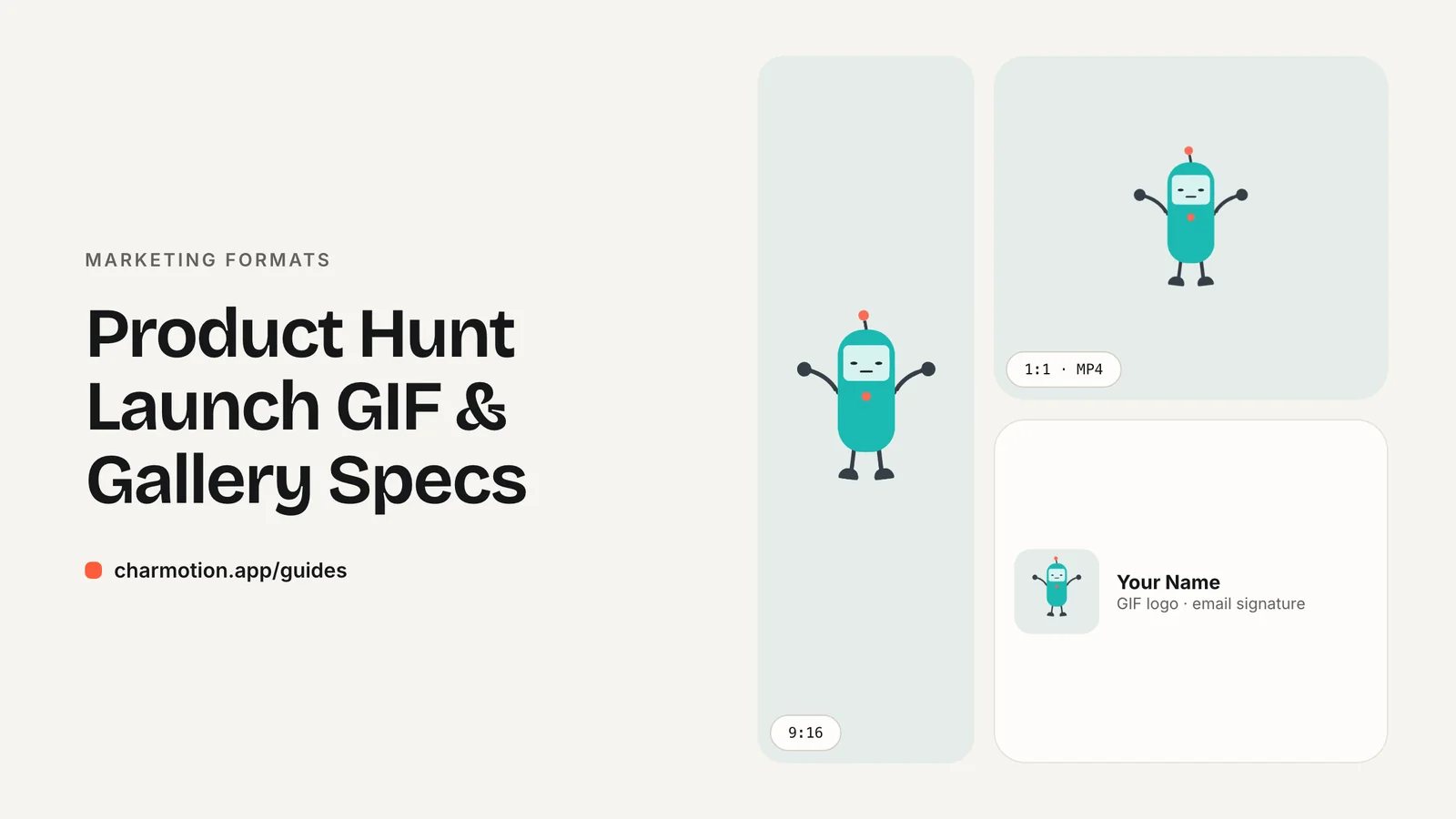
Product Hunt recommends a square 240×240 thumbnail, which can be an animated GIF under 3 MB, and 1270×760 gallery images, with at least two needed before the gallery shows. The thumbnail GIF animates only while someone hovers over your post. Launch videos must be full YouTube links to a video that is not private.
Key takeaways
- Thumbnail: square, 240×240 recommended; a GIF is allowed if it is under 3 MB.
- A thumbnail GIF animates only on hover, so its first frame is what most people see.
- Gallery: 1270×760 recommended, and at least two images before it becomes viewable.
- Video: YouTube links only, as a full URL, and the video must not be private.
- Avoid strobing, quick cuts and small text; Product Hunt may edit flashy GIFs.
Already have a character or logo? Preview your own character animated in a phone splash, a website hero and an empty state — free, in your browser, nothing uploaded.
What size is the Product Hunt thumbnail, and can it be a GIF?
The thumbnail is the small square next to your product name in the feed and on your launch page. Product Hunt's help center says it is best to use square dimensions and recommends 240×240 pixels.
It can be animated. Product Hunt states that you can use a GIF for the thumbnail as long as it is under 3 MB and not too "flashy." That makes the thumbnail the one place on a launch page where a looping mascot or animated logo appears directly in the feed.
| Asset | Product Hunt guidance |
|---|---|
| Thumbnail | Square, 240×240 recommended; JPEG/PNG or GIF |
| Thumbnail GIF | Under 3 MB; animates only while hovering over the post |
| Gallery images | 1270×760 recommended; 2+ images before the gallery is viewable |
| Video | YouTube links only, full URL (shortened links will not load), not private |
The 3 MB limit is generous for a 240-pixel square. A few seconds of a simple loop at that size usually lands well below it, which leaves room for smooth motion without heavy compression artifacts.
When does the thumbnail GIF animate?
Only on hover. Product Hunt says GIFs "will only animate while hovering over a post." Everyone scrolling past without pointing at your post sees a still frame, and touch devices have no hover at all.
That changes how you should build the loop:
- Make frame one a finished image. The first frame should show the full character or logo, centered and readable, not a blank start or a mid-motion blur.
- Put the payoff early. Hover sessions are short. A wave, a hop or a blink in the first second is more likely to be seen than a slow build.
- Loop seamlessly. If the last frame jumps back to the first, the hitch repeats every cycle while someone is reading.
Product Hunt also warns that GIFs with strobing effects, quick cuts or unreadable text are not recommended and may be edited by the Product Hunt team. A calm idle or attention loop of a mascot fits those rules well; a fast montage of screenshots does not.
What size are gallery images, and how many do I need?
Product Hunt recommends 1270×760 for gallery images. The gallery needs at least two images before it becomes viewable, and you can upload several at once.
The gallery is where you explain the product, so treat each image as one idea:
- A hero image: product name, one-line promise and your mascot or logo.
- The core workflow in one screenshot, with a short caption.
- A before/after or input/output pair.
- Pricing or "who it is for," if that is a common question.
A 1270×760 canvas is roughly 5:3. If your animation renders are square (for example 1080×1080), place the character on one side and the headline on the other rather than stretching it. Export a still frame from the animation for the gallery hero so the thumbnail and gallery share the same pose and colors.
Can I add a launch video, and which links work?
Yes, but only from YouTube. Product Hunt's help center says that for videos "only YouTube links are supported," that you should paste a full URL because shortened links will not load, and that you should confirm before launch that the video is not set to private.
Practical points:
- Upload days ahead. Product Hunt recommends uploading ahead of launch. That gives YouTube time to process higher resolutions.
- Use the watch URL. Copy the
youtube.com/watch?v=...address, not ayoutu.beshare link. - Unlisted works for previews as long as it is not private. Check it in a logged-out browser window.
- Open with the product. A short branded sting is fine, but show the product within the first seconds.
Product Hunt does not host video files directly, so an MP4 of your mascot only reaches the launch page through YouTube. The thumbnail GIF is the only directly uploaded animation.
How do I turn a square MP4 into a 240×240 GIF under 3 MB?
Start from a square, seamless loop, such as a 1080×1080 MP4. FFmpeg's two-step palette method gives far better GIF color than a direct conversion: palettegen builds a 256-color palette from the clip and paletteuse maps every frame to it.
ffmpeg -t 3 -i idle.mp4 \
  -vf "fps=15,scale=240:240:flags=lanczos,split[a][b];[a]palettegen[p];[b][p]paletteuse" \
  -loop 0 ph-thumbnail.gif
-t 3keeps the first 3 seconds; drop it if the full loop is short.fps=15is plenty for a thumbnail and keeps the frame count down.scale=240:240:flags=lanczosresizes with a sharp filter.-loop 0tells the GIF muxer to loop forever.
Check the result with ls -lh ph-thumbnail.gif. If it is over 3 MB, lower fps to 12, shorten the clip, or add palettegen=max_colors=128. Flat backgrounds compress far better than gradients, so a solid background behind the mascot helps.
How do I make an animated mascot read at 240 pixels?
At 240 pixels, and smaller on mobile feeds, detail disappears. Design for the silhouette:
- Fill the square. Crop so the character takes up most of the frame. Empty space is wasted at this size.
- Skip text in the GIF. Your product name already sits next to the thumbnail, and small text is one of the things Product Hunt flags.
- Use one clear motion. A single hop, wave or blink reads better than several overlapping movements.
- Use a solid, contrasting background. GIF transparency is 1-bit, so soft edges look jagged against the page. A solid color avoids the fringe.
If you already have a mascot or logo, Charmotion can generate the source loops: upload the image and you get 17 animations in about 1–2 hours, each as a 1080×1080, 60 fps MP4 with 480-pixel GIF previews. The Starter plan ($4.99/month) includes MP4 and GIF, which covers the thumbnail, the gallery stills and a YouTube video.
How to prepare Product Hunt launch visuals from a mascot animation
- Pick a calm loop. Choose a seamless idle, wave or attention loop with a strong first frame and no flashing.
- Make the thumbnail GIF. Convert the square MP4 to a 240×240 GIF with FFmpeg's palettegen and paletteuse filters at about 15 fps.
- Check the size. Confirm the GIF is under 3 MB; lower the frame rate, clip length or palette size if it is not.
- Build gallery images. Create at least two 1270×760 images, starting with a hero that reuses a still frame of the mascot.
- Upload the video to YouTube. Upload ahead of launch, set it to public or unlisted, and paste the full watch URL into Product Hunt.
Frequently asked questions
Does the Product Hunt thumbnail GIF autoplay?
No. Product Hunt says thumbnail GIFs only animate while someone hovers over the post. Everyone else, including most mobile visitors, sees a still frame, so the first frame must work on its own as a clear, centered image of your logo or mascot.
Can I upload an MP4 to Product Hunt?
Not as the launch video. Product Hunt supports only YouTube links for video, entered as a full URL rather than a shortened link, and the video must not be private. Upload your MP4 to YouTube first, then paste the watch URL into your launch.
What happens if my GIF is too flashy?
Product Hunt says GIFs with strobing effects, quick cuts or unreadable text are not recommended and may be edited by its team. Use a gentle, seamless loop with one clear motion and no small text, and keep the file under the 3 MB limit.
Can the gallery use a different size than 1270×760?
Product Hunt recommends 1270×760, so other sizes may be cropped or letterboxed. Designing at exactly that size, with key content kept away from the edges, is the safest way to control how your gallery images look on the launch page.
Quick answers from this guide
Sources
- How to pick a thumbnail and gallery images — Product Hunt Help Center
- FFmpeg filters documentation (palettegen, paletteuse, scale, pad) — FFmpeg
- FFmpeg formats documentation (gif and mov/mp4 muxers) — FFmpeg