LinkedIn Video, Logo & Banner Specs for Animation
By the Charmotion team · Updated
LinkedIn accepts videos from 75 KB to 5 GB and 3 seconds (2 on mobile) to 15 minutes, at 256×144 to 4096×2304, aspect ratios from 1:2.4 to 2.4:1 and 10–60 fps. Company page logos and covers must be PNG or JPEG up to 3 MB, so they are static; share animation as an MP4 post.
Key takeaways
- Video: 75 KB–5 GB, 3 s (2 s on mobile) to 15 min, 10–60 fps, 192 kbps–30 Mbps.
- Resolution 256×144 to 4096×2304 and aspect ratio 1:2.4 to 2.4:1, so 1:1 and 16:9 both fit.
- LinkedIn notes that ProRes files may not process; export H.264 MP4.
- Page logo: 400×400 recommended (minimum 268×268); page images are PNG or JPEG up to 3 MB.
- Animated branding on LinkedIn lives in posts, not in the logo or cover.
Already have a character or logo? Preview your own character animated in a phone splash, a website hero and an empty state — free, in your browser, nothing uploaded.
What are LinkedIn's video specs?
LinkedIn's help center lists these limits for videos shared in posts:
| Property | Minimum | Maximum |
|---|---|---|
| File size | 75 KB | 5 GB |
| Duration | 3 seconds (2 seconds on mobile) | 15 minutes |
| Resolution | 256×144 | 4096×2304 |
| Aspect ratio | 1:2.4 | 2.4:1 |
| Frame rate | 10 fps | 60 fps |
| Bitrate | 192 kbps | 30 Mbps |
MP4 and MOV are both accepted, but LinkedIn warns that ProRes-encoded files may not process. Export H.264 in an MP4 container for the most predictable result.
The minimum duration matters for short animations. A 1.5-second logo hop is too short; loop it two or three times into one file of at least 3 seconds before uploading.
ffmpeg -stream_loop 2 -i logo-hop.mp4 -c:v libx264 -pix_fmt yuv420p \
  -crf 18 -movflags +faststart linkedin-logo.mp4
-stream_loop 2 plays the input three times in total. Add -an if the source has an audio track you do not want.
Which aspect ratio works best in the LinkedIn feed?
LinkedIn accepts anything from 1:2.4 (tall) to 2.4:1 (wide), so 16:9, 1:1, 4:5 and 9:16 are all within range. LinkedIn's spec page does not name a single best ratio for organic posts.
The practical trade-off is screen space:
- 1:1 (1080×1080) takes more vertical space on phones than 16:9 and still looks balanced on desktop. It is a natural fit for a centered mascot or logo.
- 16:9 (1920×1080) suits screen recordings and product demos.
- Vertical (9:16) is within range and reuses the file you made for Reels or Shorts, but test how it is cropped in the feed preview before relying on it.
Whichever you pick, keep the logo and any text away from the edges, add captions if the video has speech, and assume most people watch muted.
What size is the LinkedIn company page logo and cover?
LinkedIn's help page for page images states that all images must be PNG or JPEG files with a maximum size of 3 MB, and gives these sizes:
| Image | LinkedIn guidance |
|---|---|
| Page logo | 400×400 recommended; 268×268 minimum |
| Cover image | 1512×256 on the help page as fetched on October 12, 2026 |
| Format and size | PNG or JPEG, up to 3 MB |
A note on the cover: other summaries of the same page cite a different cover size, and LinkedIn has changed it before. Check the dimensions shown in the upload dialog when you edit your page, and keep text and logos toward the center so a different crop does not cut them off.
The logo is displayed small and inside a square, so a mascot's head or a simplified mark reads better than a full-body character with fine detail.
Can a LinkedIn logo or cover be animated?
Not according to LinkedIn's specs. Page images must be PNG or JPEG, which are still-image formats, so the company logo and cover cannot animate.
That leaves posts as the place for motion. Options that work within LinkedIn's video spec:
- A short brand loop of the logo or mascot, repeated to at least 3 seconds.
- A launch announcement with the mascot reacting next to the headline.
- A product demo with a branded sting at the start or end.
Use a still frame from the same animation as your page logo. Viewers who see the moving version in a post then recognize the static one on your page. Pick a frame where the logo or character is at rest and fully visible, not mid-squash or mid-blink, because that is the pose people will see next to every post your page publishes.
How do I check a video against LinkedIn's limits before uploading?
FFmpeg's companion tool ffprobe prints the properties LinkedIn checks, so you can catch problems before an upload fails to process:
ffprobe -v error -select_streams v:0 \
  -show_entries stream=codec_name,width,height,r_frame_rate,bit_rate:format=duration,size \
  -of default=noprint_wrappers=1 linkedin-logo.mp4
Compare the output with LinkedIn's published ranges:
codec_nameshould beh264(or another delivery codec), notprores, which LinkedIn says may not process.widthandheightmust fall between 256×144 and 4096×2304, with a ratio between 1:2.4 and 2.4:1.r_frame_ratemust be between 10 and 60 fps;60/1is fine,120/1is not.durationmust be at least 3 seconds and at most 15 minutes.size(bytes) must be between 75 KB and 5 GB, andbit_rateat most 30 Mbps.
If the frame rate is too high, re-encode with -r 60 or -r 30. If the bitrate is too high, raise the -crf value a few steps and export again.
How do I share an animated mascot on LinkedIn?
Upload it as a video, not an image. LinkedIn's video spec is documented in detail, with frame rates up to 60 fps and resolutions up to 4096×2304, so an H.264 MP4 keeps smooth motion and full color.
- Start from a 1080×1080 or 1920×1080 MP4.
- Make sure it is at least 3 seconds long; loop short clips with
-stream_loop. - Keep the frame rate between 10 and 60 fps and the bitrate under 30 Mbps.
- Upload from the post composer and add a text post and alt text that describe the video.
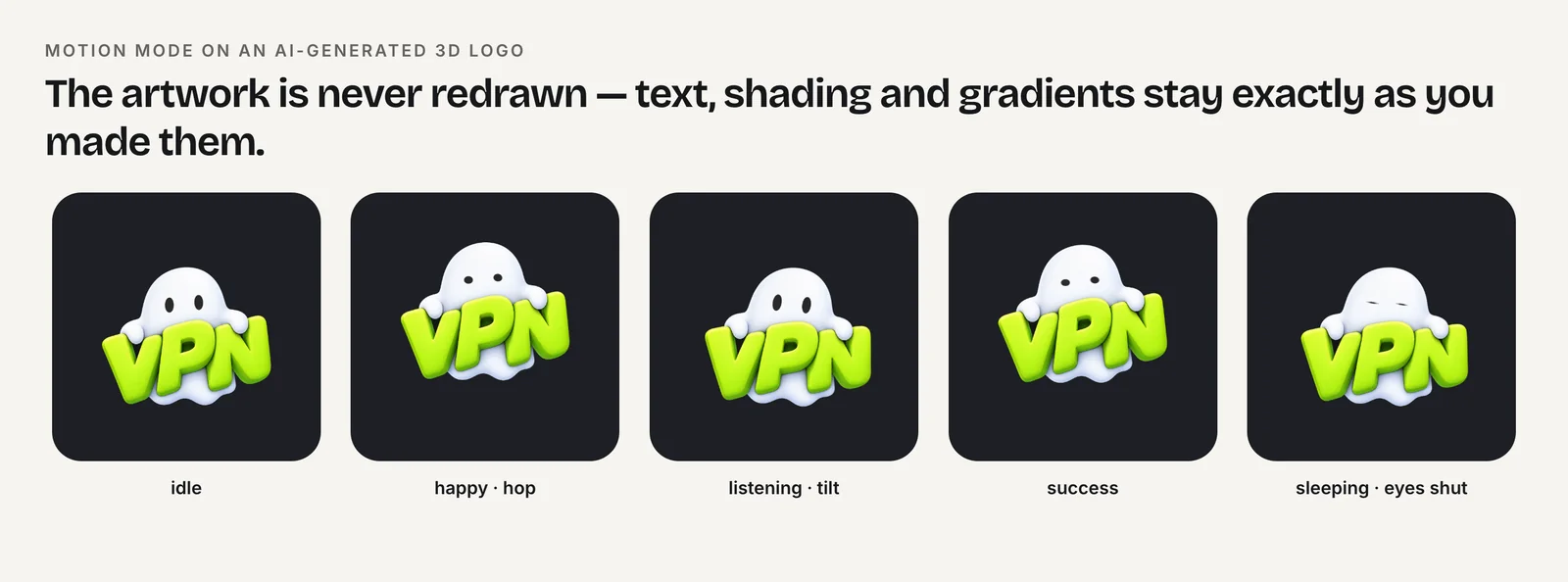
Charmotion turns one uploaded character, mascot or logo into 17 animations in about 1–2 hours, each delivered as a 1080×1080 MP4 at 60 fps, which is inside LinkedIn's resolution and frame-rate limits. Motion mode animates AI-generated, 3D or text logos without redrawing them. MP4 export is part of the Starter plan at $4.99/month.
How to post an animated logo on LinkedIn
- Export an H.264 MP4. Use a 1080×1080 or 1920×1080 MP4 between 10 and 60 fps; avoid ProRes, which may not process.
- Reach the minimum length. Loop clips shorter than 3 seconds with FFmpeg's -stream_loop option into one longer file.
- Check the limits. Confirm the file is between 75 KB and 5 GB and the bitrate is at most 30 Mbps.
- Update static branding. Use a still frame of the same logo as a 400×400 PNG or JPEG page logo under 3 MB.
- Post with context. Upload from the post composer and write post text that explains the video for people watching muted.
Frequently asked questions
Why won't LinkedIn process my video?
Check it against LinkedIn's limits: 75 KB to 5 GB, 3 seconds (2 on mobile) to 15 minutes, 10–60 fps and 192 kbps to 30 Mbps. LinkedIn also notes that ProRes-encoded files may not process. Re-export as H.264 in an MP4 container, check it with ffprobe, and try again.
Can my LinkedIn company logo be a GIF?
No. LinkedIn's help center says page images must be PNG or JPEG files up to 3 MB, so the logo and cover are static. Use a 400×400 still of your logo on the page and share the animated version as an MP4 video in a post.
What resolution should a LinkedIn video be?
LinkedIn accepts anything from 256×144 up to 4096×2304 pixels. In practice, 1080×1080 for square posts or 1920×1080 for widescreen gives sharp results at reasonable file sizes, and both sit comfortably within LinkedIn's accepted aspect ratio range of 1:2.4 to 2.4:1.
Quick answers from this guide
Sources
- Video sharing troubleshooting and specifications — LinkedIn Help
- Add or edit images on your LinkedIn Page — LinkedIn Help
- FFmpeg formats documentation (gif and mov/mp4 muxers) — FFmpeg