App Store App Preview Video Specs (2026)
By the Charmotion team · Updated
App Previews must be 15 to 30 seconds long and under 500 MB, in .mov, .m4v or .mp4 using H.264 (10–12 Mbps, up to 30 fps) or ProRes 422 HQ, with stereo AAC audio at 44.1 or 48 kHz. Modern Face ID iPhones use 886×1920 portrait. You can upload up to three per device size and language.
Key takeaways
- Length 15–30 seconds; file size up to 500 MB; frame rate up to 30 fps.
- iPhones with Dynamic Island or Face ID: 886×1920 portrait. iPad 13/12.9/11/10.5-inch: 1200×1600.
- Guideline 2.3.4: previews may only use video screen captures of the app itself, with narration and overlays allowed.
- Don't film hands or devices; previews autoplay muted, so design for silence.
- The poster frame defaults to the 5-second mark and is what people see when autoplay is off.
How long can an App Preview be?
Apple's App Store Connect reference, "App preview specifications," sets a minimum length of 15 seconds and a maximum of 30 seconds, with a maximum file size of 500 MB.
Within 30 seconds, plan for the first few to carry the message. Previews autoplay muted in search results and on your product page, and many people scroll past quickly. Show the app's core action immediately rather than a logo sting.
You can upload up to three app previews per supported device size and language.
A structure that fits 30 seconds well: about five seconds on the single most important action, then two or three short sequences showing the features people search for, ending on a settled screen. Each sequence should be real interaction in the app, captured cleanly, with a one-line caption on top. If you need more than 30 seconds to explain the app, split it across the three preview slots instead of compressing it.
What resolution does each iPhone and iPad size need?
Each device class has its own accepted resolution. From Apple's specification:
| Device class | App Preview resolution |
|---|---|
| iPhone with Dynamic Island or Face ID | 886×1920 px (portrait) |
| iPhone with Home button, large | 1080×1920 px |
| iPhone with Home button, medium | 750×1334 px |
| iPad 13-, 12.9-, 11- and 10.5-inch | 1200×1600 px |
| iPad 9.7-inch | 900×1200 px |
| Mac and Apple TV | 1920×1080 px |
| Apple Vision Pro | 3840×2160 px |
Landscape variants and any device-specific notes are listed on the same page; check it before exporting, since Apple updates the table when new devices ship.
Note that 886×1920 is not the native screen resolution of any current iPhone. A screen recording from a modern simulator or device must be scaled (and slightly cropped or padded) to match, as in the ffmpeg command below.
What formats, frame rate and bit rate are accepted?
| Property | Requirement |
|---|---|
| Container | .mov, .m4v or .mp4 |
| Video codec | H.264 or ProRes 422 (HQ only) |
| H.264 profile and bit rate | High Profile Level 4.0, 10–12 Mbps |
| Frame rate | Up to 30 fps |
| Audio | Stereo AAC, 256 kbps, 44.1 or 48 kHz |
| Length | 15–30 seconds |
| File size | Up to 500 MB |
A screen recording from the simulator gives you clean app footage at the device's native size:
xcrun simctl io booted recordVideo --codec=h264 raw-preview.movStop it with Control-C. Then conform it to the spec with ffmpeg. This scales to fill 886×1920, crops the small overflow, caps to 30 fps, encodes H.264 High 4.0 at about 11 Mbps, and adds a silent stereo AAC track for captures that have no audio:
ffmpeg -i raw-preview.mov \
  -f lavfi -i anullsrc=channel_layout=stereo:sample_rate=48000 \
  -vf "scale=886:1920:force_original_aspect_ratio=increase,crop=886:1920,fps=30" \
  -c:v libx264 -profile:v high -level 4.0 -b:v 11M -maxrate 12M -bufsize 24M -pix_fmt yuv420p \
  -c:a aac -b:a 256k -ar 48000 -ac 2 \
  -map 0:v:0 -map 1:a:0 -shortest \
  app-preview-886x1920.mp4
If your capture already has audio you want to keep, drop the anullsrc input and map 0:a:0 instead.
What audio does an App Preview need?
The specification lists stereo AAC audio at 256 kbps with a 44.1 kHz or 48 kHz sample rate. Apple's App Previews page adds that previews play with the sound muted by default, so treat audio as a bonus for people who tap to unmute.
- Music: only use tracks you have licensed for this use. Apple's guidance is to use content you have rights to.
- Narration: allowed by guideline 2.3.4. Keep it in sync with what is on screen.
- Text overlays: since most viewers will not hear anything, put the key message in short on-screen captions.
What can and can't an App Preview show?
App Review Guideline 2.3.4 is short and strict: previews "may only use video screen captures of the app itself." Within that rule, "you can add narration and video or textual overlays to help explain anything that isn't clear from the video alone."
Apple's App Previews page adds practical rules:
- Don't film people interacting with a device, such as an over-the-shoulder angle or fingers tapping the screen.
- Show footage captured from the app, not concept art or live-action ads.
- Use only content you have the rights to, including music and any third-party footage.
A checklist before upload:
- Every shot is a screen capture of the shipping app (or a build that matches it).
- No device frames filmed with a camera, no hands.
- Overlays explain the footage rather than replacing it.
- Length 15–30 s, ≤ 30 fps, correct resolution for the device slot.
- The frame at 5 seconds, or the poster frame you choose, works as a still.
How many previews can I upload and what is the poster frame?
Up to three app previews per supported device size and language. The poster frame is the still image shown when a preview is not playing, for example when autoplay is off. By default App Store Connect uses the frame at 5 seconds; you can pick another frame when you upload.
Because the poster frame doubles as a screenshot, choose a moment where the UI is settled and readable, not mid-transition. If your preview starts with a quick intro, make sure that by the 5-second mark the app's main screen is fully visible.
Can my mascot animation appear in an App Preview?
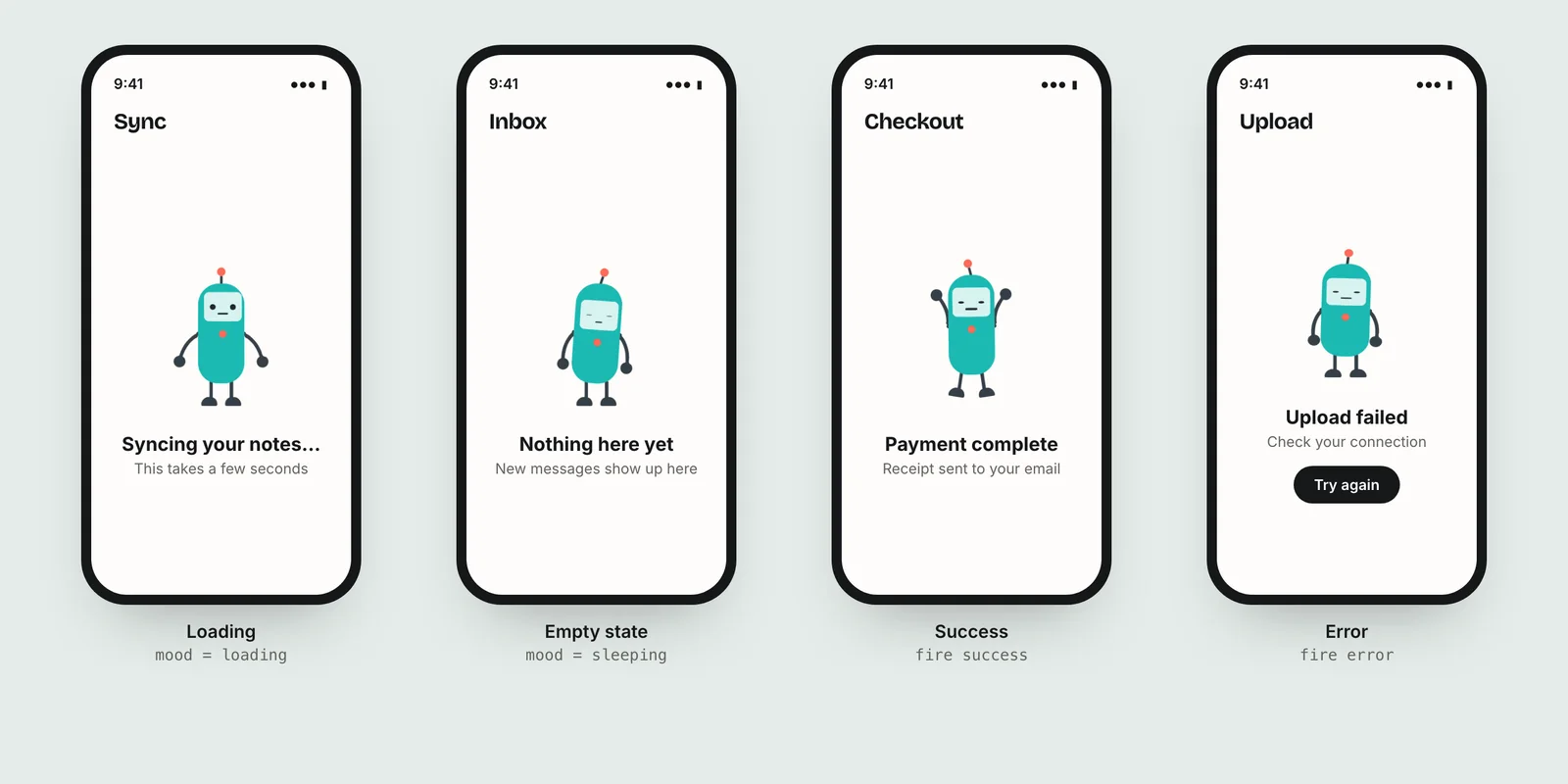
Yes, as long as it is part of the app footage. If your app shows an animated mascot during onboarding, loading or success states, a screen recording of those moments is exactly what a preview should contain: it is the real app, and the character makes the moment readable without sound.
What is not allowed is a preview built mainly from animation that does not exist in the app. A character clip used as a brief overlay to explain a step is within "video or textual overlays"; a 20-second character short with no app footage is not.
Charmotion's exports include a 9:16 MP4 of the character, which is useful as raw footage for such an overlay or for your marketing site, but the preview itself must be built from screen captures of the app. The cleanest path is to ship the character in the app first (see animated onboarding mascot in SwiftUI) and record it there.
Record and conform an App Preview for modern iPhones
- Record the app. Boot a Face ID iPhone simulator and run
xcrun simctl io booted recordVideo --codec=h264 raw-preview.movwhile you use the app. - Edit to length. Cut the footage to between 15 and 30 seconds, with the core action in the first few seconds.
- Add overlays. Add short text captions or narration that explain the footage; no hands or filmed devices.
- Conform with ffmpeg. Scale and crop to 886×1920, cap at 30 fps, encode H.264 High 4.0 at 10–12 Mbps with stereo AAC 256 kbps.
- Upload and set the poster. Upload in App Store Connect (up to three per device size and language) and choose a clean poster frame.
Frequently asked questions
Can I use one App Preview for every iPhone size?
Each device class has its own accepted resolution, such as 886×1920 for Face ID iPhones and 1080×1920 or 750×1334 for Home button models. Export a version for each preview slot you fill. Check App Store Connect for which sizes your listing currently requires.
Why was my App Preview rejected?
Common reasons are footage that is not a screen capture of the app, filmed hands or devices, content you lack rights to, or a preview that does not match the current app. Guideline 2.3.4 allows narration and overlays, but the video itself must come from the app.
Can an App Preview be 60 fps?
No. Apple's specification sets a maximum frame rate of 30 frames per second. Record at any rate you like, then conform the final file to 30 fps or lower, for example with ffmpeg's fps filter, before uploading it to App Store Connect.
Do App Previews play with sound?
They autoplay muted by default, according to Apple's App Previews page; viewers can turn sound on. Include stereo AAC audio as the specification requires, but make the preview understandable without it, using short on-screen captions for anything a viewer must know.
Quick answers from this guide
Sources
- App preview specifications — Apple
- App Review Guidelines (2.3.4) — Apple
- App previews — Apple